
Where Production Order work instructions come from
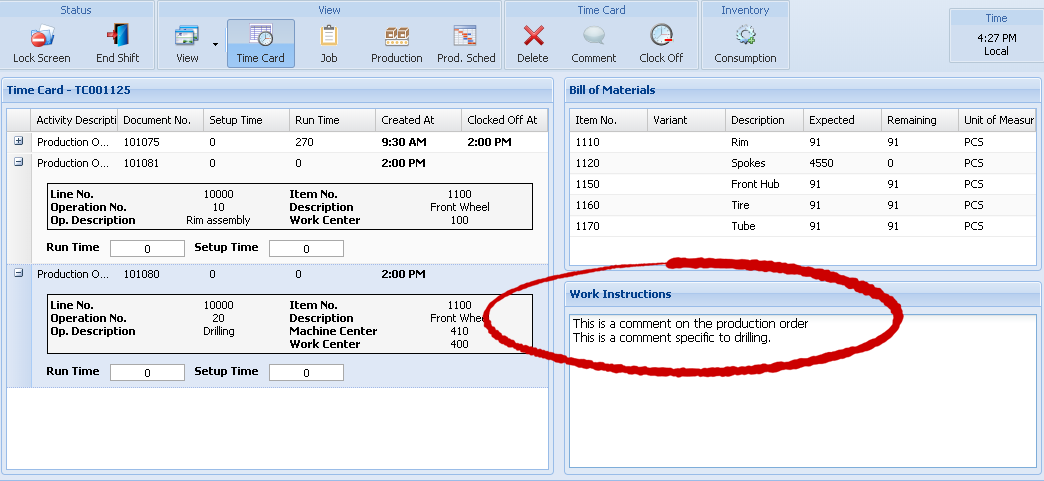
For production orders, the Work Instructions panel displays text entered through Business Central’s Comments actions:
| Comment location | Where it appears |
|---|---|
| Production order comments | Across the operations on that production order. Use these for general instructions. |
| Production order routing operation comments | When that specific operation is selected. Use these for setup instructions, checks, or procedures specific to that step. |
Production order comments appear before operation-specific comments. Any enabled time and quantity details appear above the comments.
Comments and Notes are different features. Text entered in the Notes FactBox does not appear in Work Instructions. Enter operator instructions through the appropriate Comments action.
Add instructions to a production order
- In Business Central, open the Released Production Order.
- For instructions applying to the whole order, open the order’s Comments and enter the text.
- For operation-specific instructions, select the production order line, open Routing, select the operation, and open its Comments.
- In Shop Floor Insight, select the corresponding operation and enable View > Work Instructions.
For an existing order, check the comments on the production order itself and its production order routing operations. Comments held only on an item, work center, machine center, or master routing are not read directly by this panel.
Work instructions for project/job tasks
For project tasks (called job tasks in earlier Business Central versions), work instructions come from Project Planning Lines for the selected task. Add a planning line with Type = Text and enter the instruction in Description. Add further Text lines as needed; their descriptions appear in planning-line order.
In Shop Floor Insight, select the task and enable View > Work Instructions. Only Text planning lines for that project and task are included. Task comments and the Notes FactBox do not supply these instructions.
If instructions are missing
Confirm that the text was entered in Comments, rather than Notes, on the correct production order or operation. Check that the matching operation is selected in Shop Floor Insight and that Work Instructions is visible. After changing comments, select another row and return to reload the panel.
For drawings and other linked documents, use the separate Links panel. See Using Links in Shop Floor Insight.
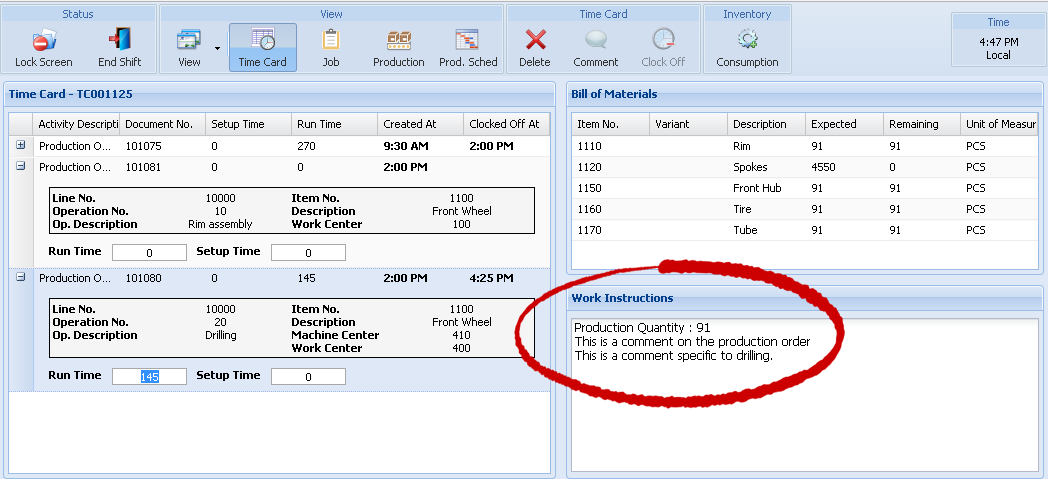
Did you know Work Instructions can show more than just production order related comments? Typically Work Instructions shows both comments on the production order, and comments specific to an operation on the production order. Here is an example:
Instructions associated with production orders can now be clearly communicated to shop floor workers…
Work Instructions can also show additional time details that provide insight into the production order routing as a whole beyond just the individual time card line details.
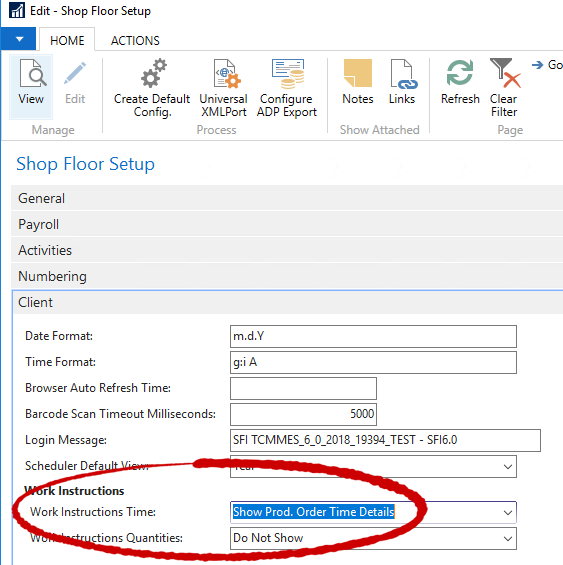
To configure, on the Shop Floor Setup change “Work Instructions Time” to “Show Prod. Order Time Details”.
When you do enable “Show Prod. Order Time Details” it will show both estimated times (if available) and actual times (if available) for the production order and operation that others have also worked on.
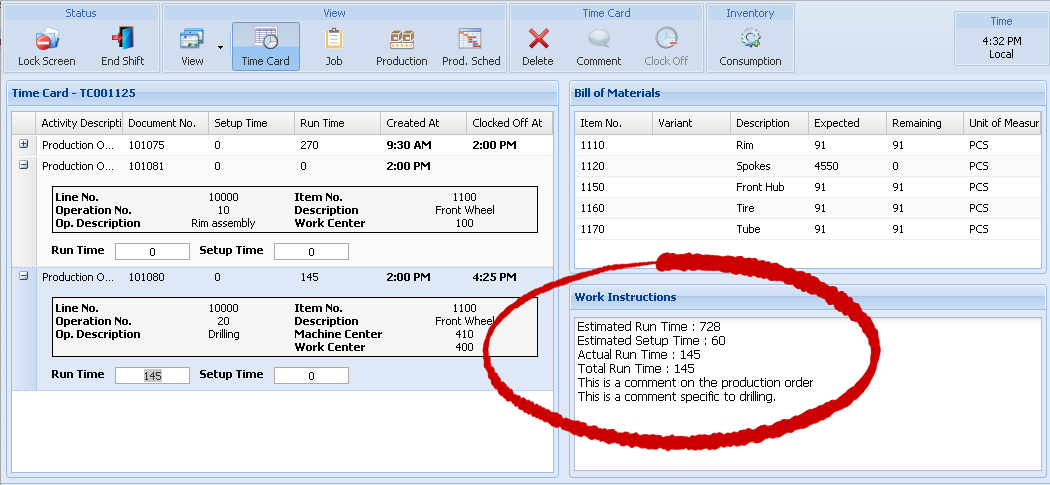
The following information will be displayed (values set to zero will be omitted):
| Label | Value |
|---|---|
| Estimated Run Time | The Production Order Line quantity multiplied by the “Run Time” on the production order routing line. |
| Estimated Setup Time | The “Setup Time” on the production order routing line. |
| Actual Run time | The total posted run time and the total unposted run time collected in Shop Floor Insight. |
| Actual Setup Time | The total posted setup time and the total unposted setup time collected in Shop Floor Insight. |
| Current Run Time | An approximation of the in-progress run time that’s not yet clocked off. A routing reference number is mandatory for this. |
| Current Setup Time | An approximation of the in-progress setup time that’s not yet clocked off. A routing reference number is mandatory for this. |
| Total Run Time | The Actual Run time plus the Current Run Time. |
| Total Setup Time | The Actual Setup time plus the Current Setup Time. |
The “Current” fields can be useful to give an understanding of overall time elapsed that is not yet clocked off.
Likewise “Work Instructions Quantities” can be shown. To enable this feature set “Work Instructions Quantities” to “Show Prod. Order Quantities”.
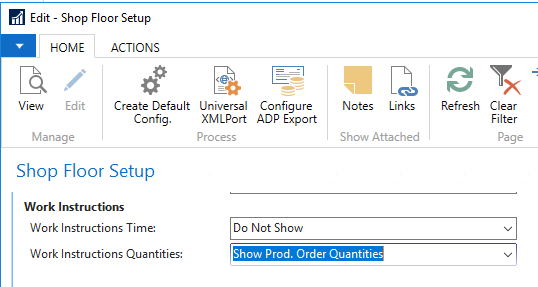
When “Work Instructions Quantities” is enabled, additional information is displayed in the Work Instructions box.
| Label | Value |
|---|---|
| Production Quantity | Simply the quantity on the production order line. |
| Unposted Finished Quantity | This only considers a total of “Output Quantity” recorded on the time card line. It does not consider output quantity pending in batches. |
| Unposted Rejected Quantity | This only considers a total of “Scrap Quantity” recorded on the time card line. It does not consider output quantity pending in batches. |
| Finished Quantity | The posted Output Quantity recorded on the capacity ledger entries and pending Output Quantity recorded on the time card line. |
| Rejected Quantity | The posted Scrap Quantity recorded on the capacity ledger entries and pending Scrap Quantity recorded on the time card line. |
Still need help?
Ask other Business Central users in the Insight Works community, or send the details to the support team. Include the steps you took and any error message you saw.