
It is possible to configure Shop Floor Insight in such a way that whenever a user captures output, he can automatically record a quality inspection at the same time.
- Once you have a quality inspection that is ready to be used, search for “Shop Floor Client Configuration”.
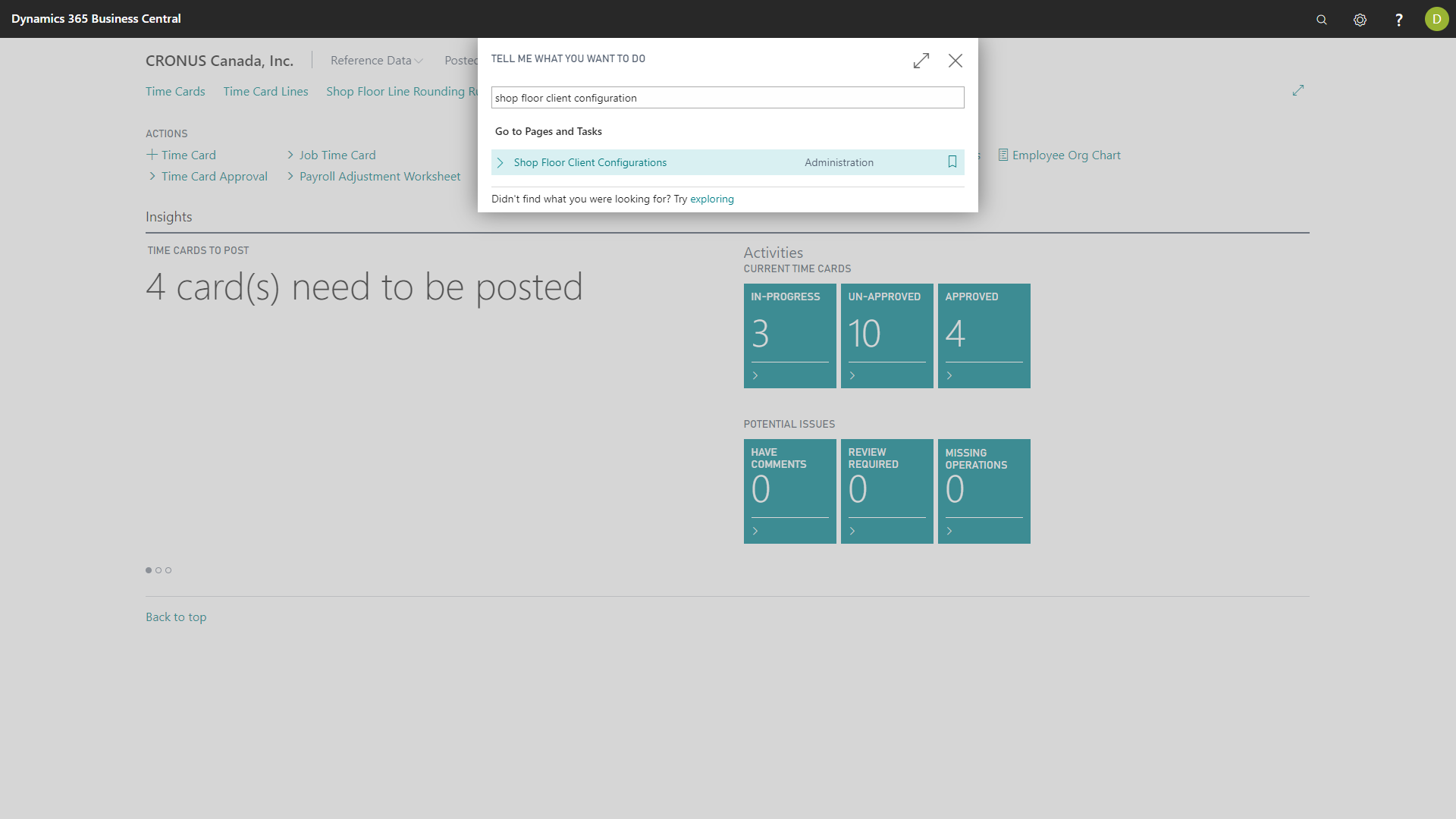
- Select the Shop Floor Client configuration for which you wish to add a quality inspection.
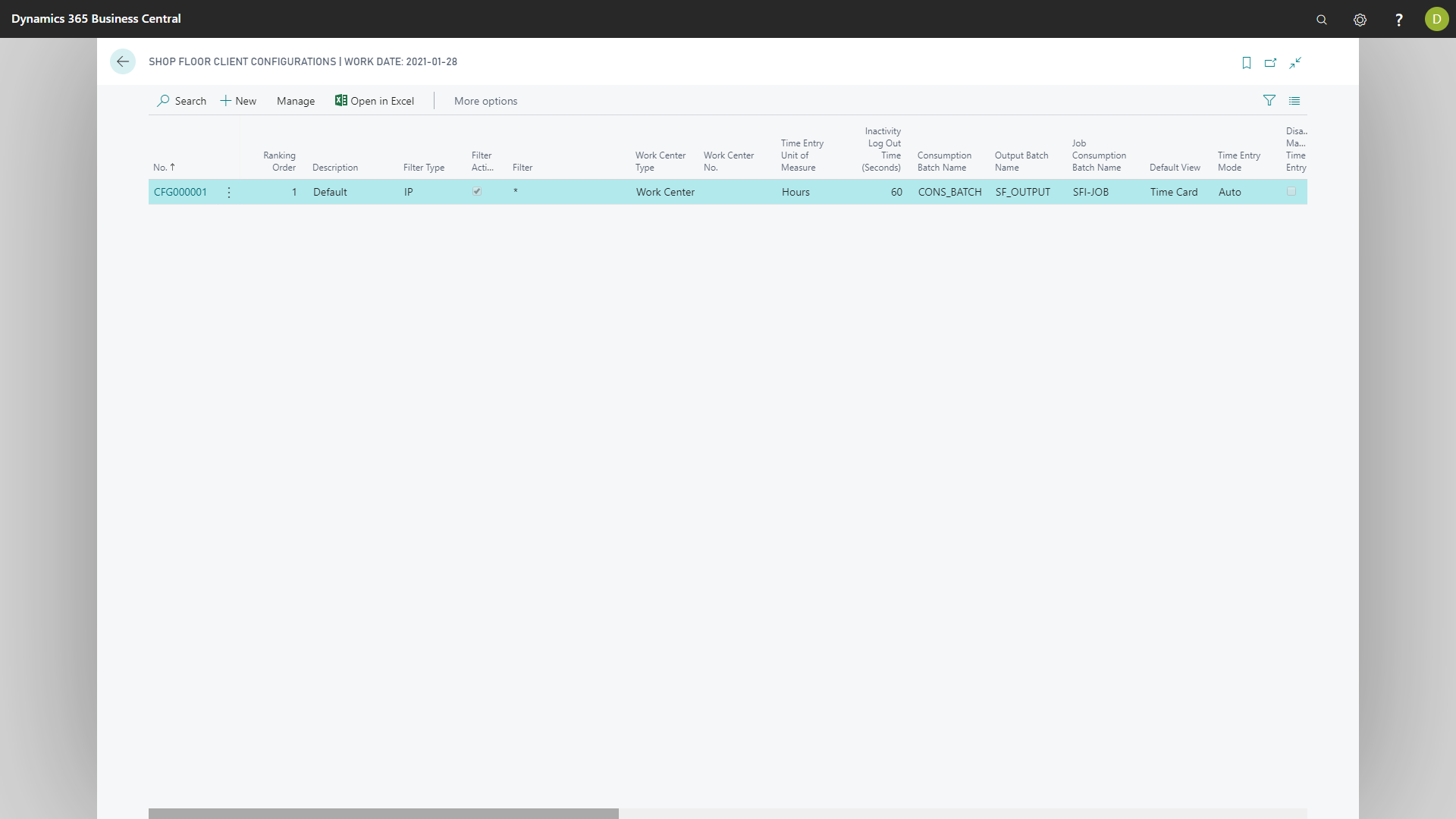
- In the “Production” section of the Shop Floor Client configuration card, look for the field “Output QI Definition”.
- Select the quality inspection you wish to have users fill when output is recorded, close the Shop Floor Client configuration card.
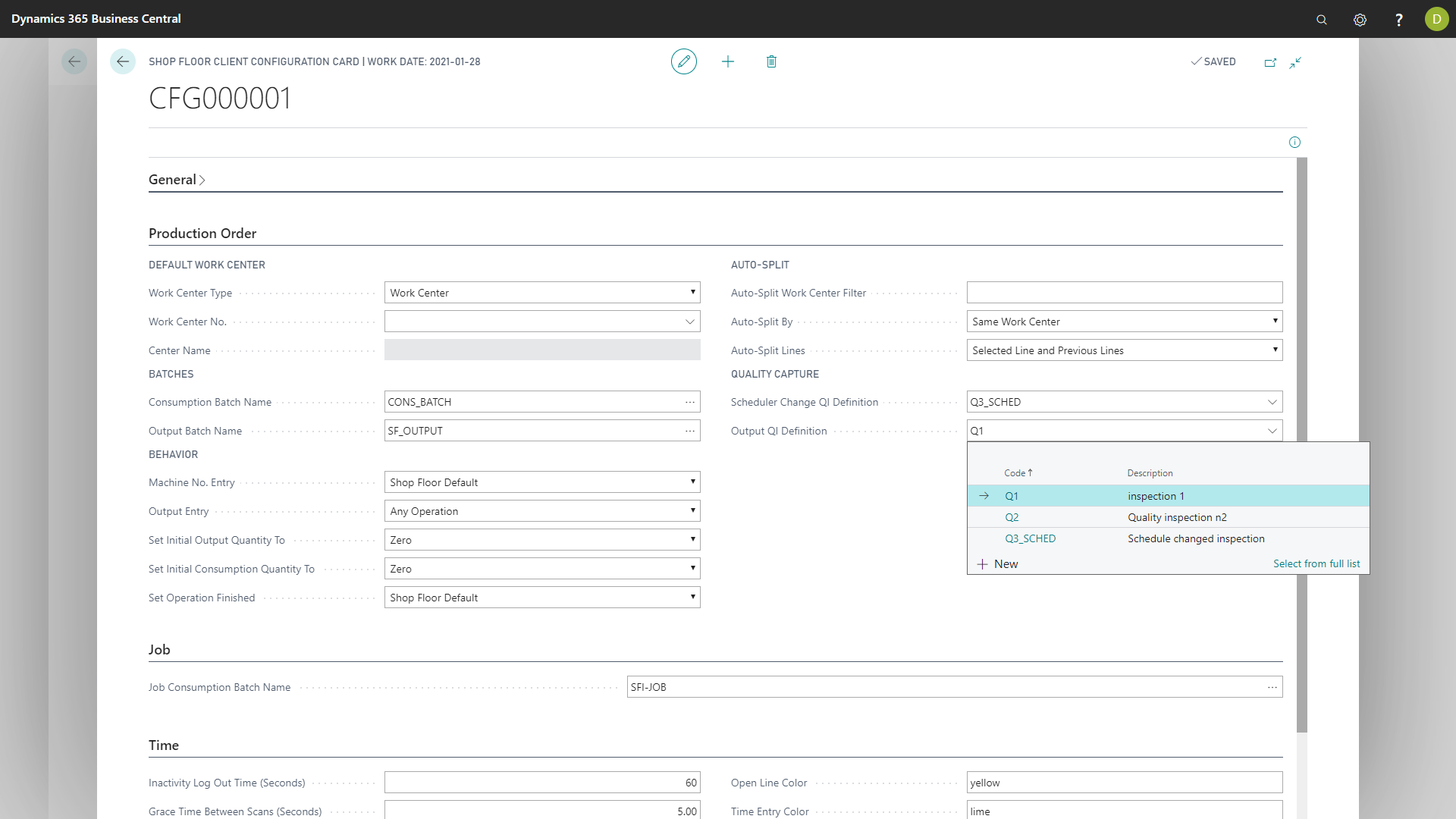
- In the Shop Floor Insight client, when the user is entering the output, he will now see the quality inspection in the bottom section of the form.
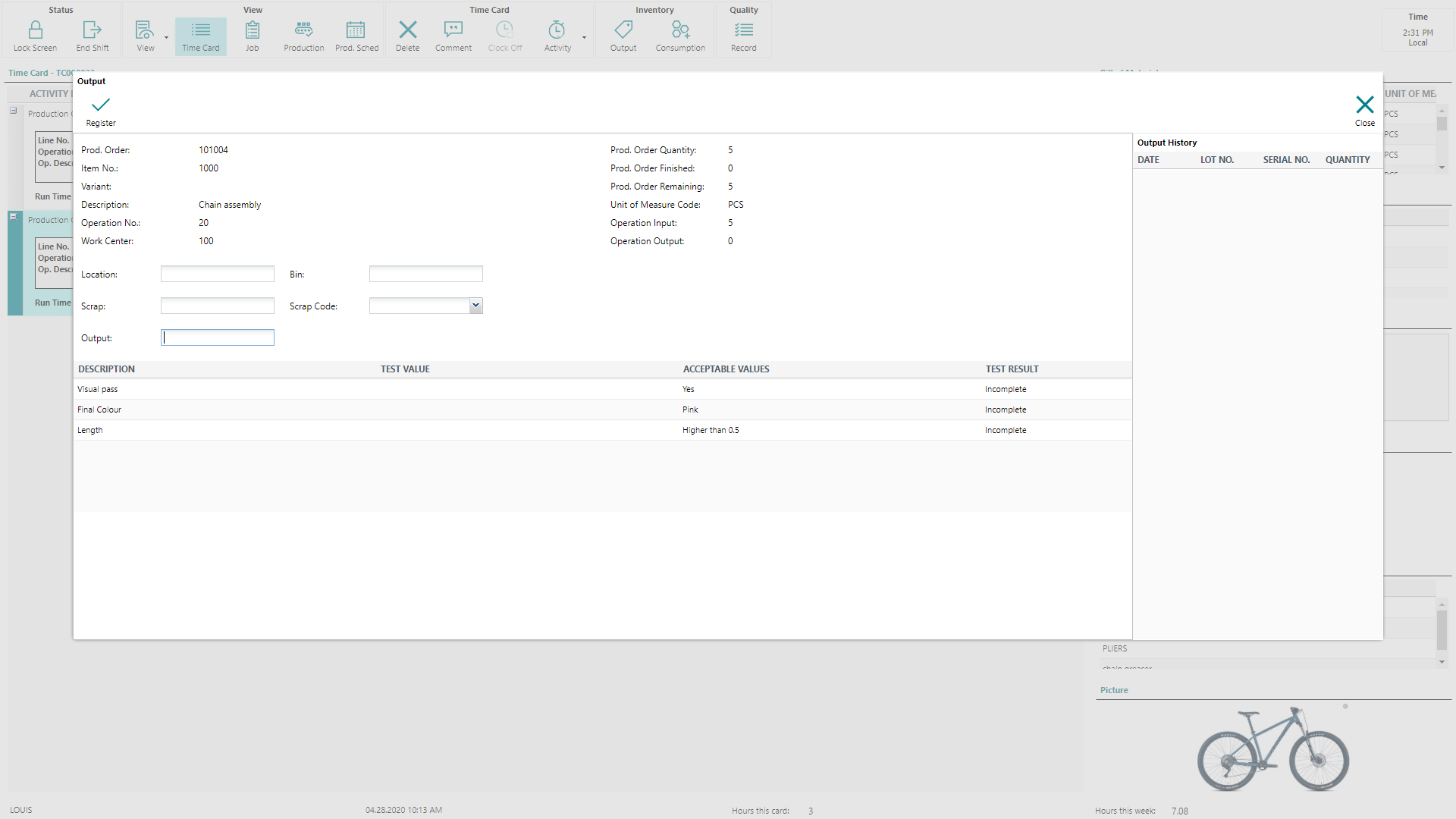
- As the quality inspection is completed, the user will see the test result on screen.
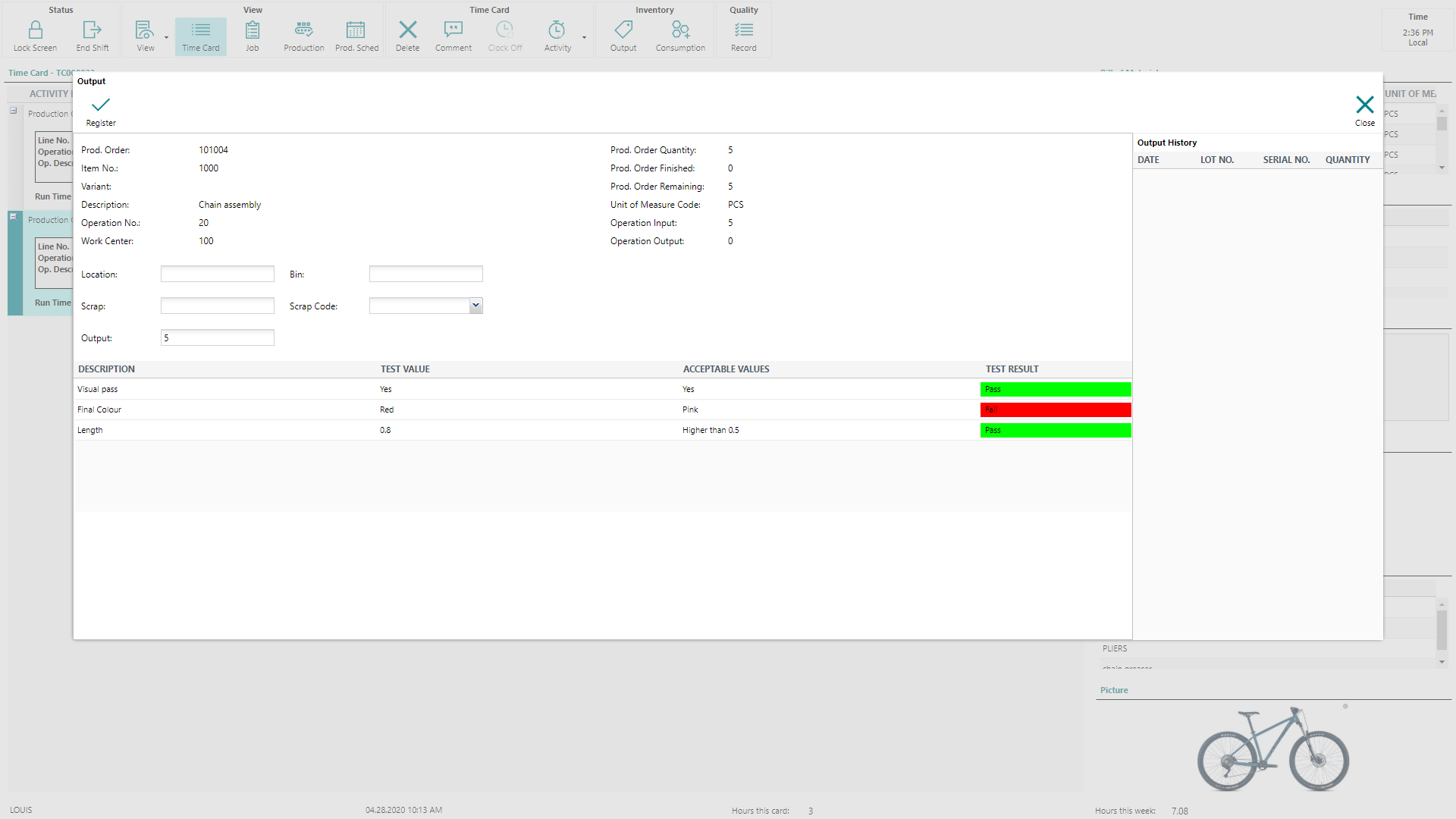
Once the Shop Floor user has registered the output, the quality inspection data captured will be accessible via the “Shop Floor Quality Inspection Tests”.
Still need help?
Ask other Business Central users in the Insight Works community, or send the details to the support team. Include the steps you took and any error message you saw.