
Step 4 of 12. Follow these articles in order.
Shop Floor Insight provides the ability to fine tune functional permissions with both standard Business Central permission sets, as well as with a ‘Function Permissions’ feature.
If you have a Shop Floor Function Permission entry set with the “Post” flag enabled then you will see all employees, even if you are not configured to manage them.
If you do not see any Shop Floor Employees while you are configuring the system for install or migration, but are certain they exist, then you as the configuration person are likely missing the “Post” flag setting on the Shop Floor Function Permission. This bypasses all ‘Manages’ and ‘Reports To’ configuration and allows you to see all Shop Floor Employees.
If you do not see any Shop Floor Time Cards but are certain they exist, then you as the configuration person are likely missing the “Post” flag setting on the Shop Floor Function Permission or appropriate ‘Manages’ and ‘Reports To’ configuration. The ‘Post’ flag bypasses all ‘Manages’ and ‘Reports To’ configuration and allows you to see all Shop Floor Time Cards.
Function Permissions
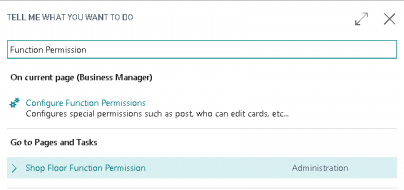
- Navigate to Shop Floor Function Permission.
- Create a row for the following if not already done:
- Yourself if you are configuring the system.
- Every user configuring Shop Floor Insight.
- The device service account to be used for the Shop Floor Insight to connect to Business Central web services.
- Check all available boxes in the rows.

Permission Sets
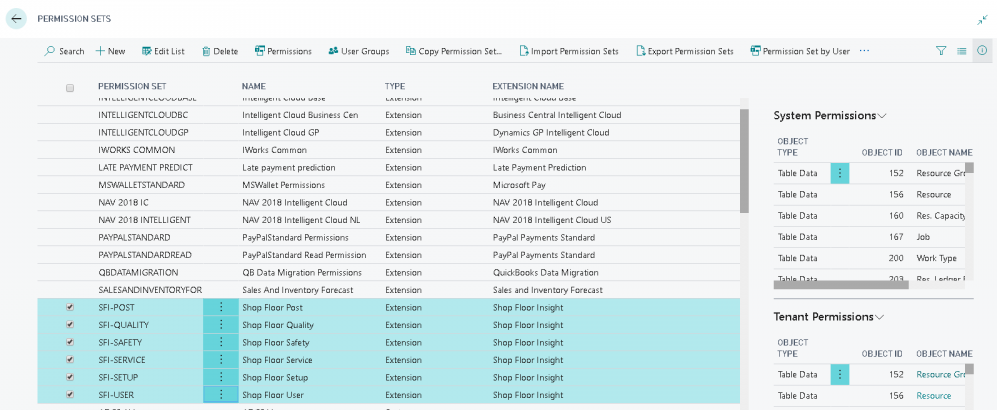
Shop Floor Insight installs six different permission sets when the Business Central extension is installed:
- SFI-POST: assign to users posting time cards.
- SFI-QUALITY: assign to users configuring, designing, and analyzing Quality Inspections.
- SFI-SAFETY: intended for on-premise versions of Shop Floor Insight.
- SFI-SERVICE: assign to the service account user.
- SFI-SETUP: assign to users setting up Shop Floor Insight.
- SFI-USER: assign to Shop Floor Insight users.
These permission sets are not exclusive permission sets. Ensure to include the required permission sets appropriate to the role. For example, grant basic access needs to all users. If a user is posting time to a job, they need a permission set in Business Central that provides that capability.
Minimum permission sets for a Shop Floor user that uses Business Central should be:
- SFI-USER
- IWORKS COMMON
- IWX REG REGISTRATION
- IWXQIGENERAL
- GRAPHICAL SCHEDULER
- LOCAL
- LOGIN
- And, any other Business Central permission sets required for that functionality (for example, if they use projects/jobs, manufacturing, or assembly they would need appropriate permission sets for that functionality).
Minimum permission sets for a Shop Floor administrator in Business Central should be:
- D365 BUS PREMIUM
- SFI-SUPER
- IWORKS COMMON
- IWX REG REGISTRATION
- IWXQIGENERAL
- GRAPHICAL SCHEDULER
- LOCAL
- LOGIN
- And, any other Business Central permission sets required for that functionality.
Minimum permission sets for a Shop Floor service account in Business Central should be:
- D365 BUS PREMIUM
- SFI-SERVICE
- IWORKS COMMON
- IWX REG REGISTRATION
- IWXQIGENERAL
- LOCAL
- LOGIN
- And, any other Business Central permission sets required for that functionality.
Still need help?
Ask other Business Central users in the Insight Works community, or send the details to the support team. Include the steps you took and any error message you saw.