
Step 4 of 12. Follow these articles in order.
The Shop Floor interface is primarily driven by barcodes. For this quick guide it’s recommended to identify the data you’d like to explore the system with and print off the appropriate barcodes.
Shop Floor Insight is bundled with several sample reports with barcodes on it. These can be used as-is if desired, or you can contact your Insight Works reseller for advice on customizing reports to include Shop Floor Insight barcodes.
Note: the barcodes in this document will not work in your system, you need to print out your own barcodes in your own system and scan those. Barcodes printed from another system will not work correctly in a different system. Shop Floor Insight barcode mappings are unique within each Business Central company, not across an environment or tenant. A scanned barcode is resolved using the barcode entries in the company to which the Shop Floor interface is connected. The same barcode value can therefore identify different employees in different companies, even within the same environment or tenant. Using the same employee number across companies does not automatically produce the same barcode; to reuse a badge, its barcode mapping must identify the intended employee in each company. The same is true for barcodes that represent production order routing lines, or job tasks.
Shop Floor Employee Badges
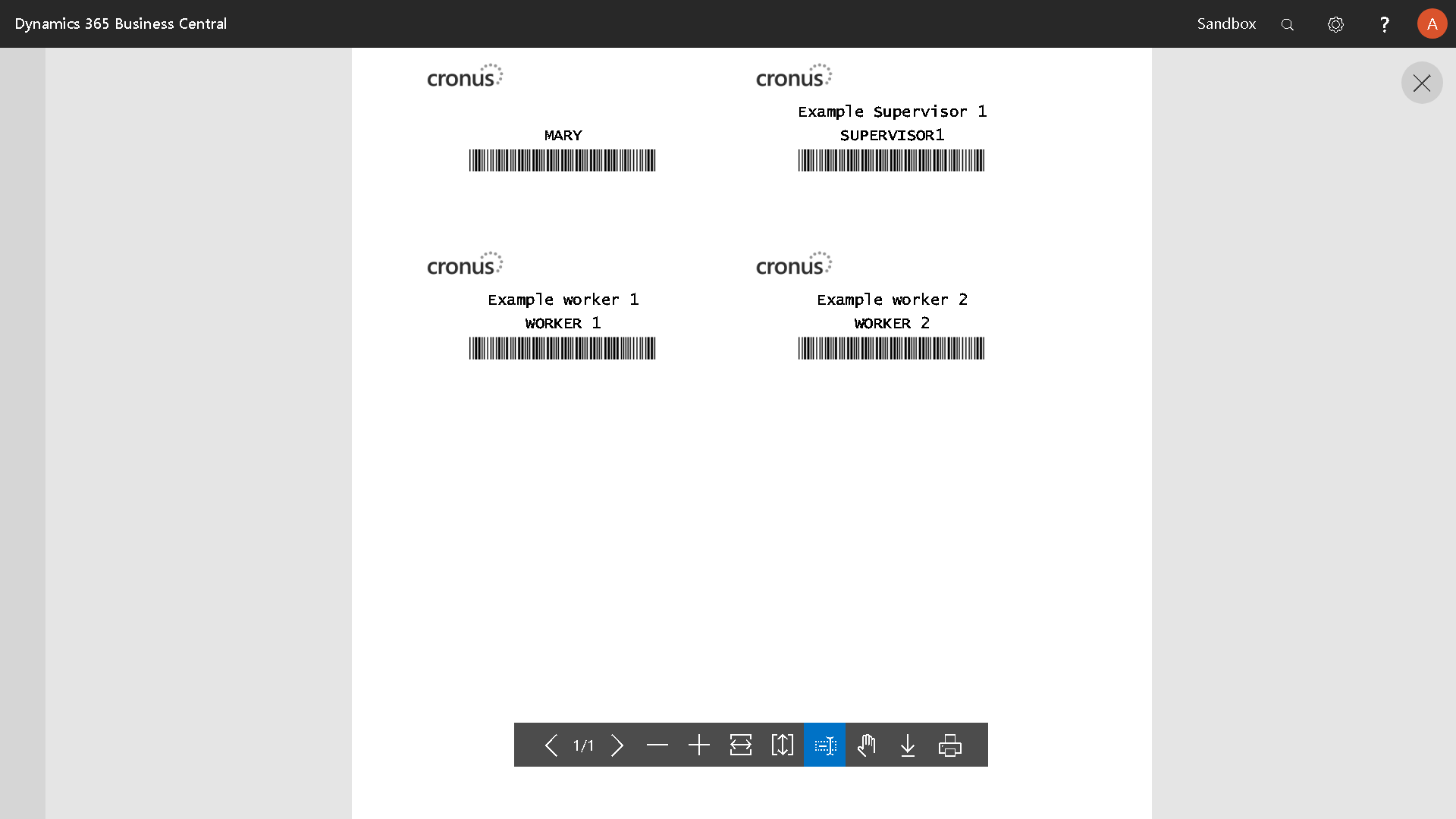
Shop Floor employee badge barcodes will be needed to unlock the interface. Shop Floor Insight is bundled with a sample report for badges that can be printed and used immediately.
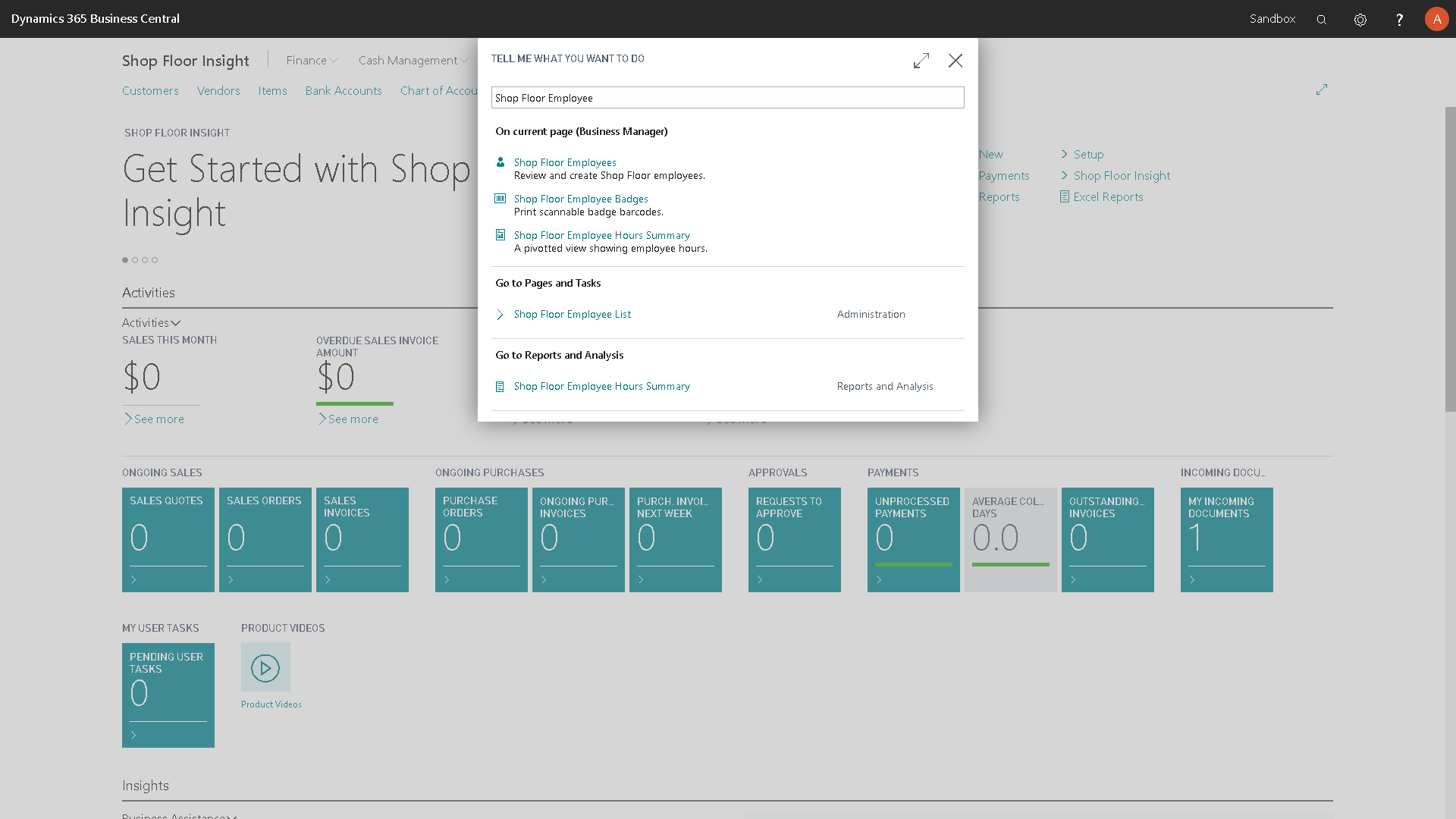
In Business Central, navigate to Shop Floor Employee Badges.
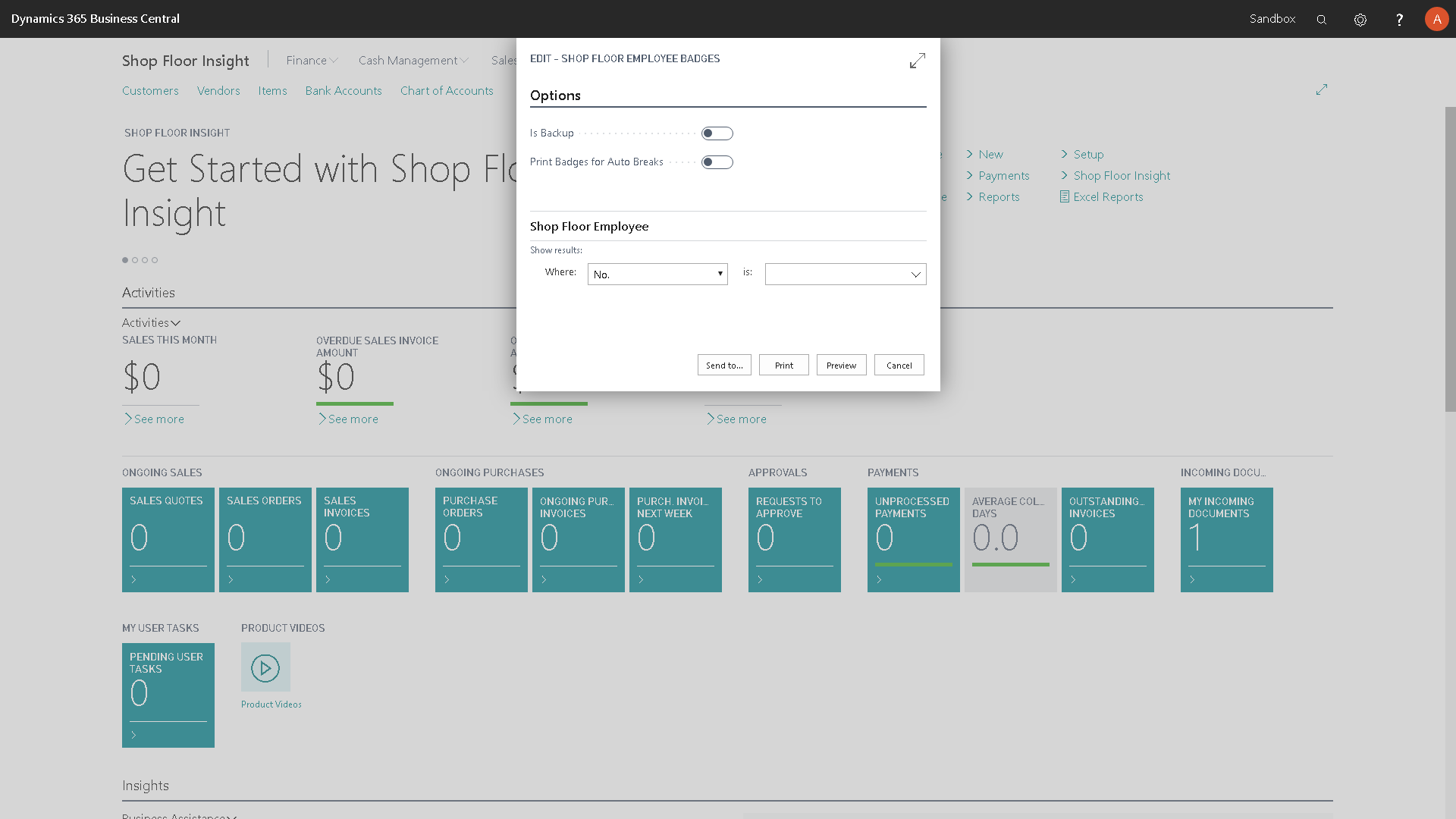
Choose either a specific Shop Floor Employee, or all Shop Floor Employees.
Review and print the resulting report to your printer and keep this on hand for the rest of this quick start guide.
Tip for advanced users considering customizing or duplicating reports: the sample badge report is numbered 23044111 “SFI Employee Badges”.
Non-Productive Activity Codes and Fixed Asset codes
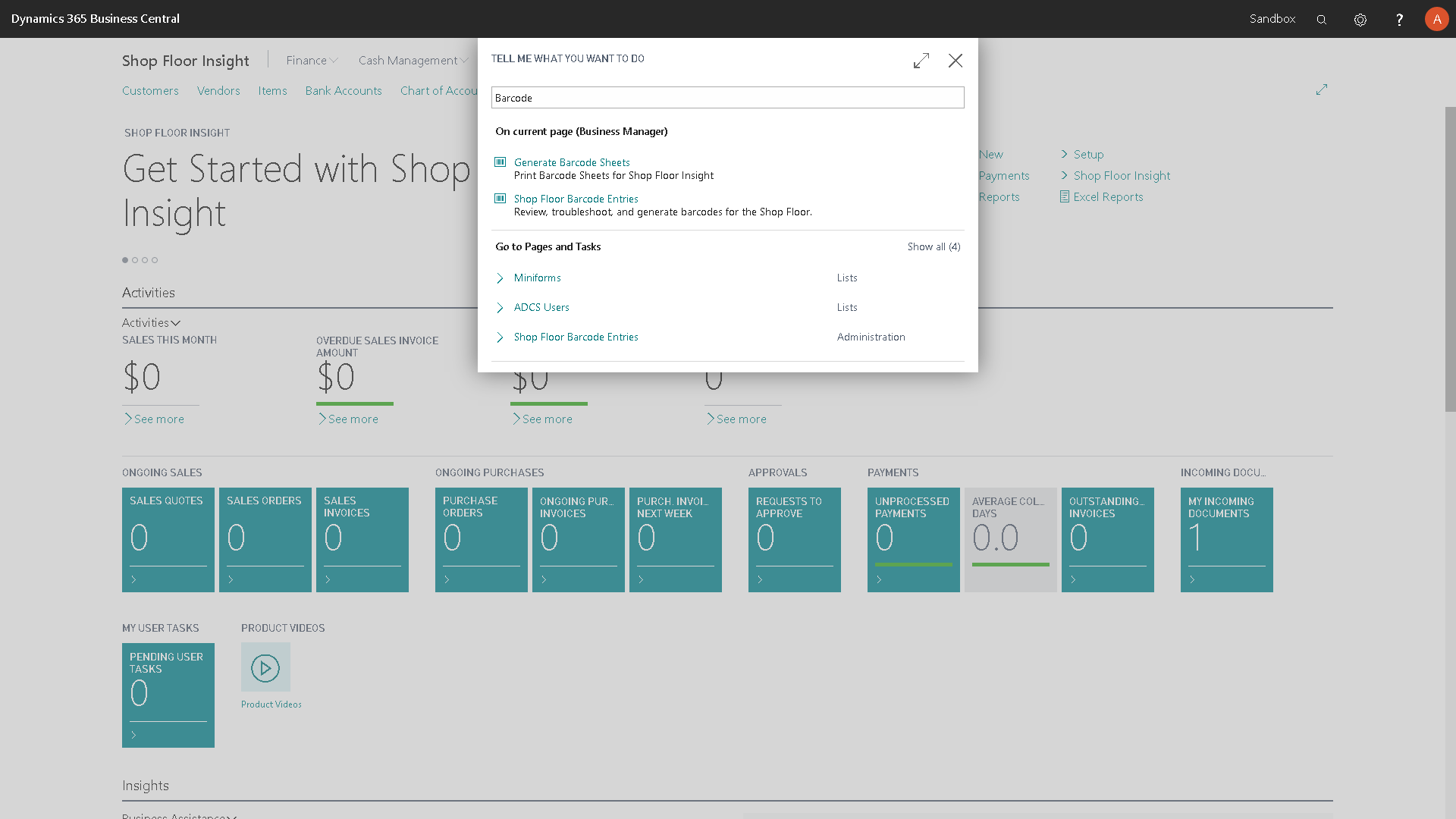
Activity codes representing non-productive time (not for production orders, not for jobs), can be easily printed by navigating to “Generate Barcode Sheets”.
Filter as necessary or run with no filters to generate and print barcodes for all available activities.
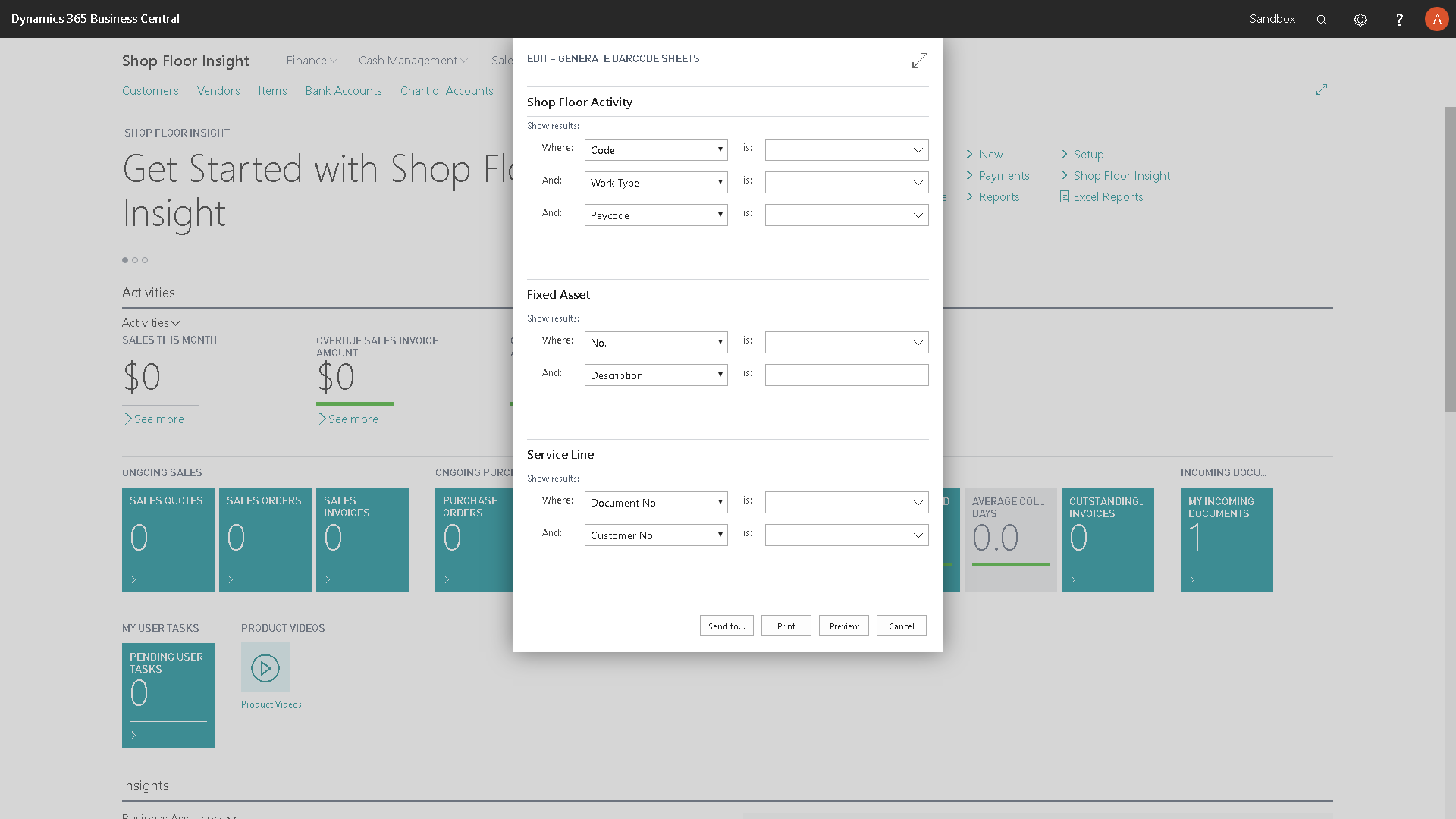
Print the resulting report to your printer and keep this on hand for the rest of this quick start guide.
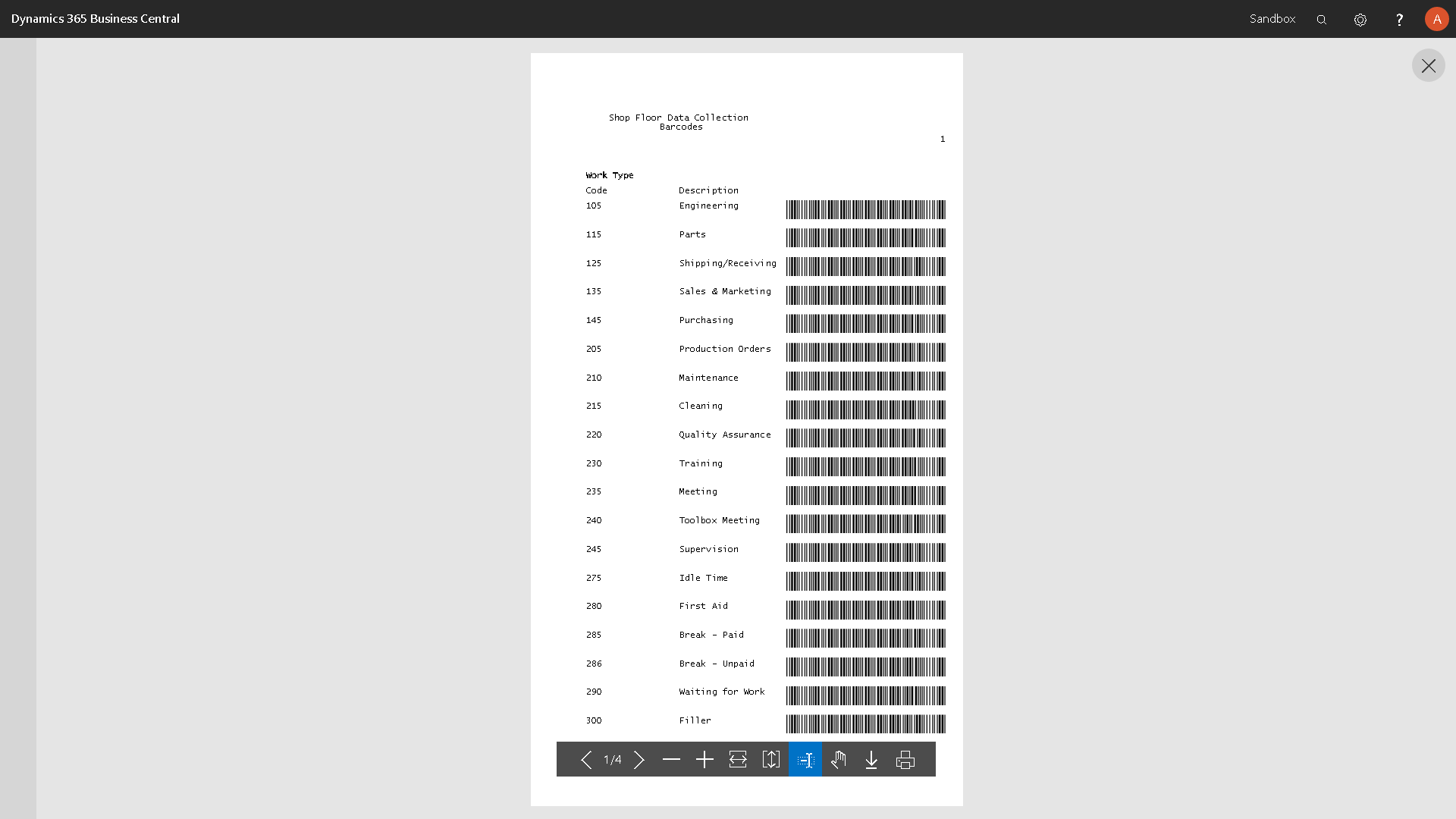
Tip for advanced users considering customizing or duplicating reports: the sample generate barcode sheet report is numbered 23044102 “SFI Generate Barcode Sheets”.
Job Traveller
Jobs and job tasks must not have special characters in their “No.” to work effectively in Business Central overall and Shop Floor Insight.
Navigate to “Shop Floor Job Traveler”.
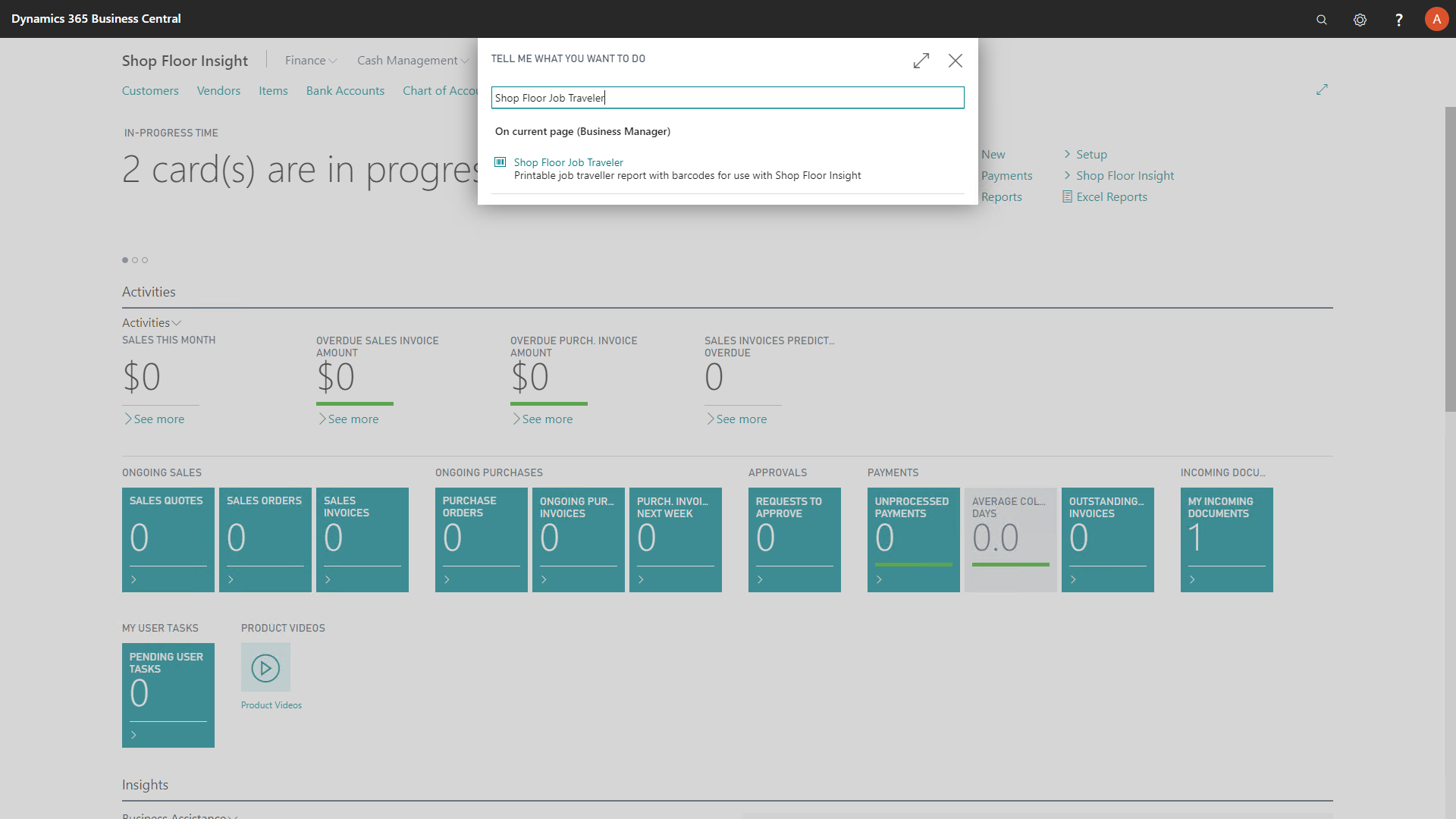
Filter to the appropriate Job and Job task as necessary.
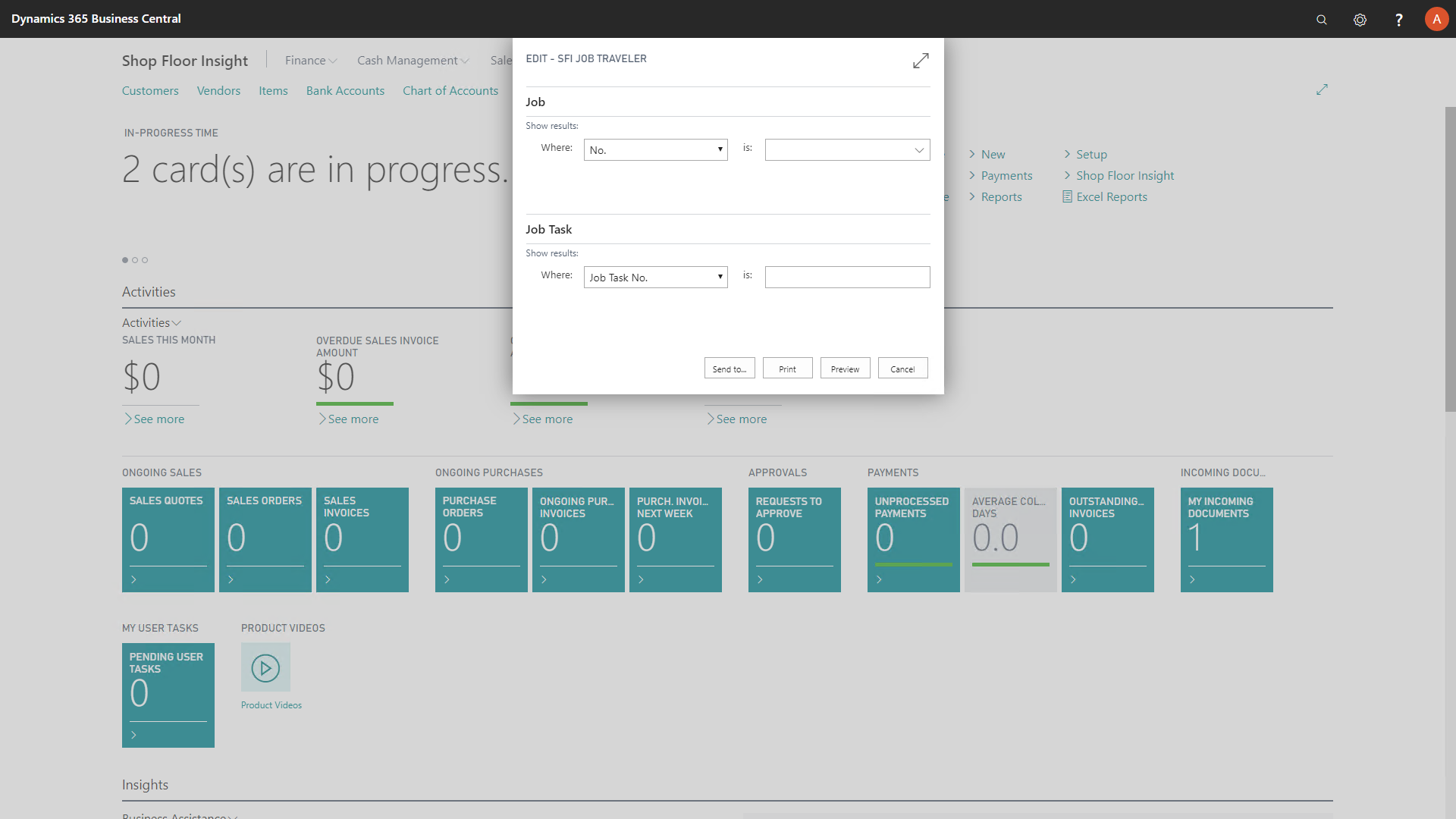
Review, and print to a printer.
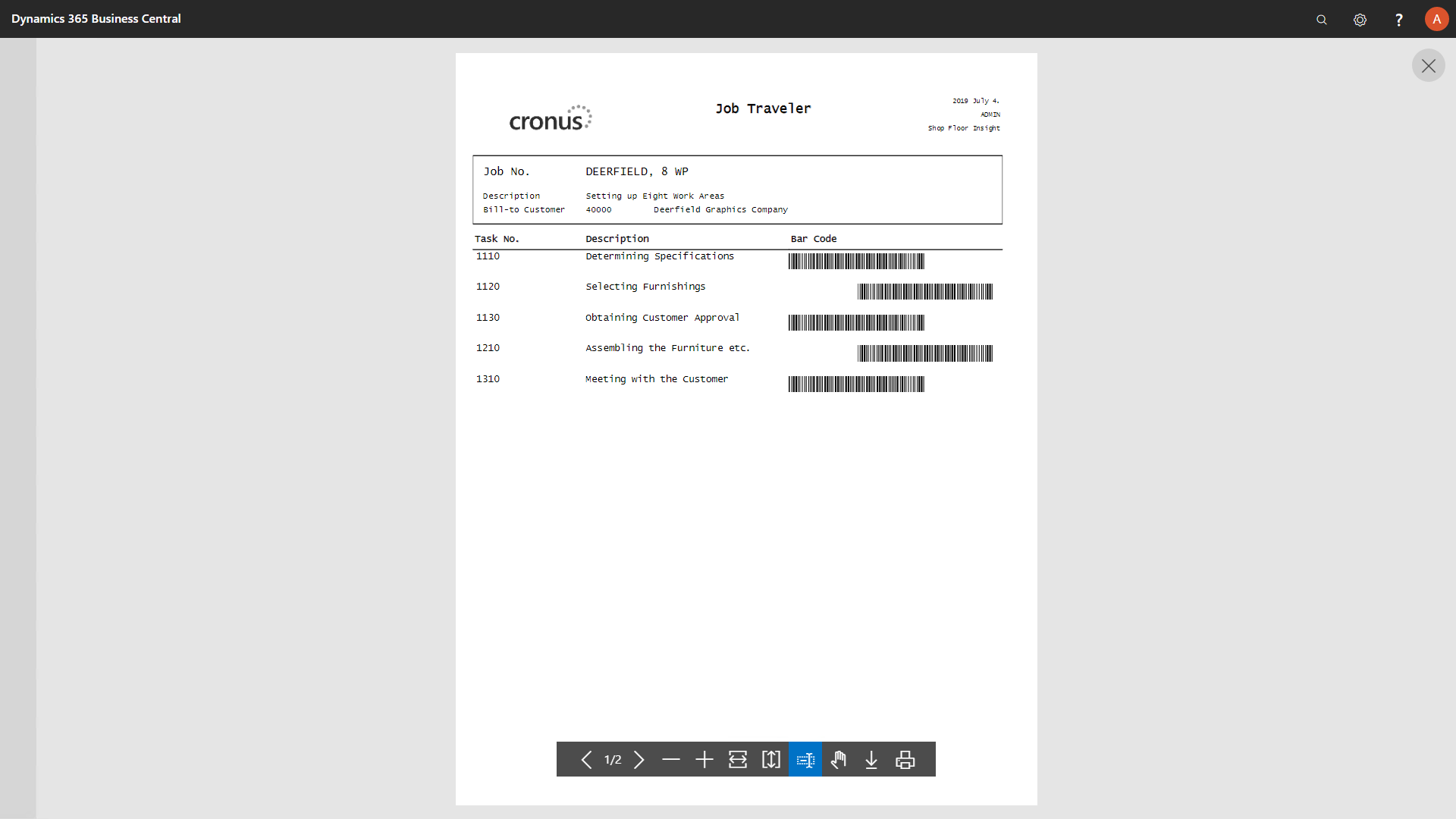
Tip for advanced users considering customizing or duplicating reports: the sample job traveler sheet report is numbered 23044113 “SFI Job Traveler”.
Production Order
The Shop Floor production order barcode report can be printed individually; however it can also be used to replace the production order job card in manufacturing printer selections.
In the Business Manager role center this report can be found by searching for “Shop Floor Production Order”.
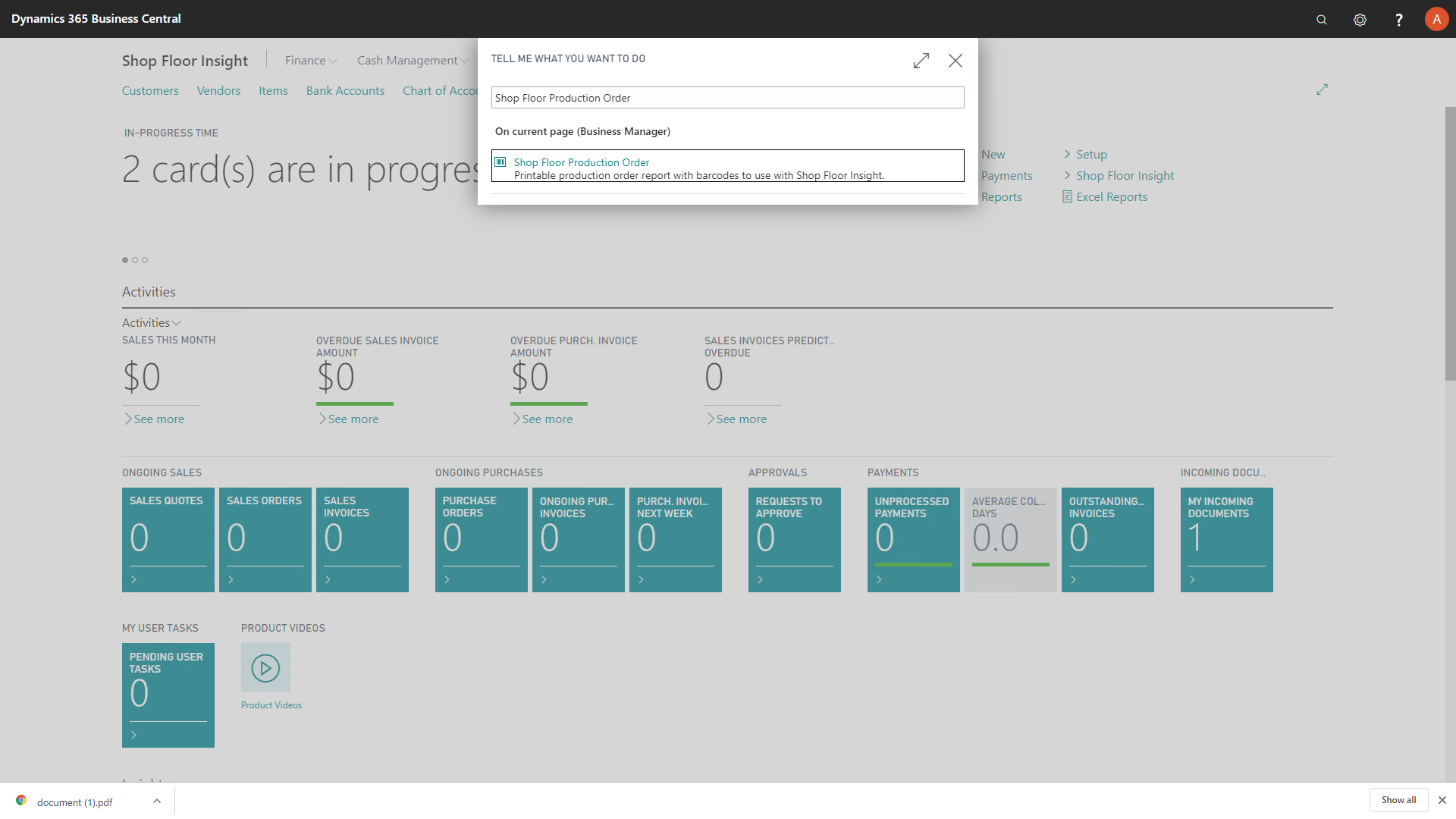
Filter as necessary to the appropriate released production order.
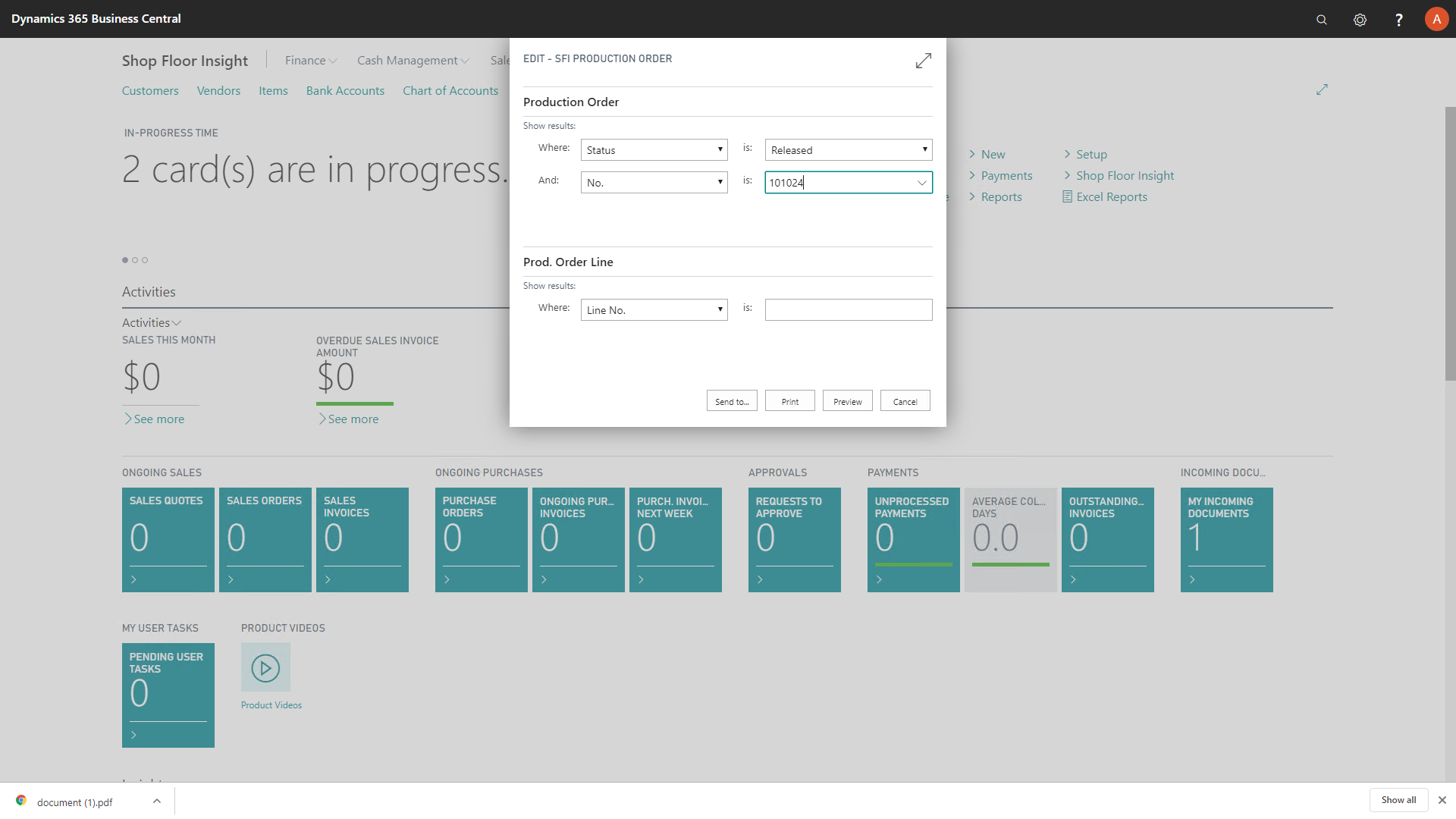
Review, and print to your printer.
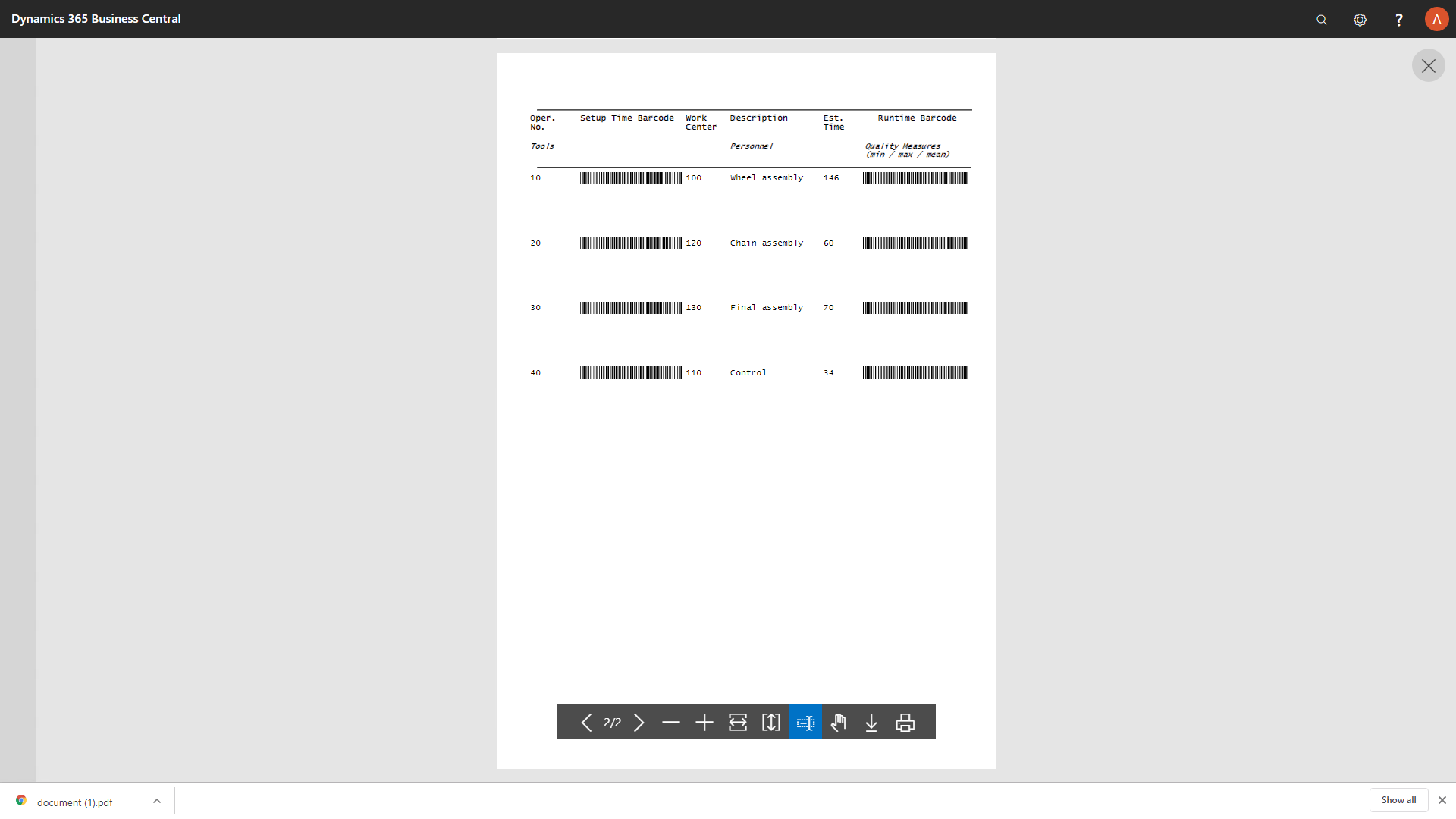
The sample production order report has two different barcodes, one for setup time, and another for runtime.
More typically this report (or a customized version of it) is instead configured in the production order report selections. To do this, navigate to “Report Selections Production Order”.
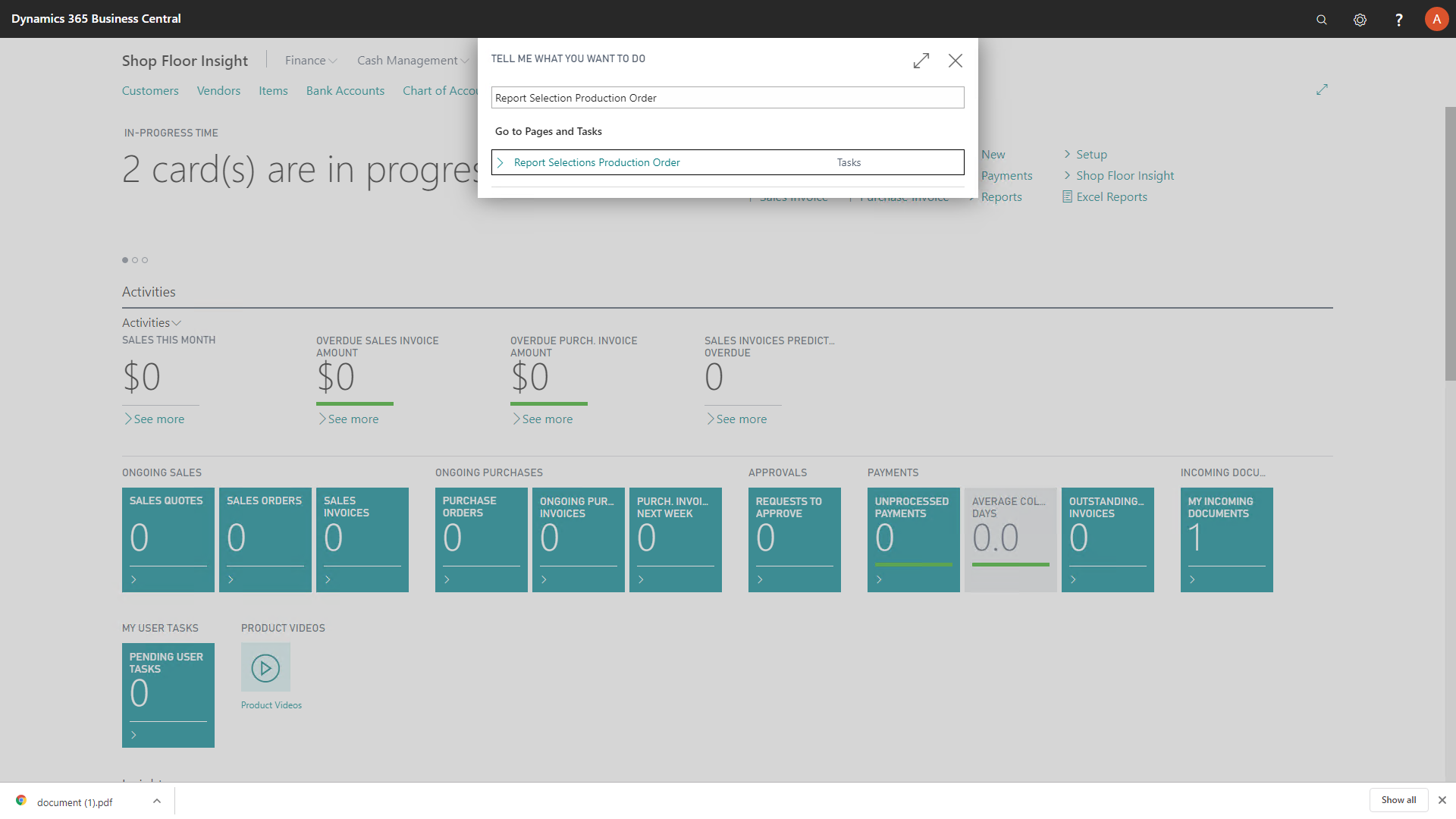
The default report in Business Central is “99000762”. This could be replaced with “23044108”.
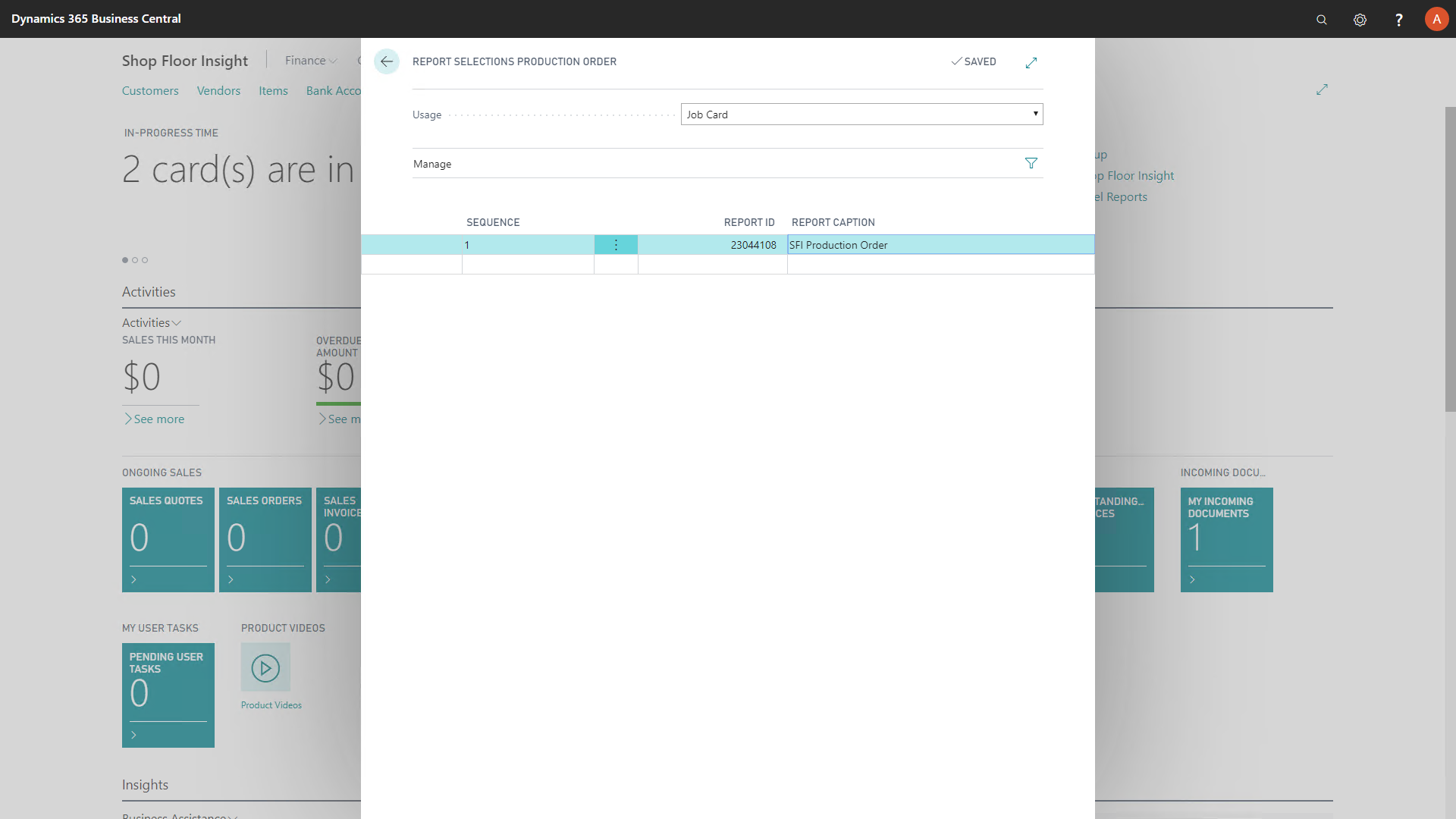
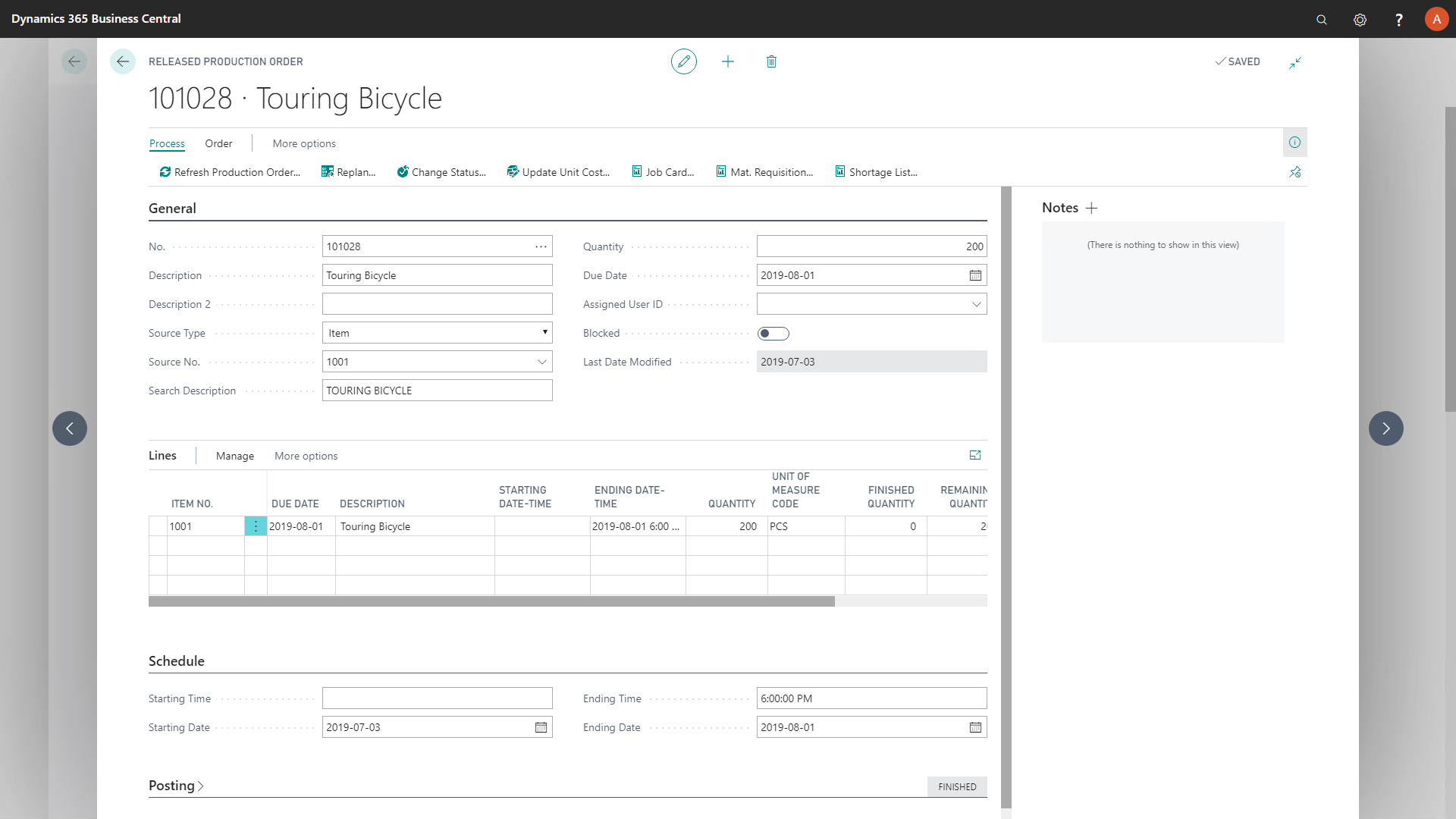
Once this is done, then the production order report can be started directly from a released production order in the ‘Job Card’ link.
Tip for advanced users considering customizing or duplicating reports: the sample production order report is numbered 23044108 “SFI Production Order”.
If you are a developer or in a technical role and are looking for ways to print Shop Floor Employee badges outside of the standard report, refer to https://kb.dmsiworks.com/knowledge-base/developer-guide-to-custom-shop-floor-insight-badges-and-printing-shop-floor-insight-employee-badges-outside-of-business-central/
Still need help?
Ask other Business Central users in the Insight Works community, or send the details to the support team. Include the steps you took and any error message you saw.