
Version 15 of Business Central has a new “Role Explorer” page which allows users to quickly see an overview of all the lists and features available for the selected role (these are also referred to as “profiles”).
This is accessible via the icon represented with the three horizontal bars to the right of the company name.
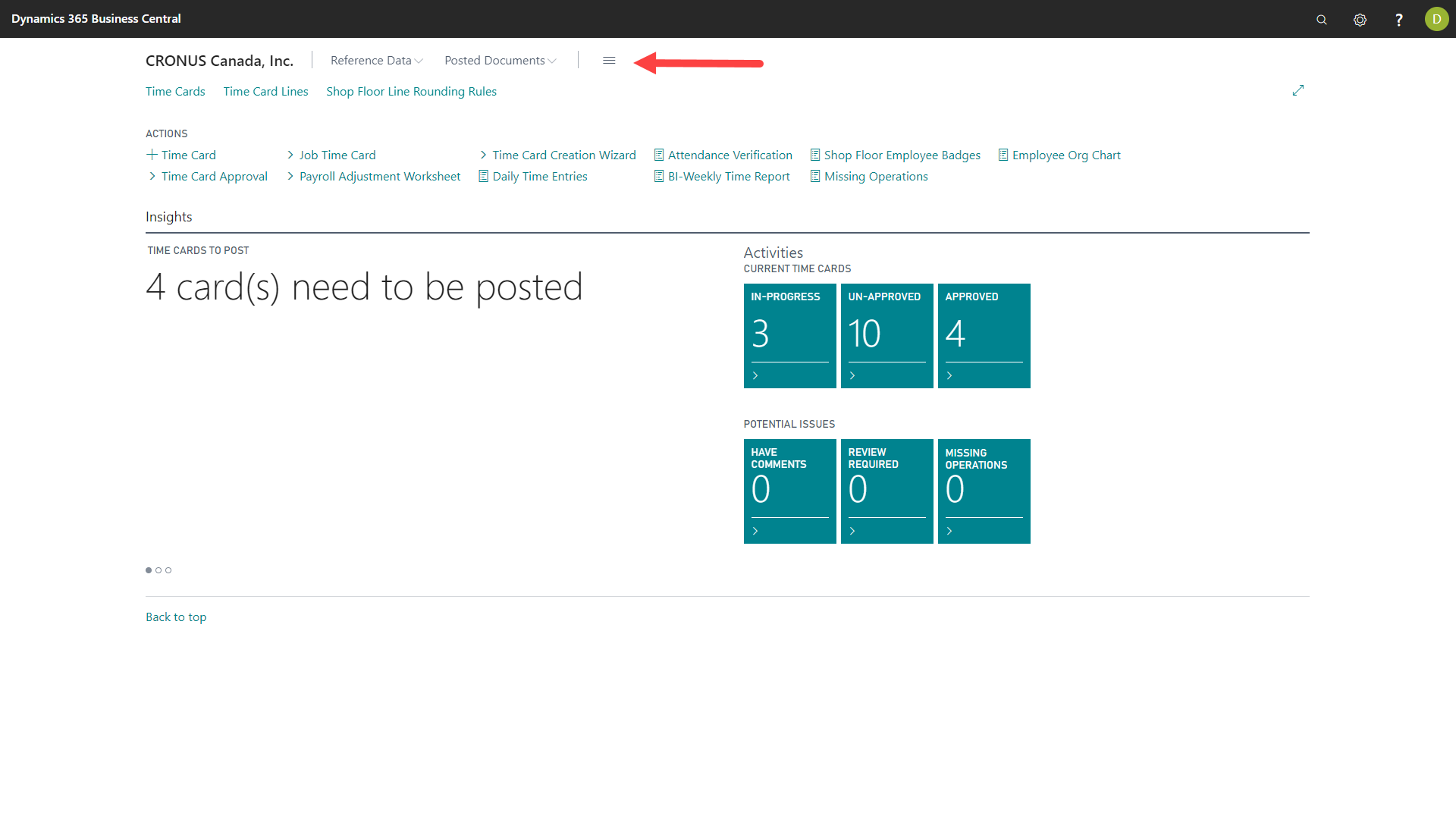
When this icon is clicked, the user will see all the lists and features available for his currently selected role.
This below is what the Role Explorer looks like when the selected role is set to “Shop Floor Insight Approver”:
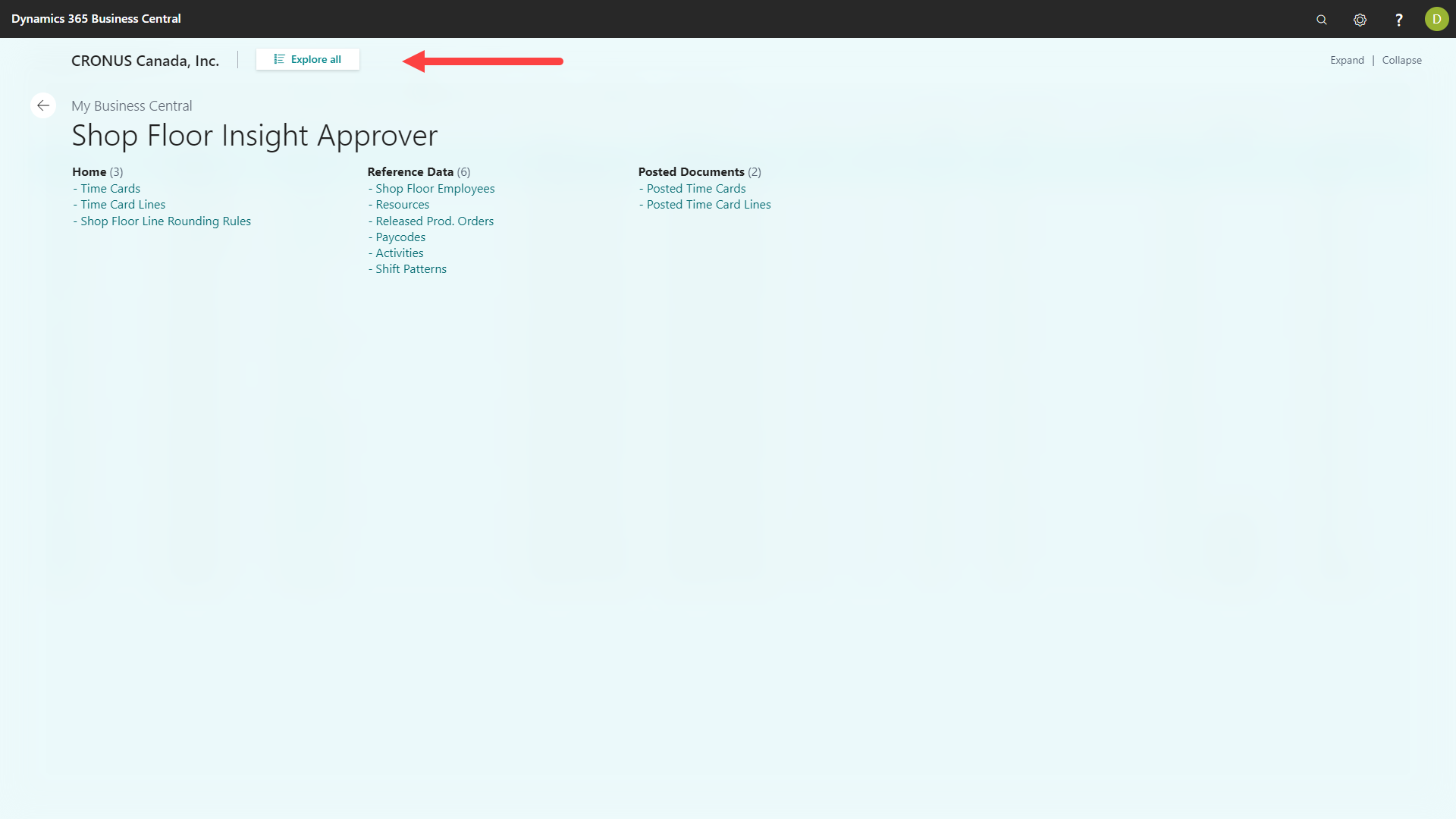
If the “Explore all” button is clicked at the very top, the user will be able to explore features across multiple roles.
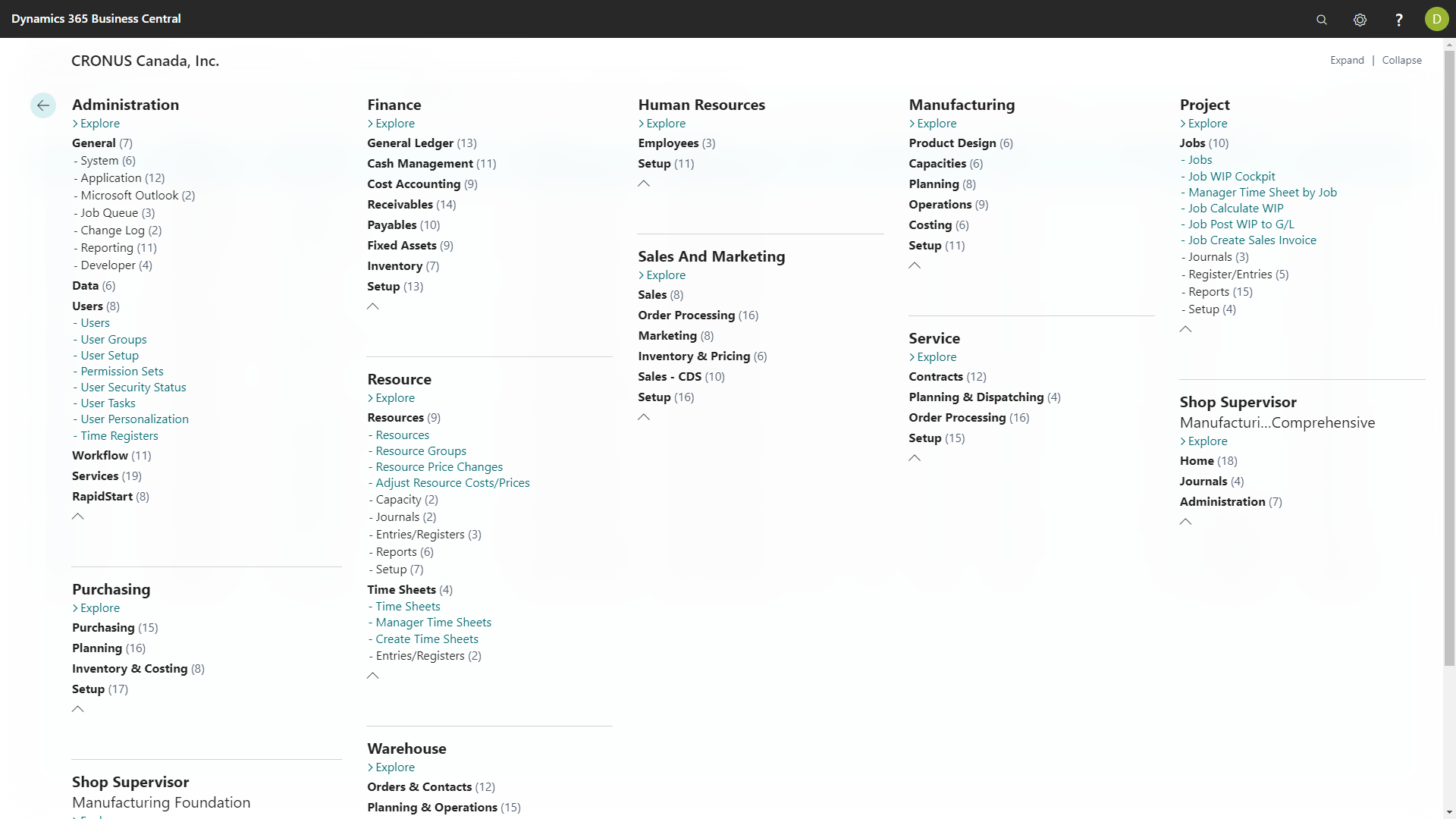
As you can see above, the “Shop Floor Insight Approver” Role is not visible. To make this role appear in the “Role Explorer”, the role must first be modified.
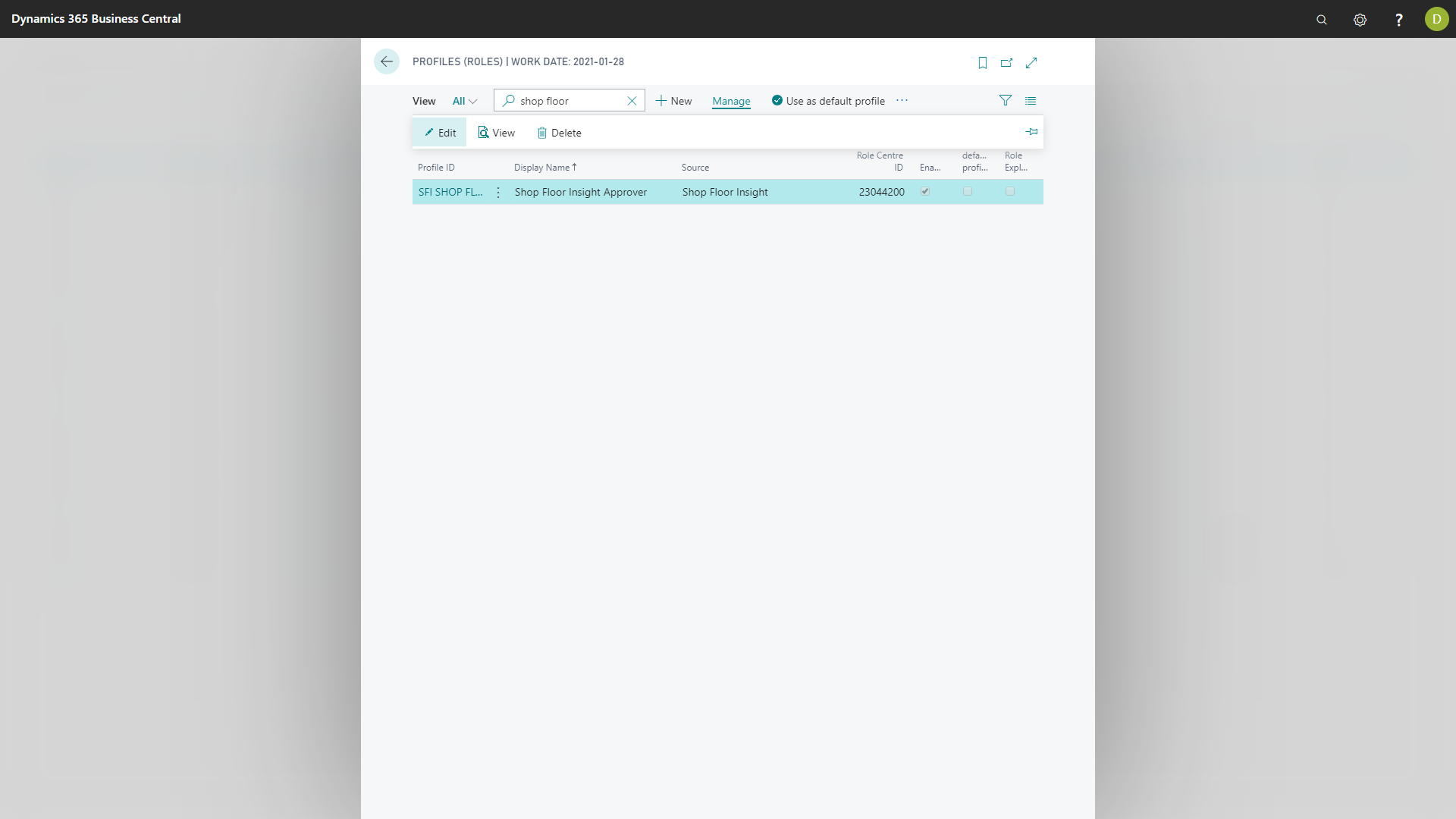
To modify the role, search for “Roles”.
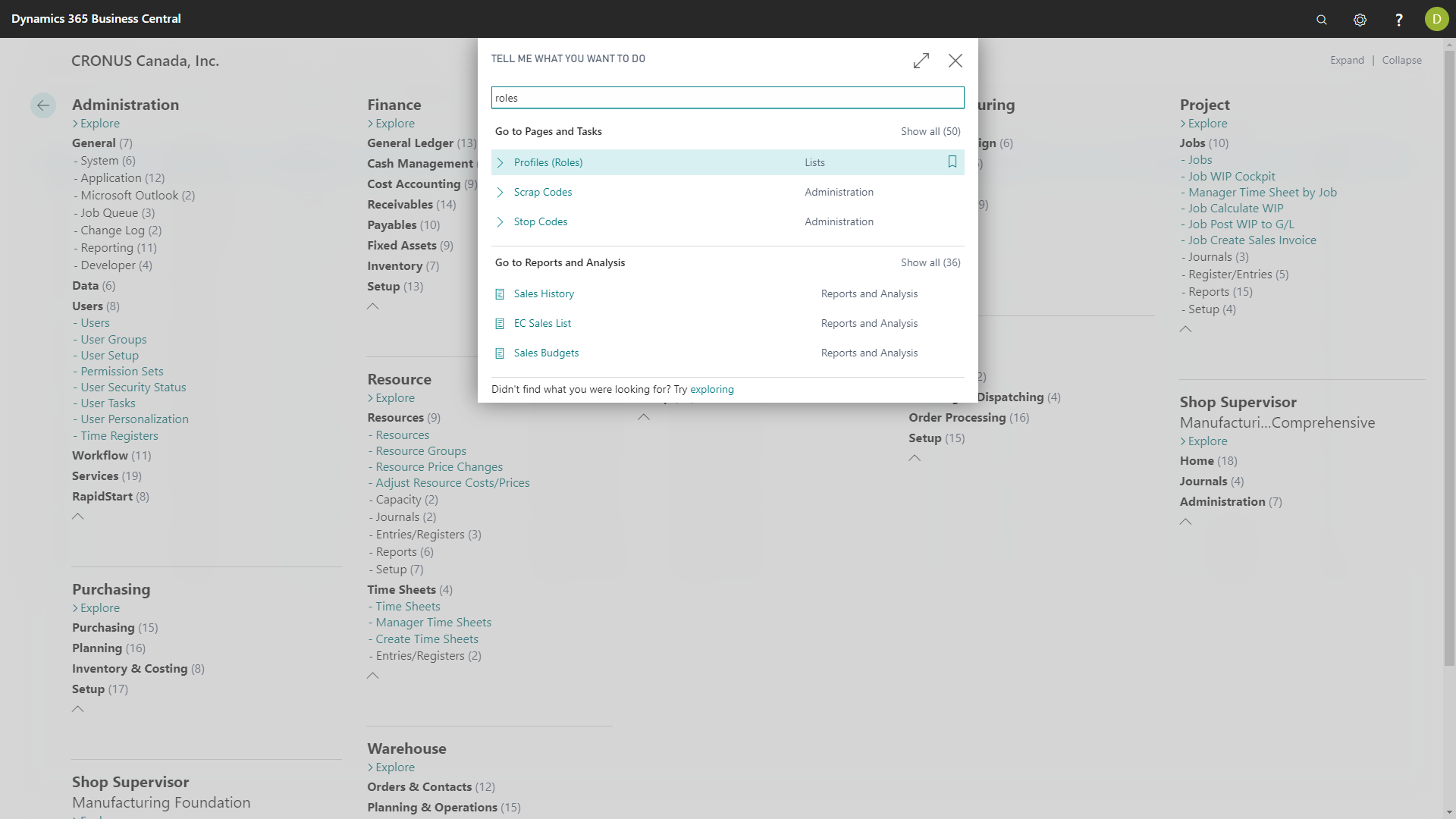
A list is displayed with all Roles listed.
Search for “Shop Floor” in the list, then edit the entry.
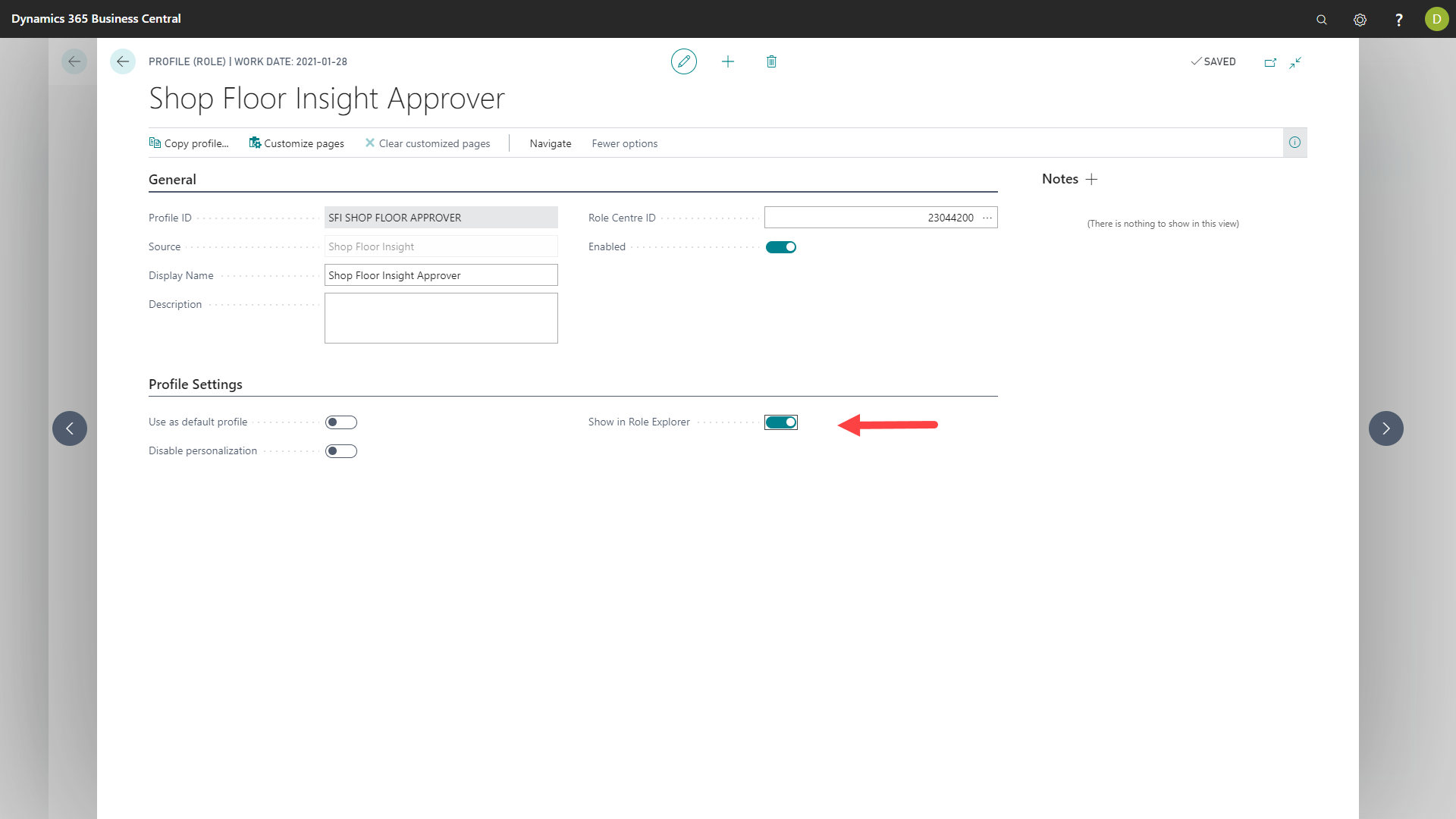
With the “Shop Floor Insight Approver” Role open, in the “Profile Settings” section, notice there is an option called “Show in Role Explorer”.
Turn this setting ON.
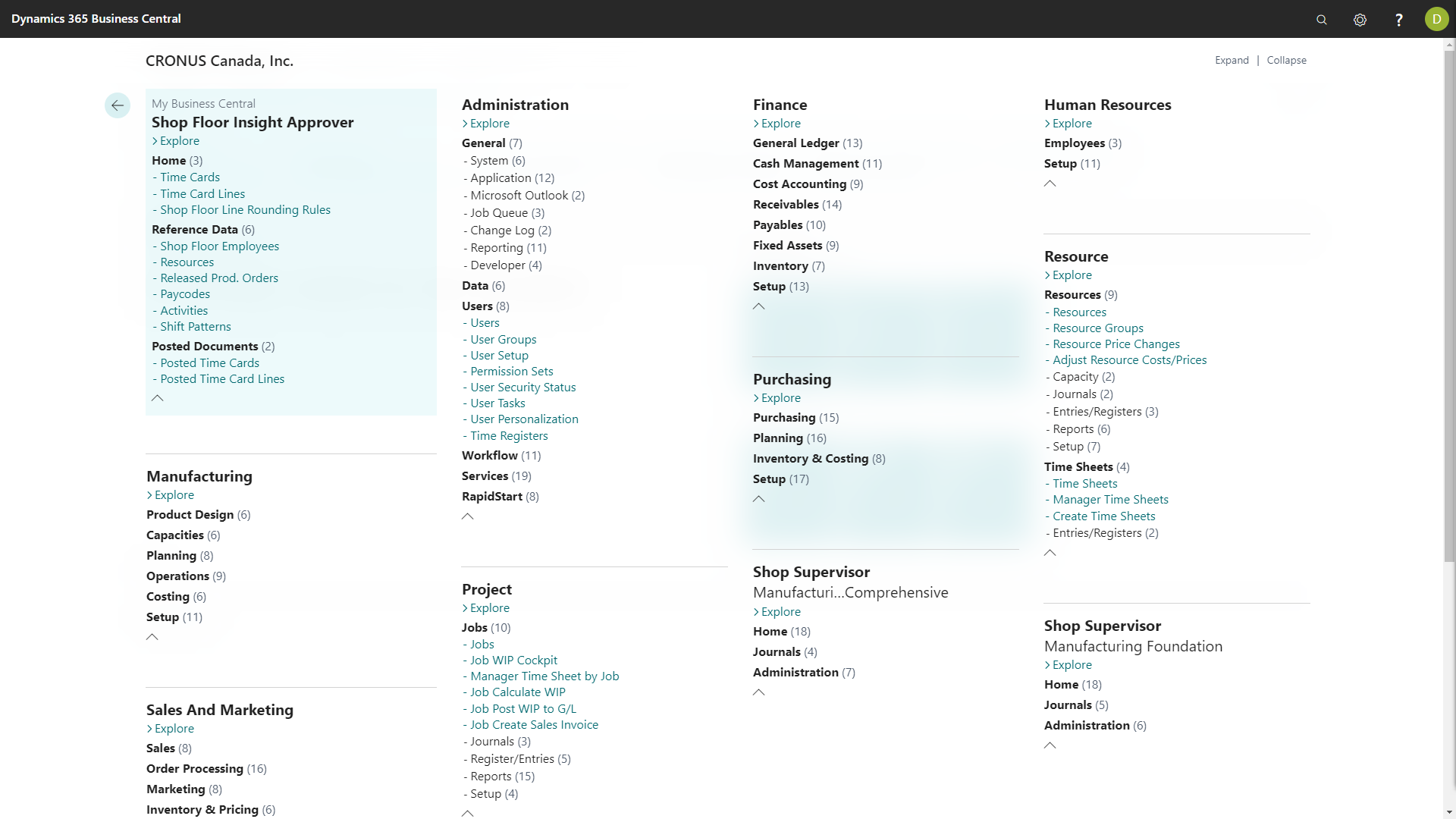
The next time the user returns to the Role Explorer, the “Shop Floor Insight Approver” role will now be visible.
Still need help?
Ask other Business Central users in the Insight Works community, or send the details to the support team. Include the steps you took and any error message you saw.