
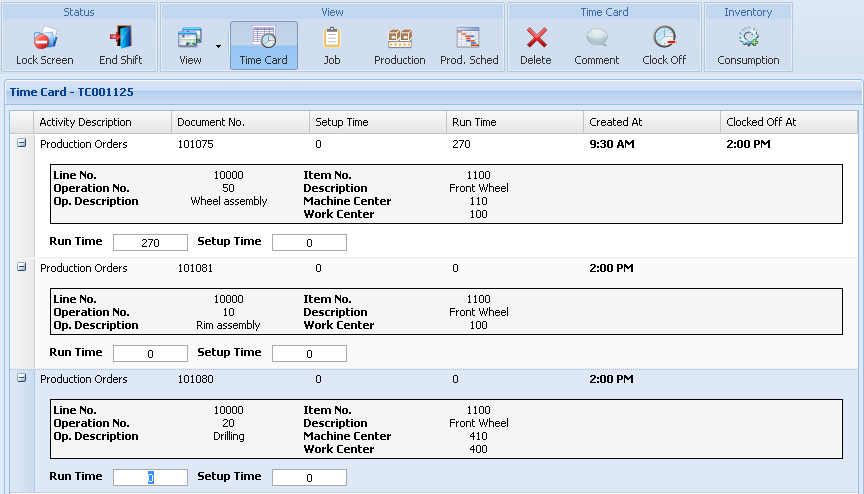
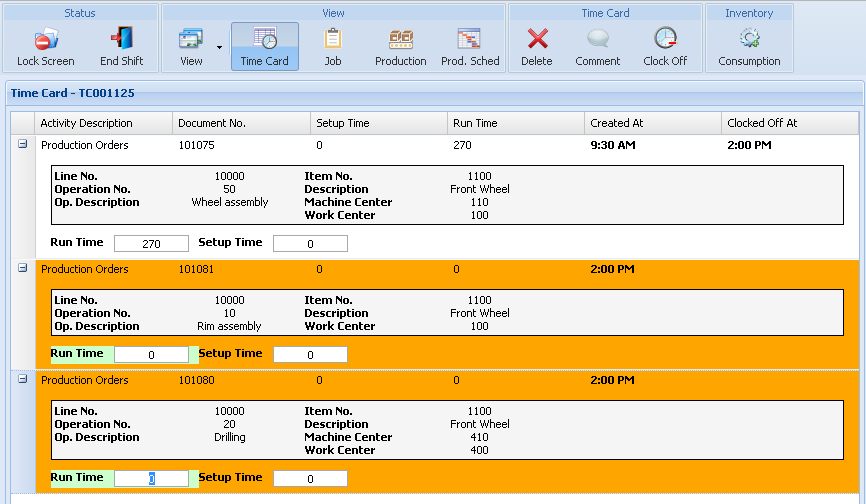
Color-coded visual cues are a great way to help identify which time card lines are open (not yet clocked off), as well as whether the setup time or runtime has been clocked-in. To prove this, check out the following image where the first line is clocked off and the last two are open lines.
The right side shows a time card with no color coding. The left side shows a time card with orange set for the open line color and light green set for the “Run Time” color. You’ll instantly see how much easier it is to differentiate time cards.
As shown in the next screenshot, color configuration is available on every Shop Floor Client Configuration card, enabling each scanning station to have different coding.
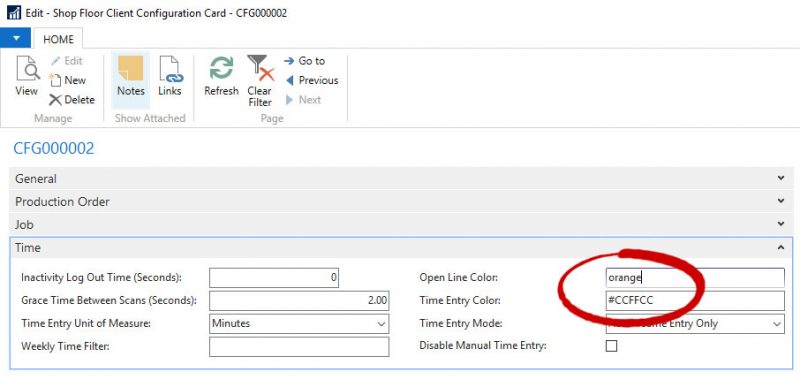
Both hex color values and standard HTML color names can be used. There are many free tools that help you select custom colors. Just search online for “html color picker tool“.
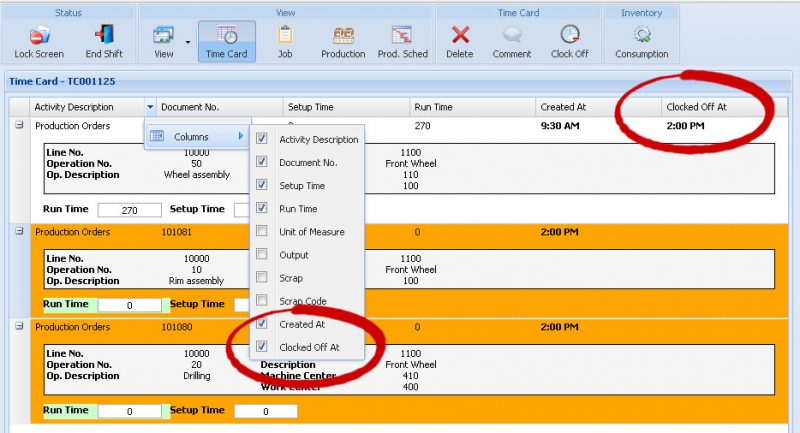
If color cues are not enough then you can always show the “Clocked Off At” column to see the exact time that time card lines are clocked off.
Still need help?
Ask other Business Central users in the Insight Works community, or send the details to the support team. Include the steps you took and any error message you saw.