
Set up facial recognition
Facial recognition allows the Time Clock interface for Shop Floor Insight to clock employees in and out without using barcodes. Facial recognition works only on Windows devices, ideally PCs or laptops, with webcams, and only works with the Time Clock interface, not the browser-based shop client where detailed time tracking is performed.
The following instruction show you how to complete a basic setup for facial recognition.
- Ensure your webcam is compatible with windows (if the webcam works with the Windows 10 Camera app, it likely works with ours).
- Configure your simple time clock to connect to the Shop Floor Insight service instance.
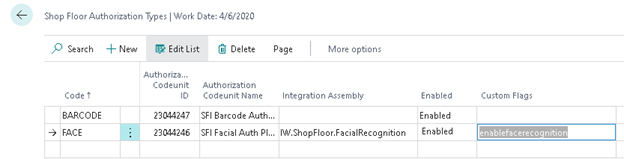
- Navigate to the Shop Floor Authorization Types page in Business Central
- Locate and enable the authorization type called FACE.
- Input “enablefacerecognition” in the Custom Flags
- Start the simple clock (IW.TimeCollectionModule.TimeClock.exe ).
With the facial recognition enabled, you can see a box that follows the face. Instructions may also appear (e.g., please step closer).
Train a face to an employee
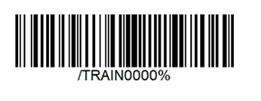
Ensure you have completed the Set up facial recognition section before beginning this section. To train a face to an employee, have the training barcode printed and complete the following at the terminal:
- Scan the employee badge.
- Scan the training barcode.
- Step closer to the terminal if prompted.
- Wait until the training percentage progress bar completes.
Once you have finished training a face to an employee, facial recognition allows you to clock in.
Still need help?
Ask other Business Central users in the Insight Works community, or send the details to the support team. Include the steps you took and any error message you saw.