
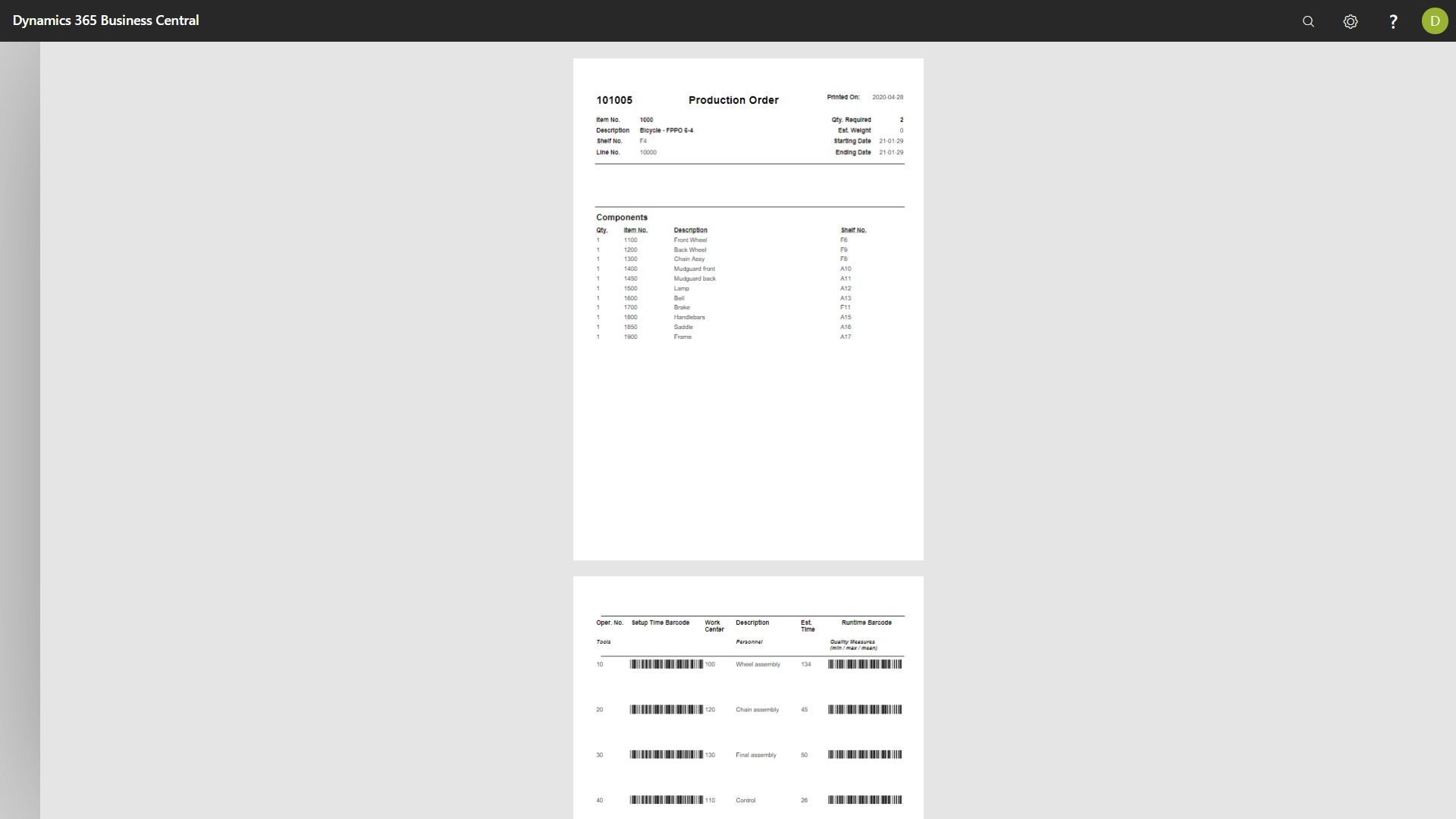
Q. How to Print Barcodes for the operations of a production order? These barcodes for the production order operations can be printed by searching for “Shop Floor Production Order” report. The Shop Floor production order barcode report can be printed individually; however, it can also be used to replace the production order job card in manufacturing printer selections. It is also possible to make this report the default production order report selection. To do so, search for “Report Selections Production Order”.
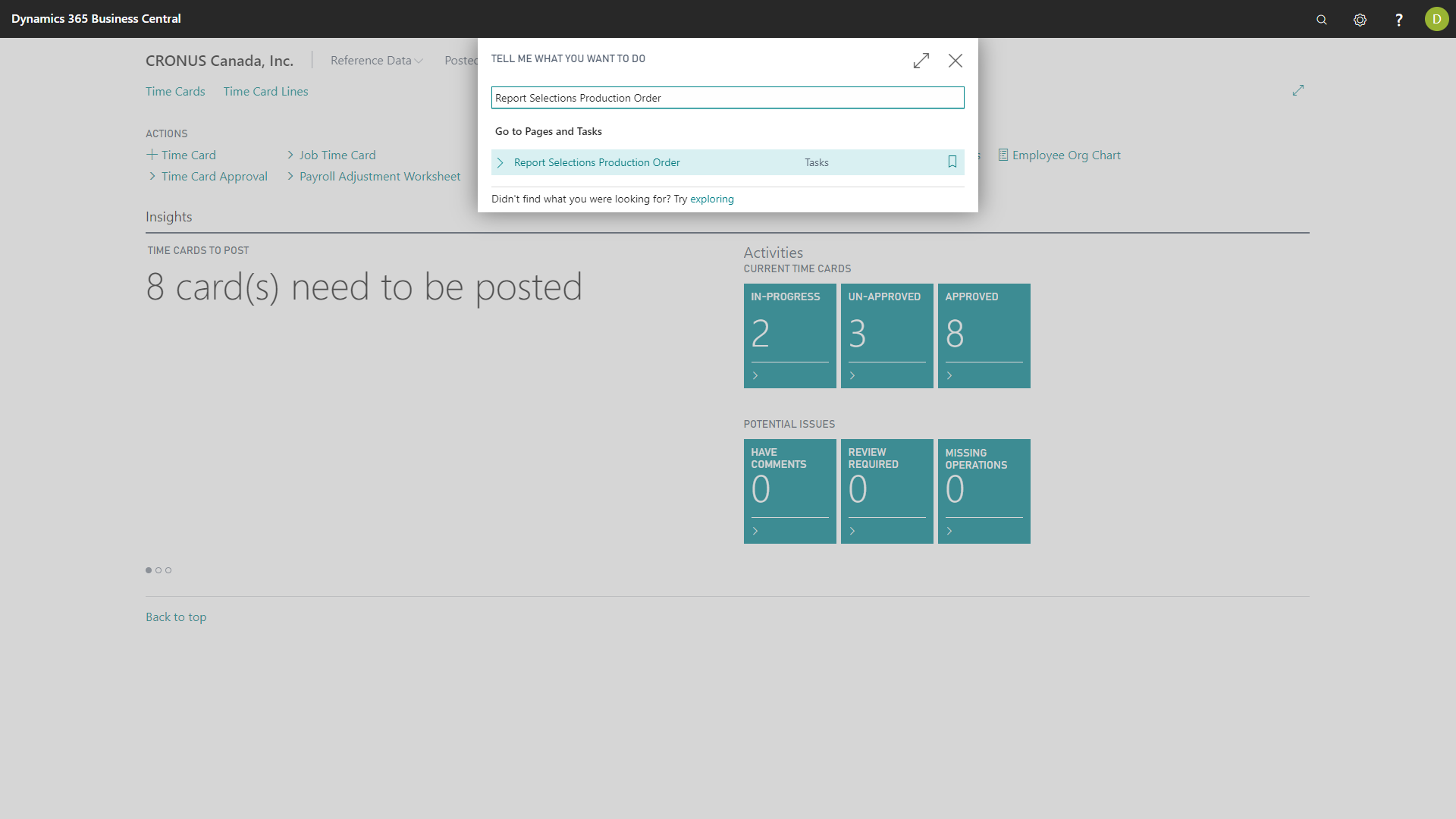
The default production order report in Business Central is “99000762”. This will allow you to print the barcodes for a specific production order directly from the production order card. Please note that your implementation partner might have already customized a report to this effect; if so, leave this value as is.
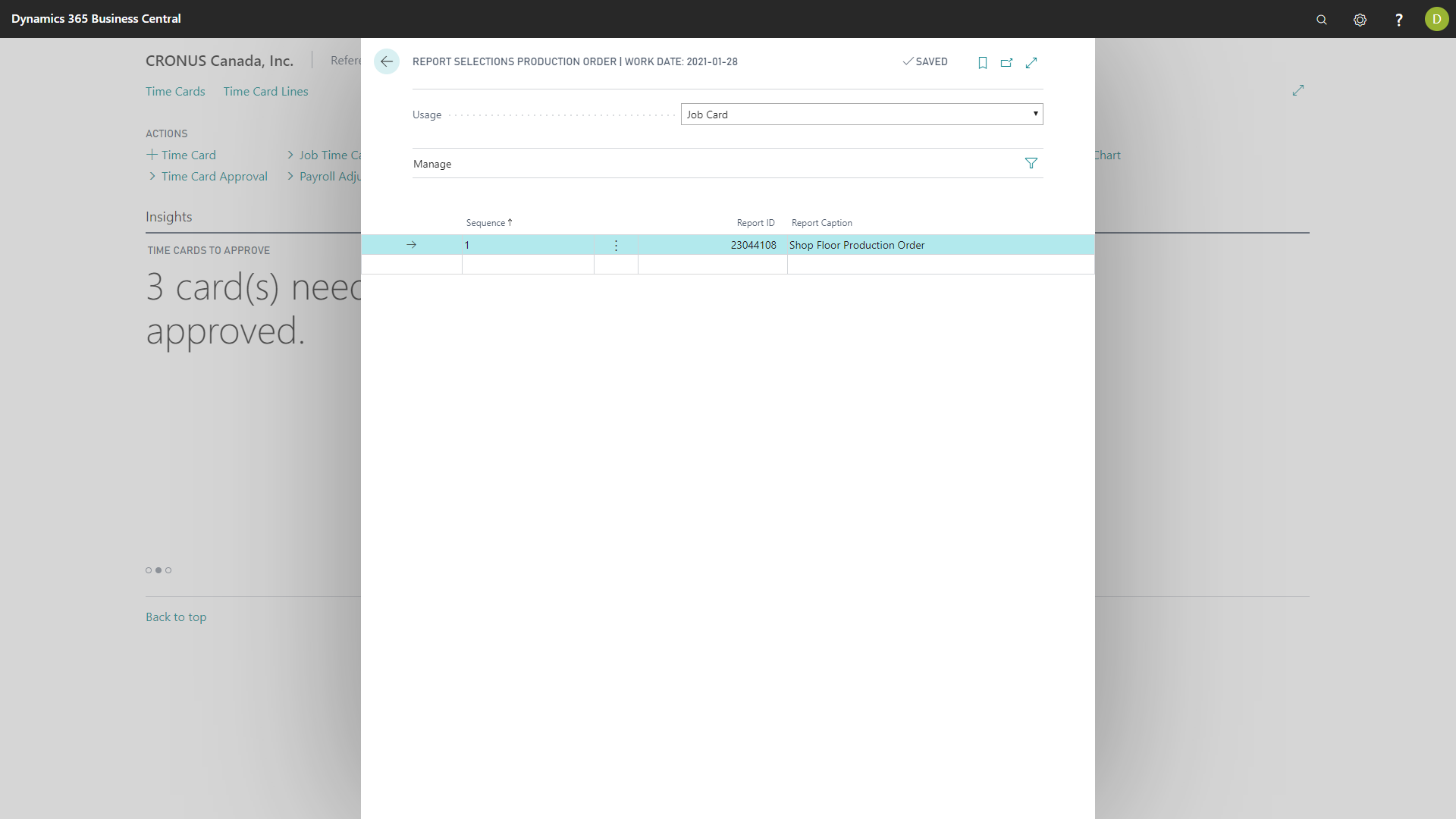
If you have configured the sample Shop Floor Production Order report to be your default production order report, then printing of the production order batch can be done directly from the production order card.
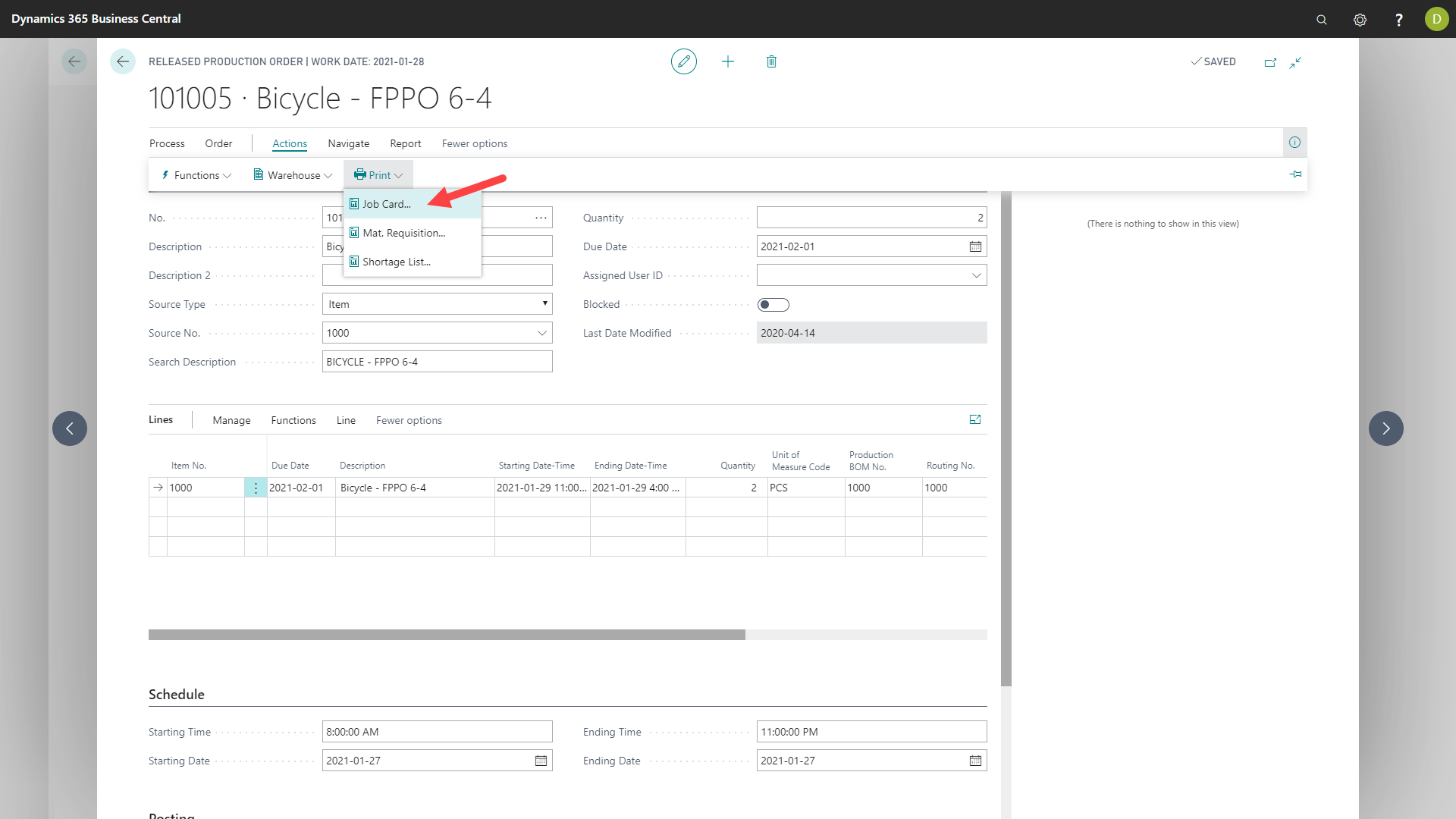
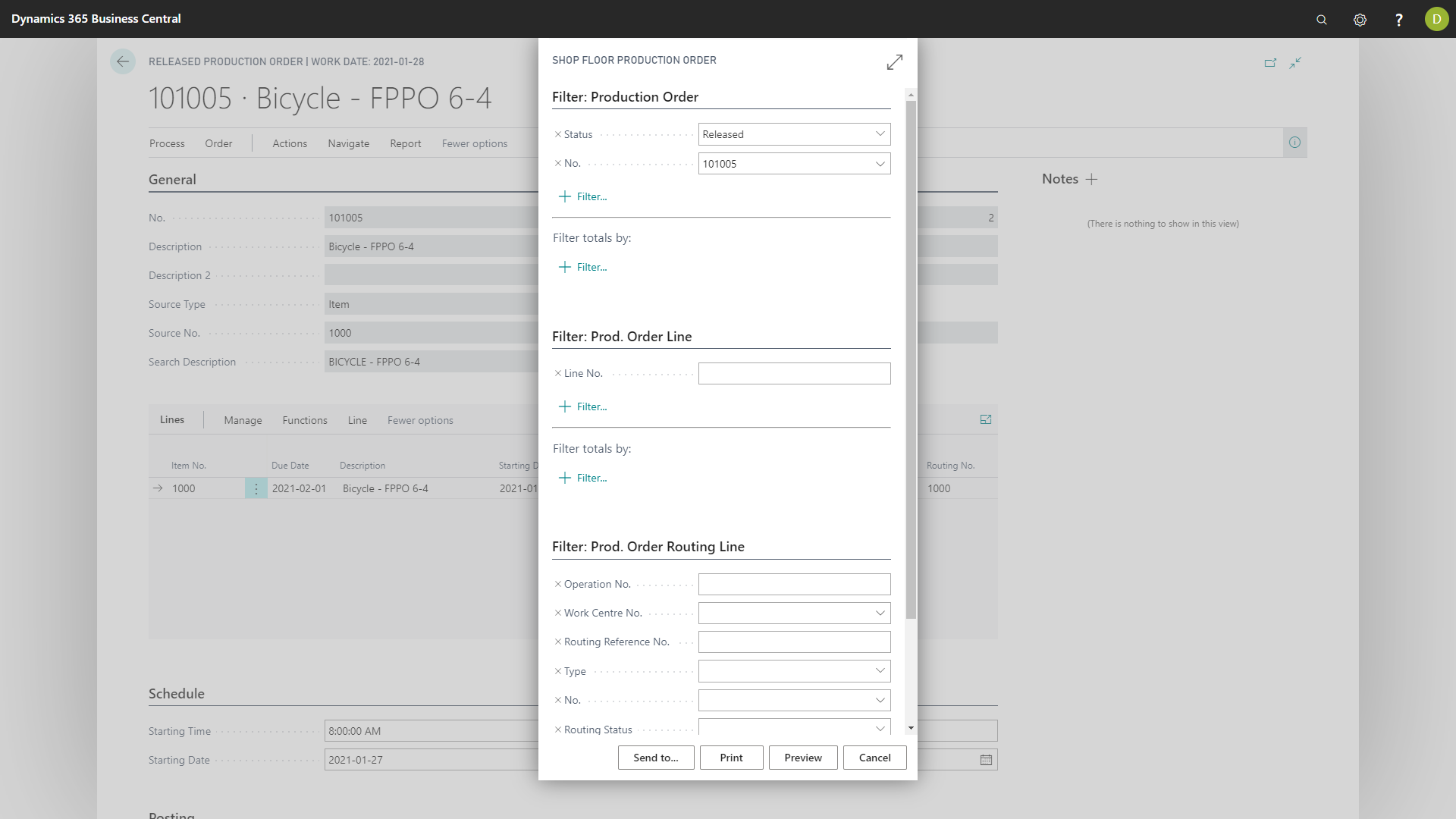
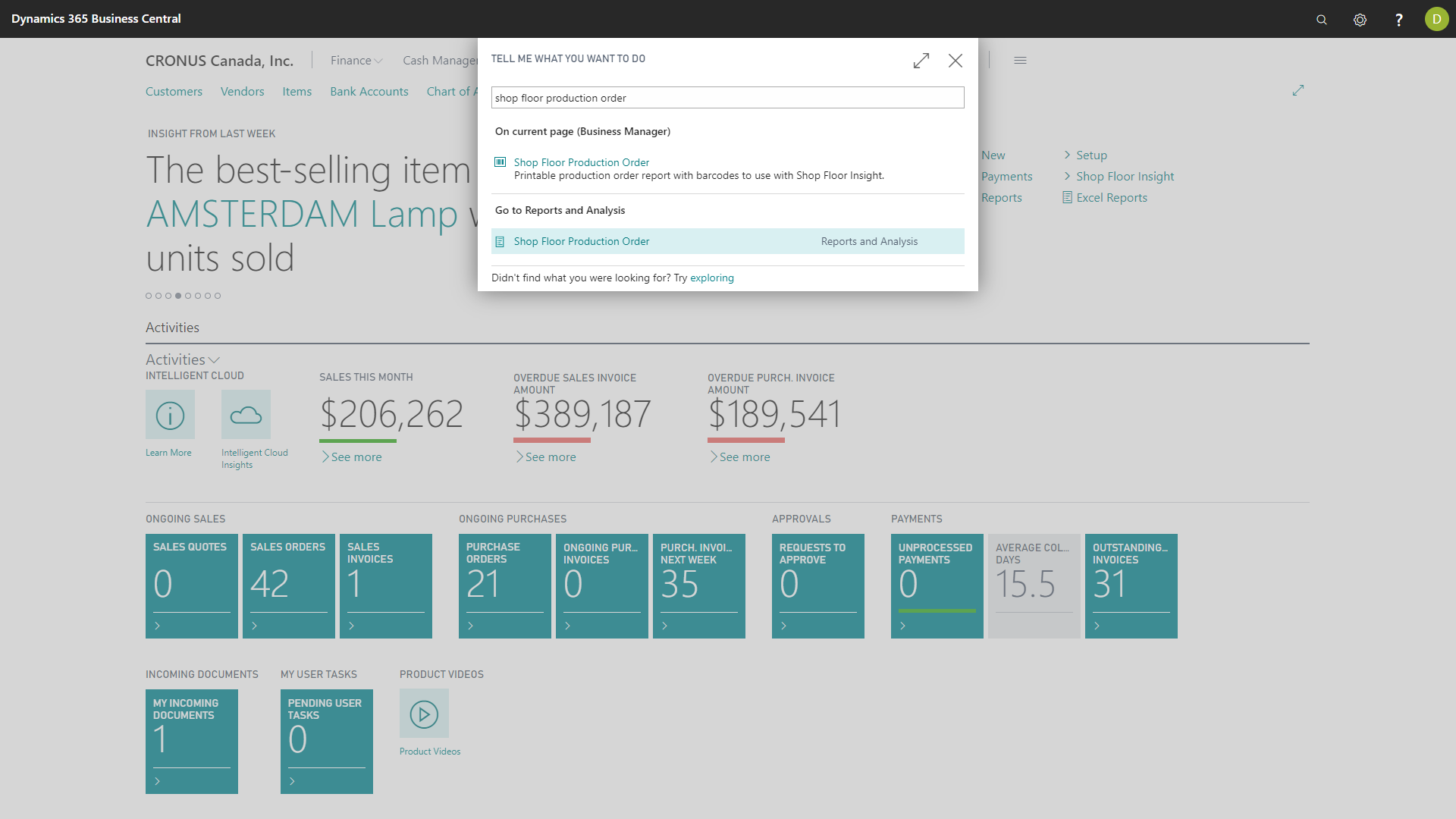
Otherwise, to print the barcodes for the operations of one or multiple production order, using the search box, type “Shop Floor Production Order” and select the entry for “Shop Floor Production Order”.
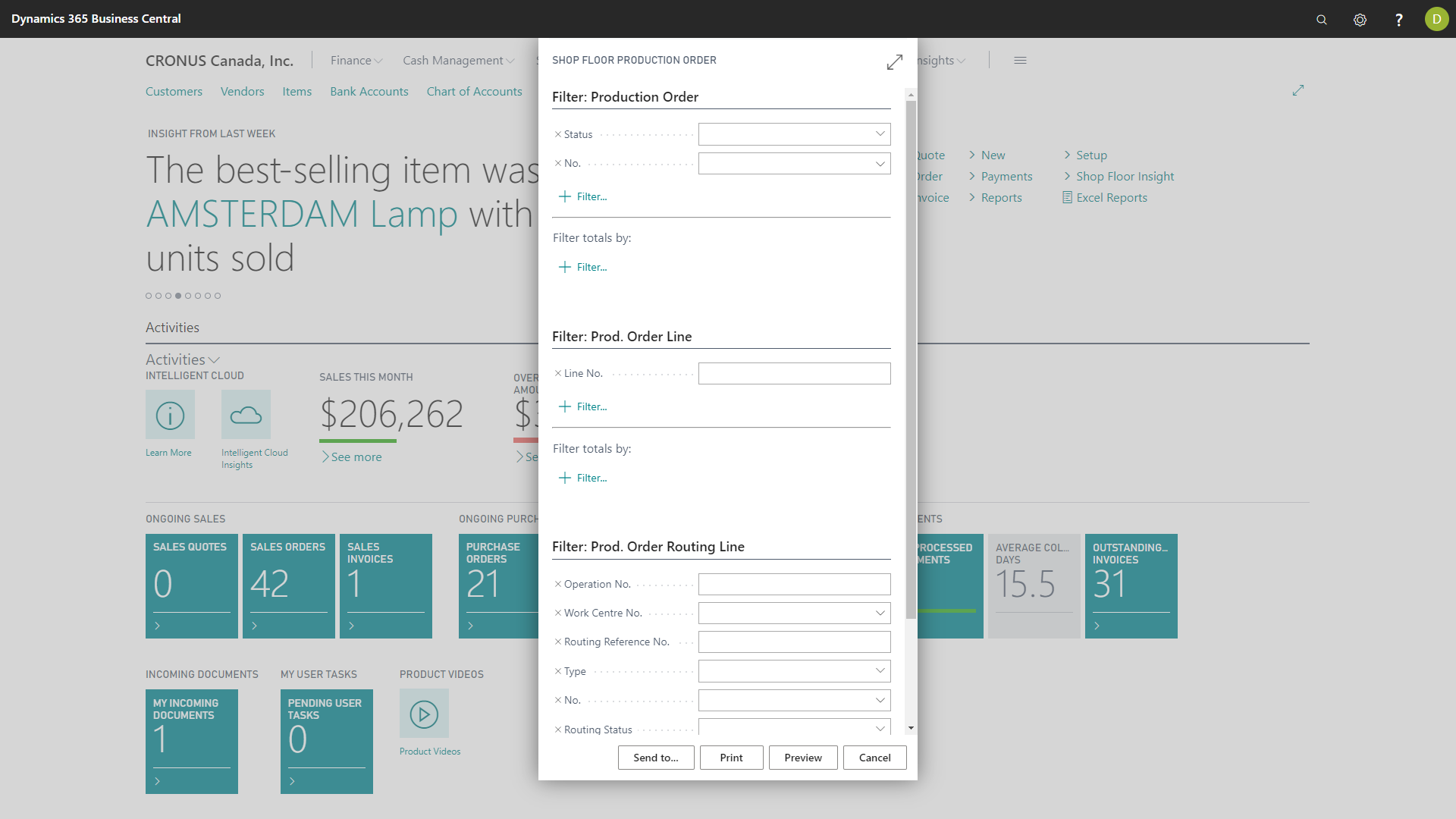
This will open the report popup where users can specify which production orders will be printed by applying some filters. These filters can be applied on the values found in the production order header fields, production order lines or production order routing lines.
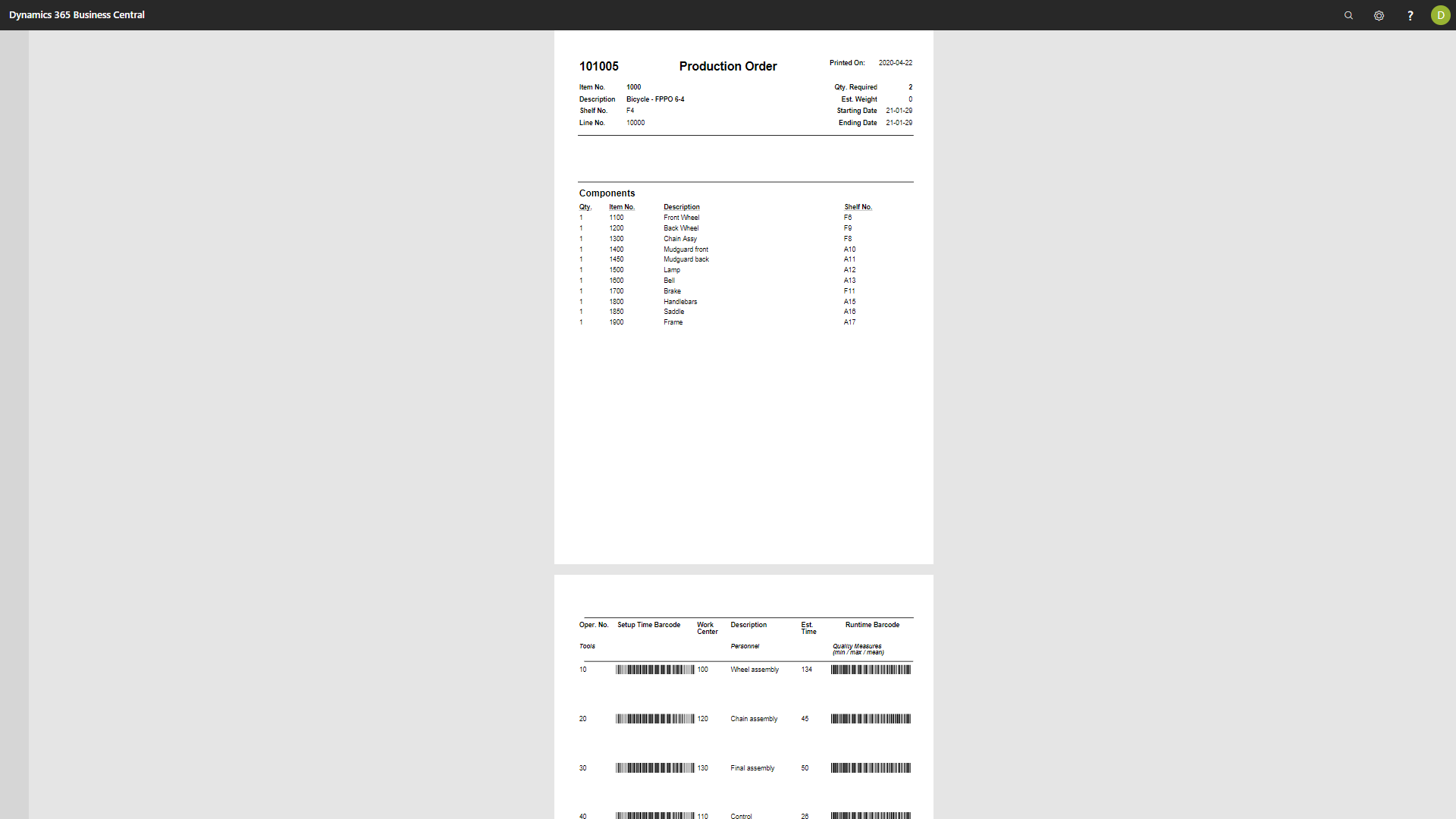
As you can see in the image, for every operation of the production order example, there is an associated barcode. This barcode holds the production order information along with the routing operation information.
Still need help?
Ask other Business Central users in the Insight Works community, or send the details to the support team. Include the steps you took and any error message you saw.