
Step 12 of 12. Follow these articles in order.
Once you have the Business Central side configured and have installed the Shop Floor interface then you can proceed to smoke test the system and confirm functionality.
Shop Floor Insight barcodes are unique within each Business Central company, they are not shared across an environment or tenant. Do not print barcodes in a test, staging, or development system and try and use them in a production system.
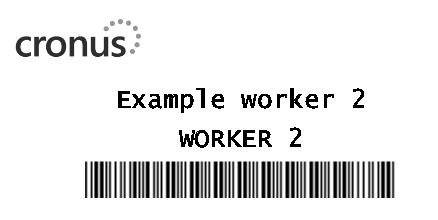
In Business Central, navigate to Shop Floor Employee Badges.
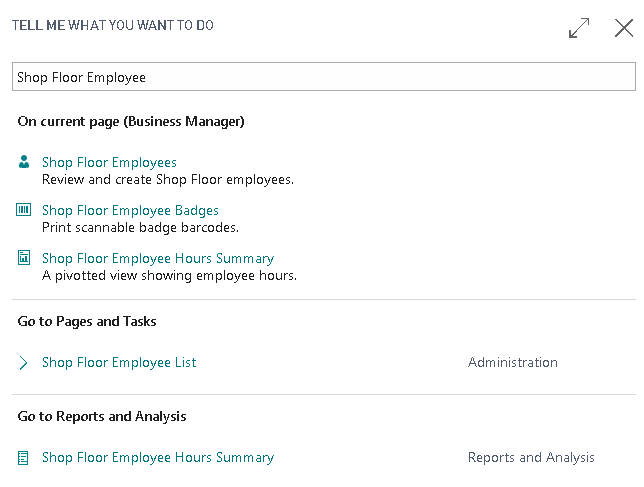
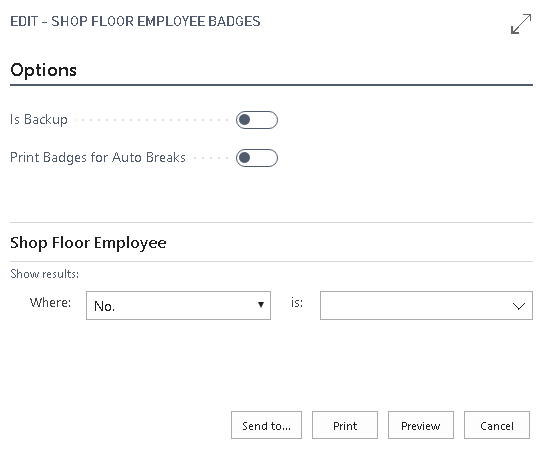
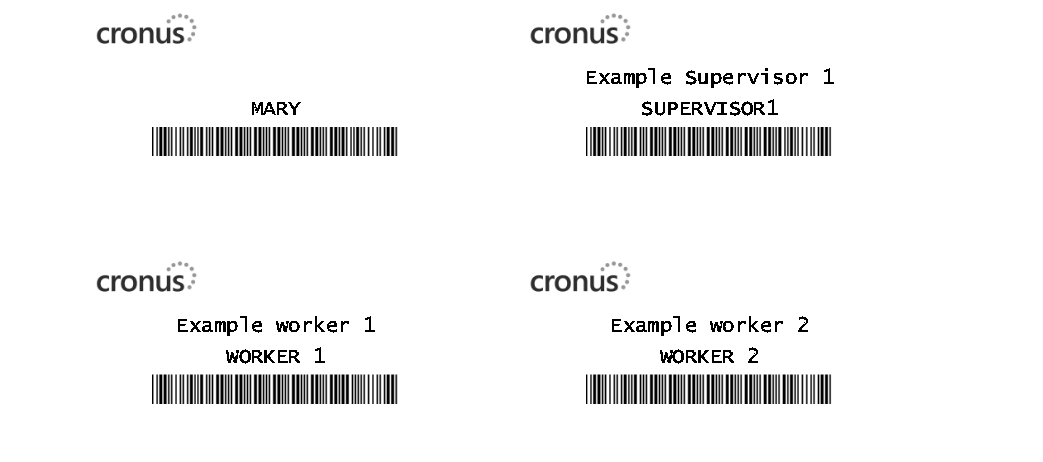
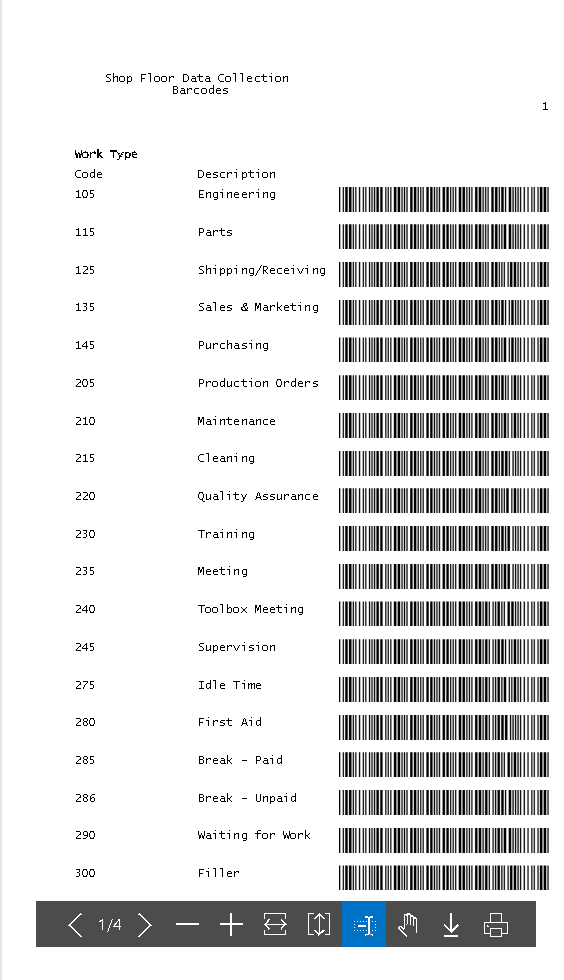
Print the badges to your printer.
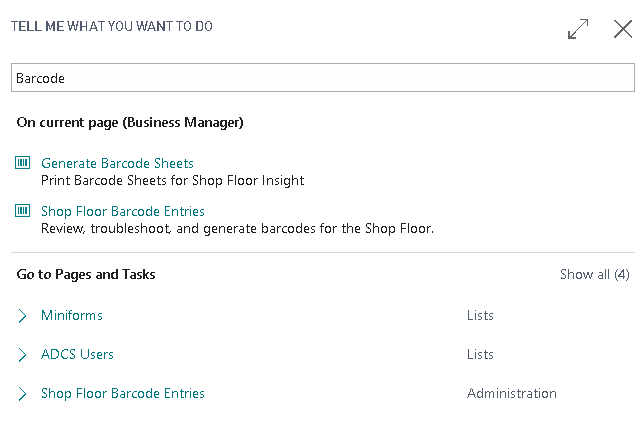
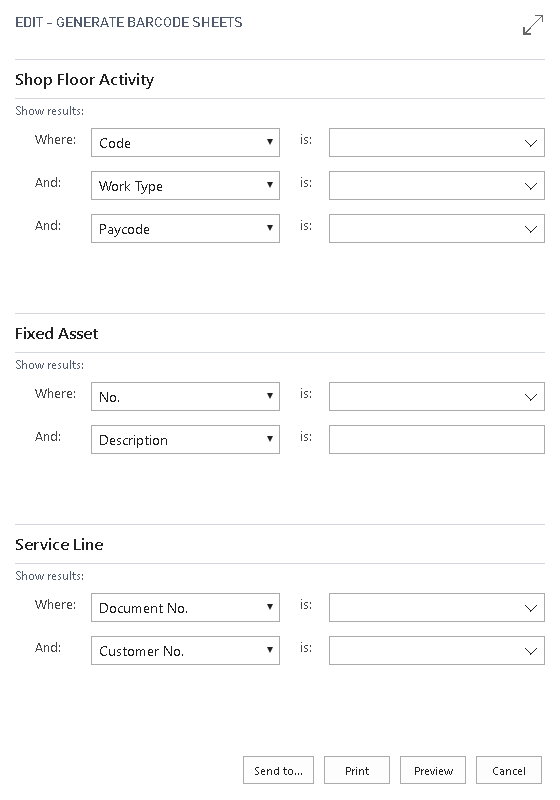
Navigate to “Generate Barcode Sheets”
In your web browser, navigate to your server
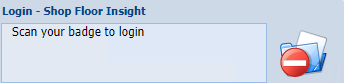
Scan a Shop Floor Employee badge.
Note: the barcode in this screen will not work in your system, you need to print out your own barcodes and scan those.



If you have production orders or jobs in your system you can further smoke test by scanning productive time on either of those document types.
At this point the technical installation is complete.
This quick start install guide provides very basic installation material, it is recommended that you contact your Microsoft Partner or Insight Works representative for training and configuration advice to take advantage of the advanced configuration options in this solution.
Add-ons from Insight Works are integrated with Dynamics 365 Business Central. Some configuration is required. WE STRONGLY RECOMMEND YOU REACH OUT TO YOUR MICROSOFT PARTNER OR INSIGHT WORKS FOR IMPLEMENTATION HELP.
Still need help?
Ask other Business Central users in the Insight Works community, or send the details to the support team. Include the steps you took and any error message you saw.