
Step 8 of 12. Follow these articles in order.
Ensure that your user, as the person doing the configuration, has a function permission entry with the “Post” flag before you proceed with configuration documented in this section; otherwise, you may not be able to see any employees you create.
Shop Floor Employees need to exist for any:
- worker using the Shop Floor interface
- approver
- user posting time
A Shop Floor Employee connects to a Business Central resource record or a Business Central employee record.
Minimum fields that need to be defined:
| Field | What it Does | When You Need It |
|---|---|---|
| Name | Name of the Shop Floor Employee. | Always |
| Source Type | Whether the Shop Floor Employee refers to an employee, resource, work center, machine center, or blank. | Optional for most users; see the Scenario examples table below. |
| Source No. | The employee, resource, work center, machine center, or blank. | Optional for most users; see the Scenario examples table below. |
| Default Shift Pattern | The default shift of the worker. | Always |
| User ID | A reference to the Business Central User ID for this employee. | All Supervisors. All Time Approvers. All Shop Floor users that need special permissions such as creating QI inspections or using the drag-and-drop scheduler. All Shop Floor users that will also be using the Business Central or Role Tailored Client. |
Scenario examples
The Source Type and corresponding Source No. are required in the following scenarios:
| Scenario | Required Source Type |
| If tracking time on Project Tasks (e.g., Job Tasks). | Resource |
| If the Shop Floor Employee also already exists as Resource or Employee in Business Central. | Resource or Employee |
| If the Shop Floor Employee represents a standalone Machine or Work Center in Business Central. | Machine or Work Center |
| If using Dimension sources. | Resource or Employee or Work Center |
| If using Service Orders. | Resource |
| If using Business Central Workflows with approvals with time card records. | Employees or Resources (depending on configuration in Workflows) |
| If using Vacation Rules. | Employees or Resources (depending on configuration) |
| If integrating with Business Central payroll systems, such as Serenic or other tools, that use resources or employees. | Resource or Employee |
Create a Shop Floor employee
There are three ways to create Shop Floor Employees:
- Create Individually: useful for onboarding individuals in existing installations.
- Create with Create From Template tool: useful for initial setup or mass on-boarding of individuals.
- Create with Rapidstart: useful for initial setup, planning with Excel, and migrating data between companies or systems.
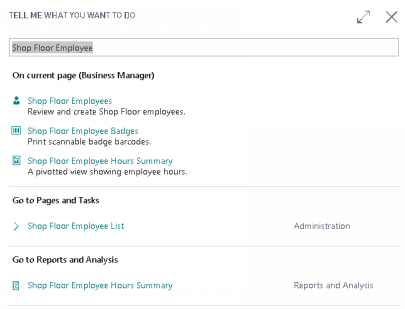
- Navigate to Shop Floor Employees in Business Central.
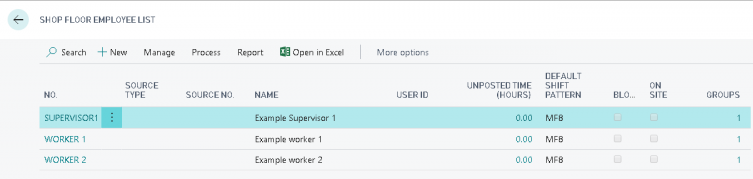
- Choose New (you may see example employees).
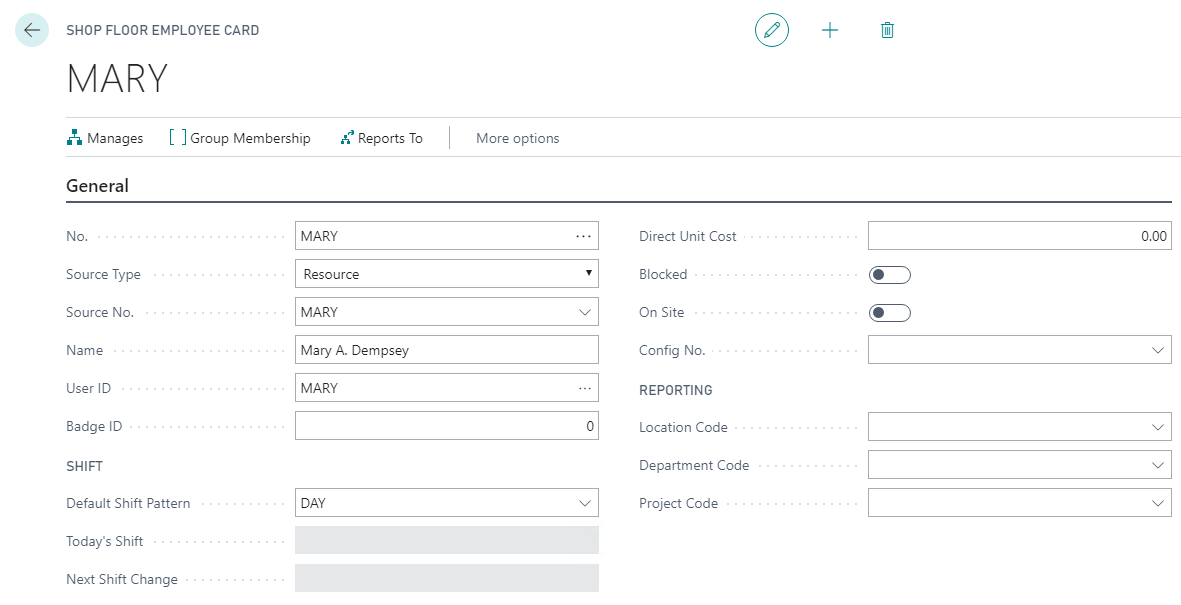
- Enter the employee number in the No. field.
- Define the Default Shift Pattern.
- Define the User ID for:
- Supervisors
- Users reviewing their time cards in Business Central
Additional Setup for Overtime and Exporting Time to Payroll
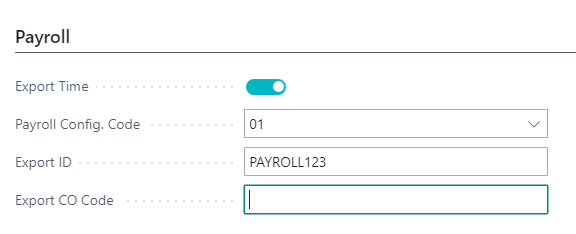
If you are calculating overtime or exporting time to a payroll system, navigate to the Payroll section. For full configuration of calculating overtime and exporting to payroll, additional training may be required.
- Enable Export Time.
- Select an appropriate Payroll Config. Code (contact Insight Works for training on this topic).
- Input the appropriate Export ID and Export CO Code, if needed.
Additional Setup for Supervisors and Approvers
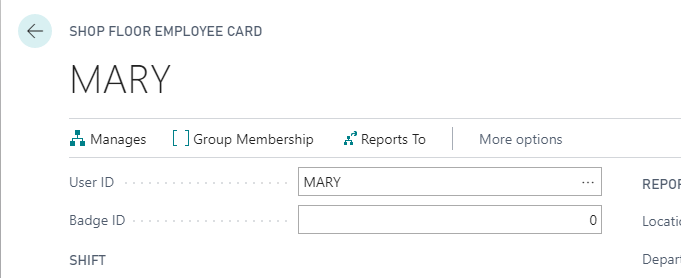
All Approvers and Supervisors must have their User ID configured on their Shop Floor Employee Card. The approval hierarchy defines who is allowed to review and approve other time cards. The hierarchy can be configured from either the perspective of the supervisor or the worker.
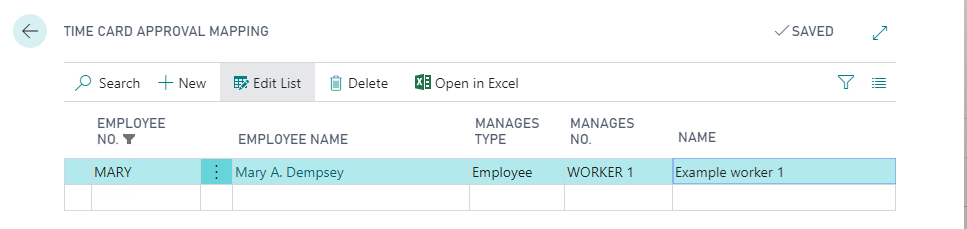
To configure from the perspective of the supervisor, complete the following:
- Edit the Shop Floor Employee card for the supervisor and choose Manages.
- Select:
- Manages Type: Employee
- Manages No.: references the employee that the supervisor manages.
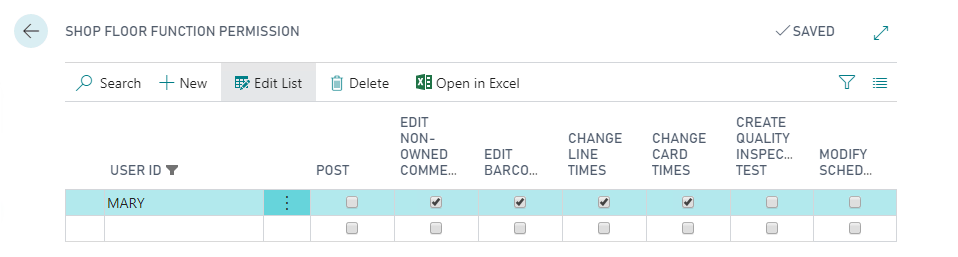
- Navigate to Shop Floor Function Permission and allow the individual functions for that supervisor if the supervisor is also allowed to edit comments or change times on their workers’ time cards.
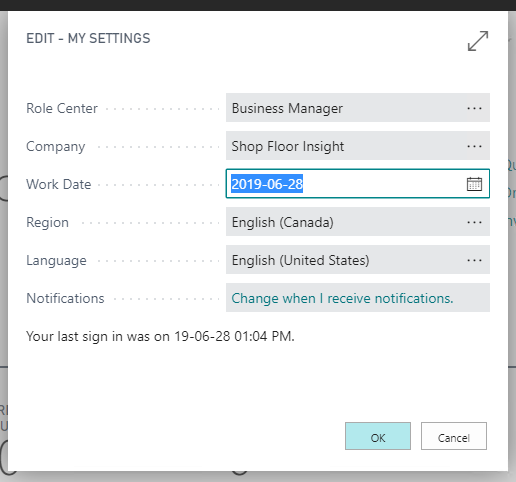
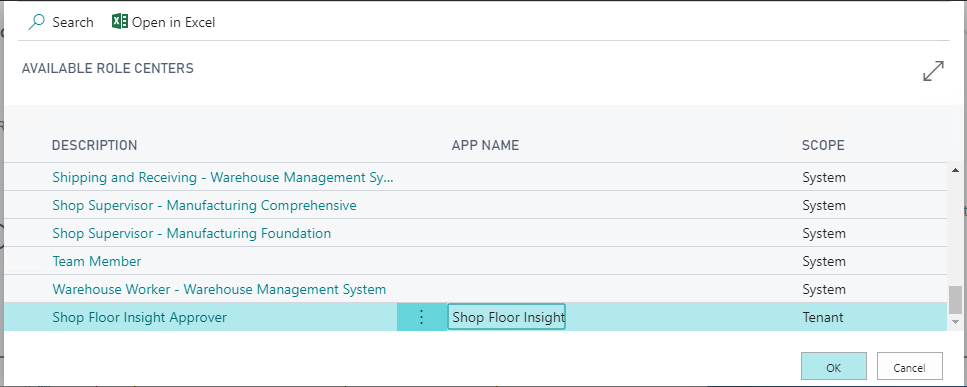
- Navigate to Available Role Centers and select Shop Floor Insight Approver as the role center.
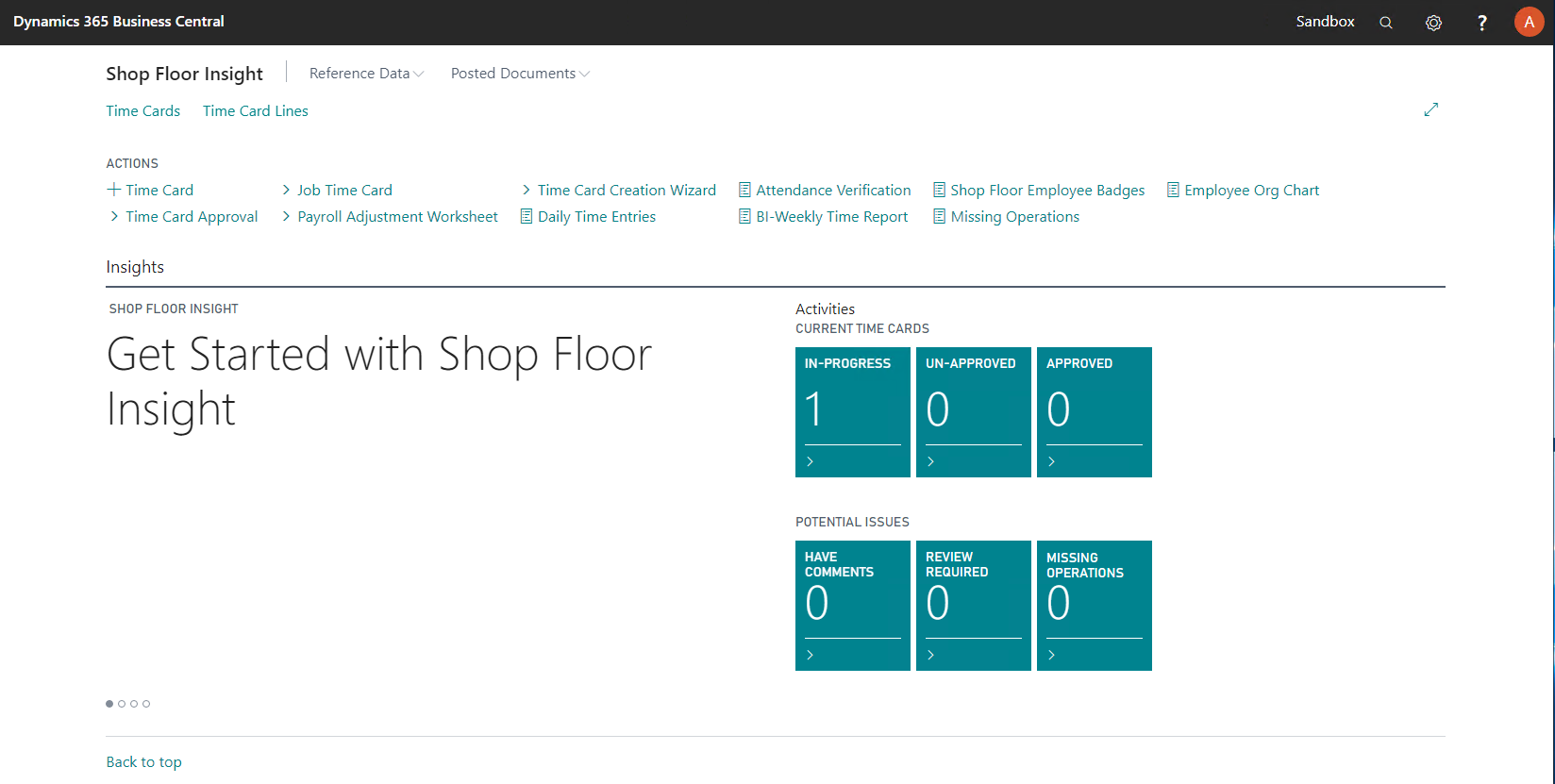
The Shop Floor Insight Approver role center provides optimized menus and KPIs to help with managing and approving time.
Related Information
- Configure Special Permissions in Shop Floor Insight – Shop Floor Function Permissions and Business Central permission sets required for different Shop Floor Insight roles.
- Adding a New Employee & Printing a Barcoded Badge – How to add a Shop Floor Employee and create a barcoded login badge.
- How to ensure supervisors only see time cards of their workers for approval – Configuring supervisor/employee relationships and related function permissions.
- Posting Shop Floor Data in Shop Floor Insight – Permissions required for users who post Shop Floor Insight data.
Still need help?
Ask other Business Central users in the Insight Works community, or send the details to the support team. Include the steps you took and any error message you saw.