
Step 7 of 12. Follow these articles in order.
To record time to a Business Central Job and Job Task each Shop Floor Employee needs to either connect to a Business Central “Resource” directly, or to a Business Central “Employee” which is in turn associated with a Business Central “Resource”.
To start collecting time to a job and job task, simply unlock the Shop Floor Insight screen with your employee badge barcode, and then scan a job task barcode from the “Printing Barcodes” section in this document. The barcode will already reference the Job and Job Task combination. Special characters cannot be used in either the Job No. or the Job Task No.
A job based time card line will look like this:

You can also start recording time by navigating to the Job Dispatch view, finding the appropriate job task to start recording time to and click “Clock On”.
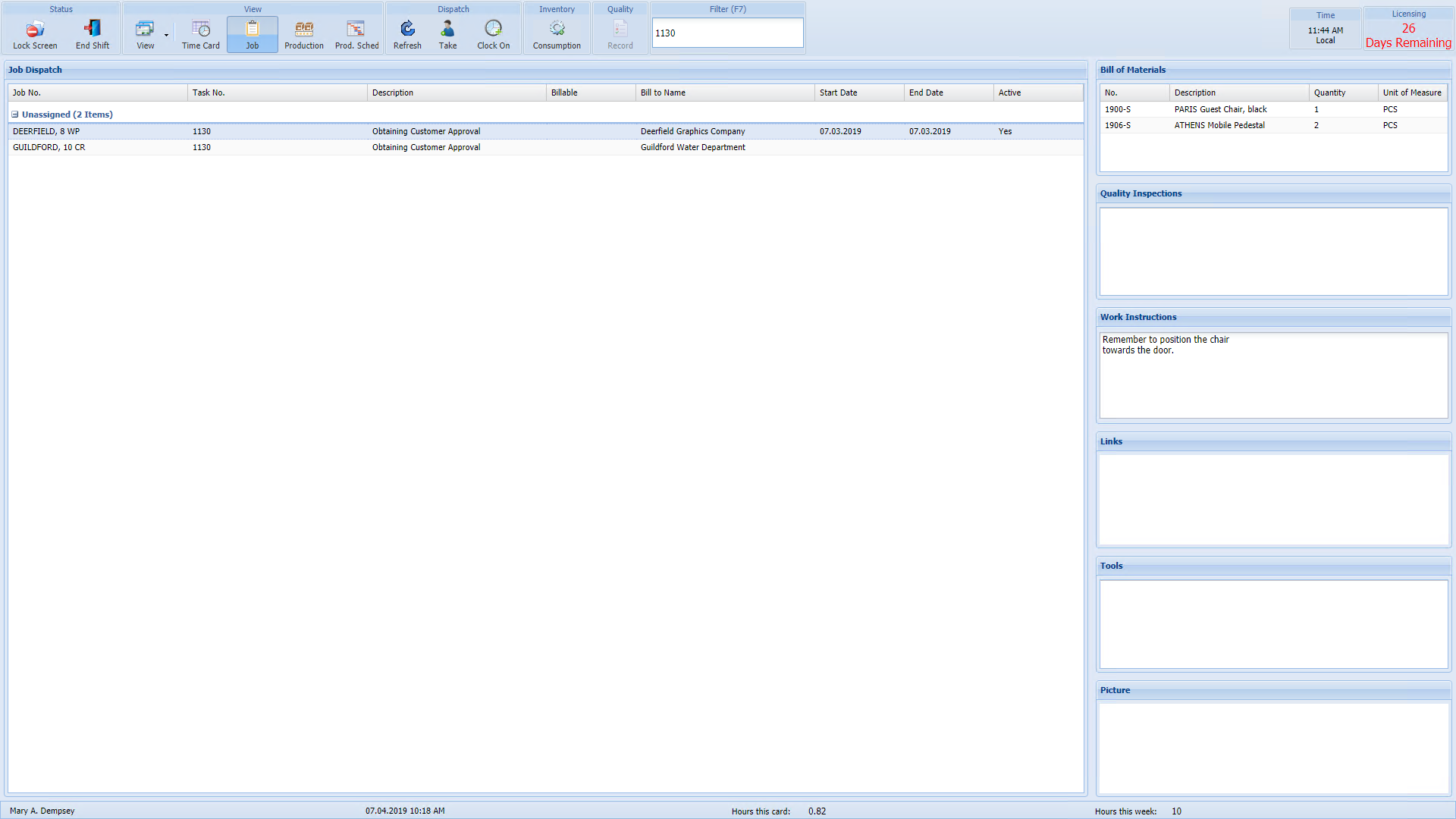
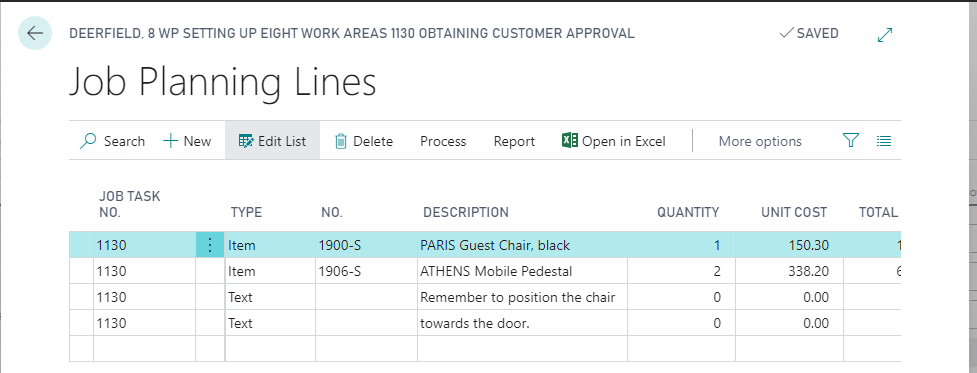
With a job task time card line, or a job task-based dispatch line, the Bill of Materials and the Work instructions are determined based on the associated Job Planning Lines for that Job Task. In the below example we have job planning lines configured for a type of “Item” and a type of “Text”.
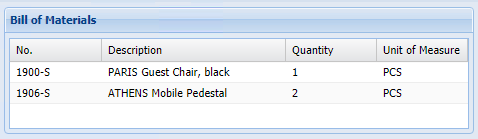
The Bill of Material side panel will show corresponding Job Planning Lines where the type is “Item”.
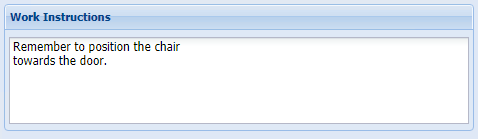
The Work Instructions panel will show related Job Planning Lines where the type is “Text”.
Record Material Consumption for Jobs
Material Consumption for Jobs can also be captured in Shop Floor Insight. To configure which batch is used, navigate to the appropriate Shop Floor Client Configuration record, and go to the “Job” group. Choose an appropriate Job Consumption Batch. Do not choose the same Job batch defined on Shop Floor Setup.
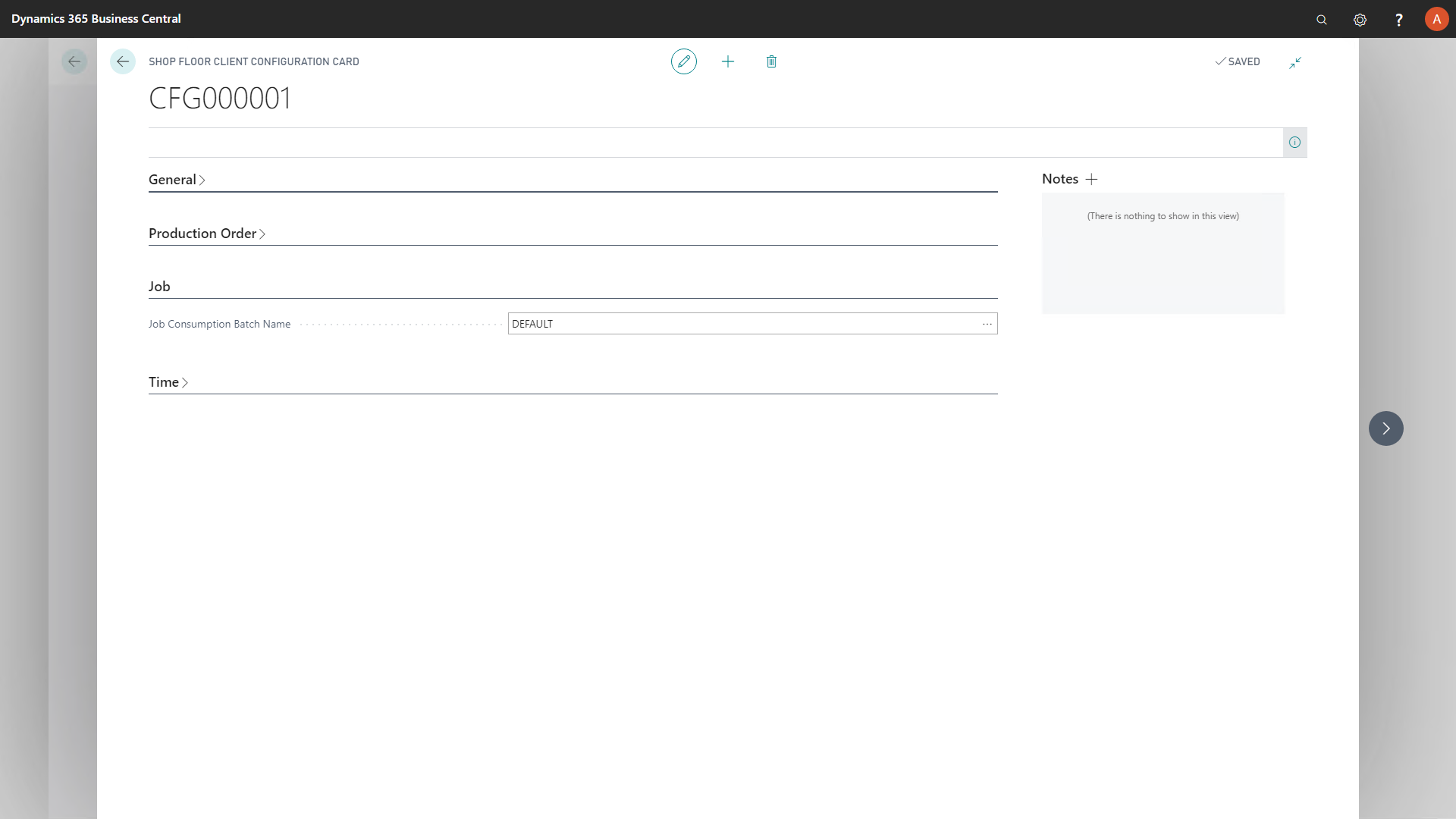
After a job consumption batch is defined then refresh the browser. Clock into a job task, or choose an existing time card line for a job task that you’ve already clocked into. IN the action bar choose “Consumption”.
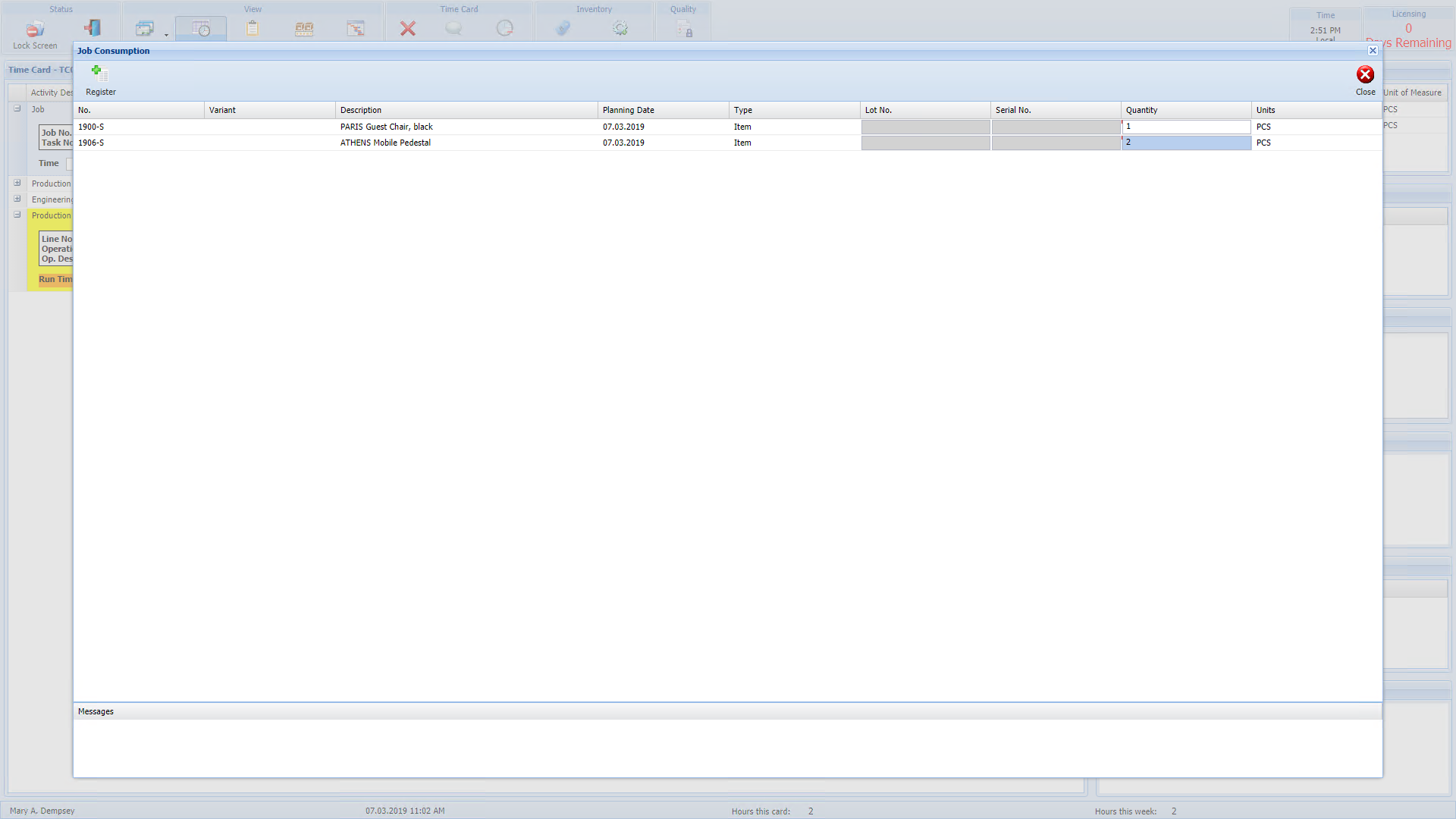
The following Job Consumption Screen will start, where the expected items that show are job planning lines for that job task. If the items are lot or serial tracked, then those fields will become enabled and available to define. Enter the quantity to consume.
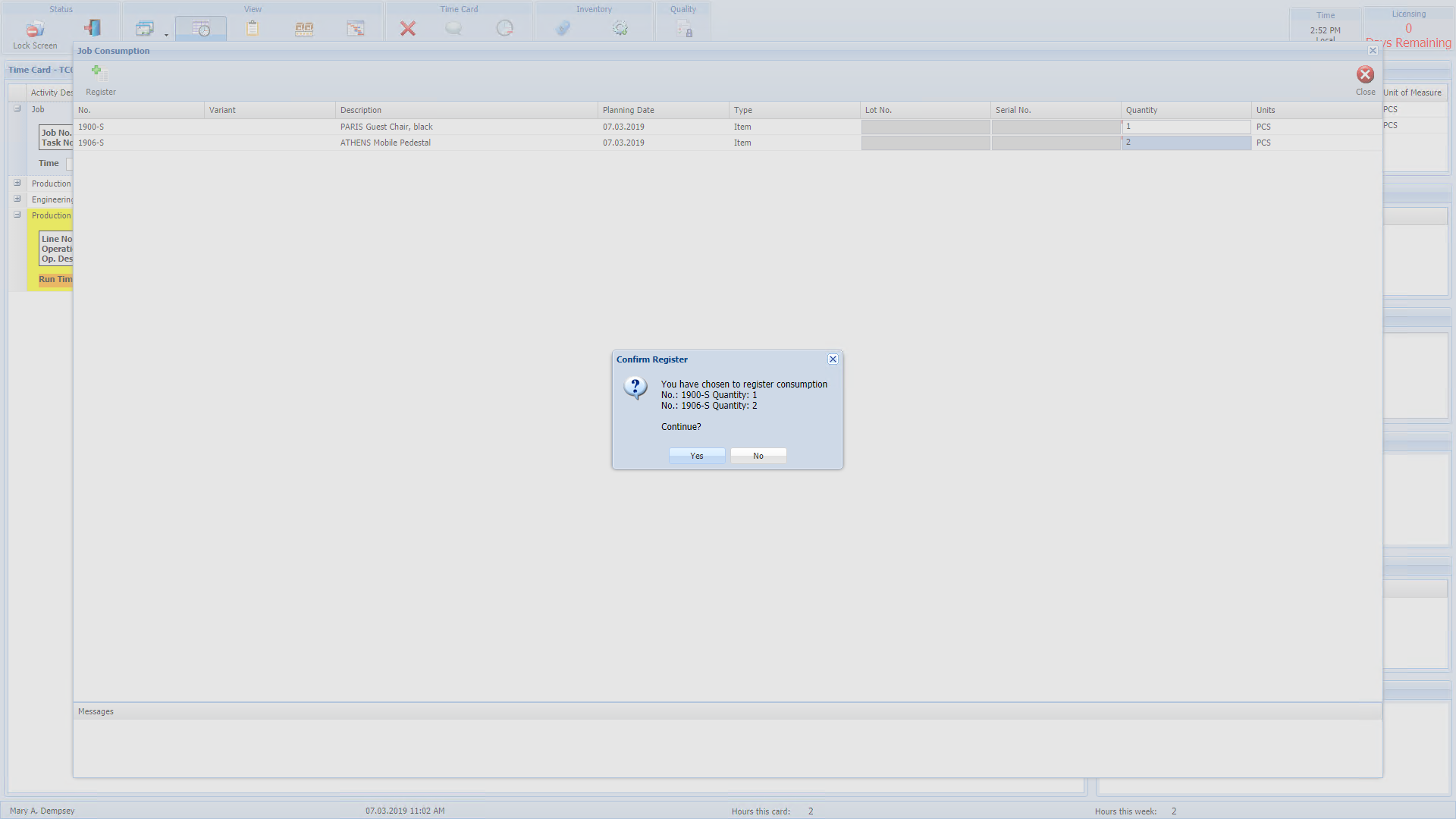
Choose “Register” when ready to send the consumption information to Business Central. It will ask to confirm the consumption information, choose “Yes”. This information will then be transferred to the configured Job Journal in Business Central. These Job Journal entries are not automatically posted.
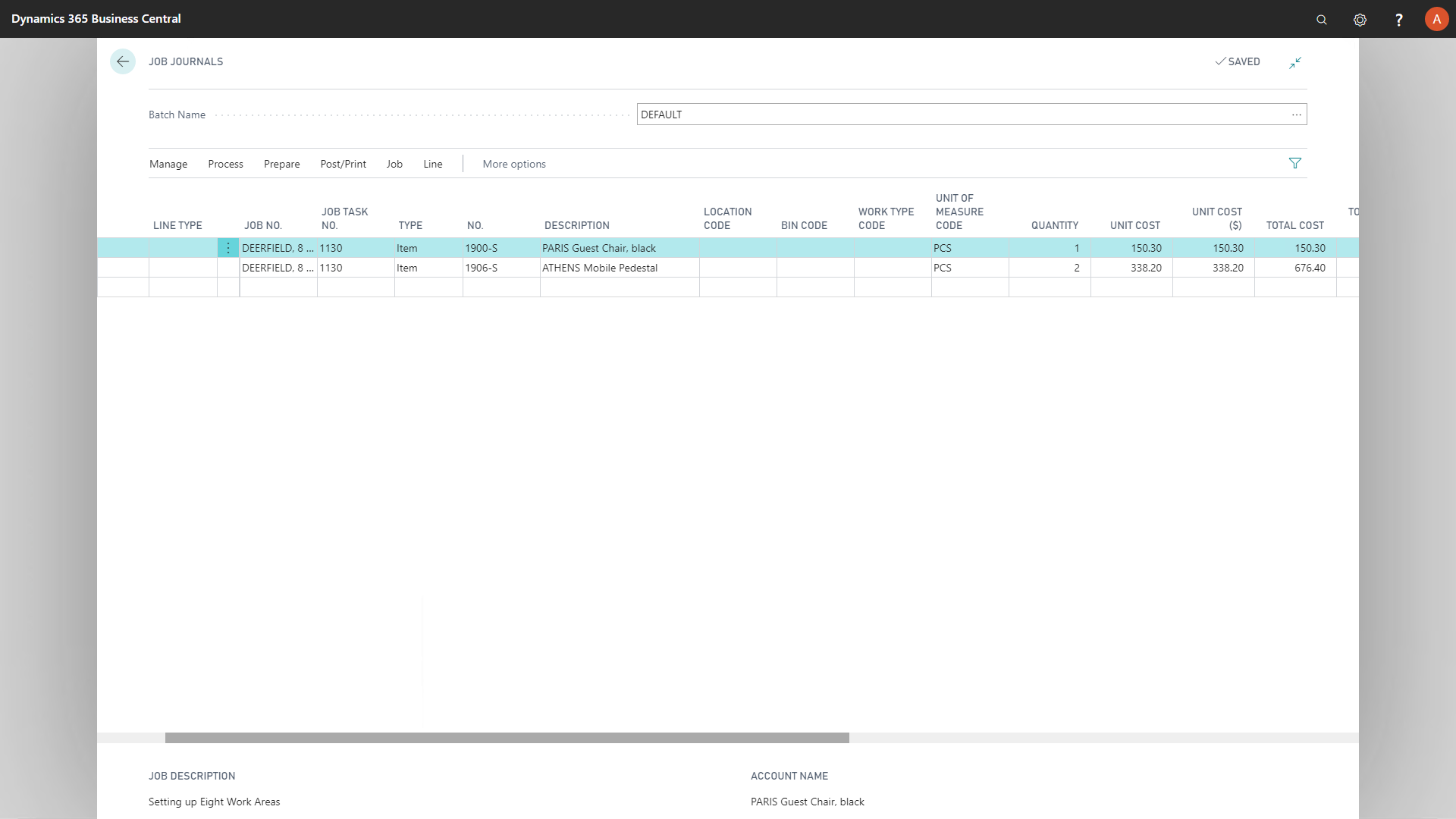
To review and post the Job Consumption, in Business Central navigate to “Job Journal”, and choose the same batch that was configured in Shop Floor Client Configuration.
Still need help?
Ask other Business Central users in the Insight Works community, or send the details to the support team. Include the steps you took and any error message you saw.