
Step 11 of 12. Follow these articles in order.
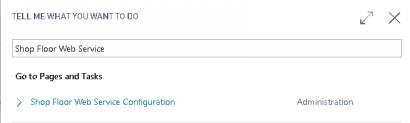
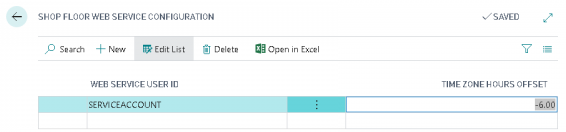
Navigate to the Shop Floor Web Service page and configure the Time Zone Hours Offset for each service account.
This configuration is required to ensure the Business Central SaaS web service records timestamps using the correct local time. If it is missing or incorrect, Login Times, Entry Creation Times, and Output Recorded Times may appear offset by your offset to UTC. Missing or incorrect timezone hours offset information can also impact the “Hours Before Close” functionality that automatically closes time cards.
The User on this page must be the same service account that Shop Floor Insight uses to connect to Business Central. In most Microsoft-hosted Business Central SaaS environments, this connection uses Service-to-Service (S2S) authentication, so the user must match the User Reference configured for your Microsoft Entra Application in Business Central. For more information on Microsoft Entra Application configuration refer to this article https://kb.dmsiworks.com/knowledge-base/configure-multiple-oauth-service-to-service-connections-in-shop-floor-insight/.
The hours offset must consider the hours from UTC as well as any daylight savings time.
For example, “Mountain Daylight Time” could be either -6 or -7 depending on the time of year. When daylight savings occurs this number must be adjusted.
For Business Central On-Premise, the “Server Time Zone” option on the Business Central administration console can be used to change the services time zone instead.
Still need help?
Ask other Business Central users in the Insight Works community, or send the details to the support team. Include the steps you took and any error message you saw.