

Quality Inspector for Microsoft Dynamics 365 Business Central
Catch failed lots before they reach a customer
Streamline your quality control process to reduce rework and maximize customer satisfaction.
Quality Inspector runs configurable inspections inside Microsoft Dynamics 365 Business Central and grades the results, so a failed lot can be blocked from sale or moved to a quarantine bin before it goes further. Tests are created automatically from receipts, production orders, and other records, and inspectors record values on a desktop, tablet, or phone. Business Central includes a Quality Management module built from a subset of Quality Inspector, and Quality Inspector extends it with sampling, form reading, tooling, and lot grading.
- Cloud and on-premises
- Desktop, tablet, and phone

- Rating on Microsoft Marketplace
- 5.0
- Installs
- 500+
Quality Inspector resources
How Quality Inspector helps
Templates and test generation
Create the right inspection at the right moment
Inspections kept on clipboards and spreadsheets are hard to find during an audit and are rarely tied to the lot they describe. A missed check is only noticed after the product has moved on.
Quality Inspector templates define the fields, allowable values, and pass conditions for each inspection. Test generation rules create a test automatically when a purchase line, production routing line, or other record matches, and every result stays attached to its item, lot, and source document.
See all Quality Inspector features ↓Grades and lot control
Stop failed lots from being sold or used
A failed result written on paper does not stop anyone from picking, selling, or consuming that lot. The first sign of a problem can be a customer complaint.
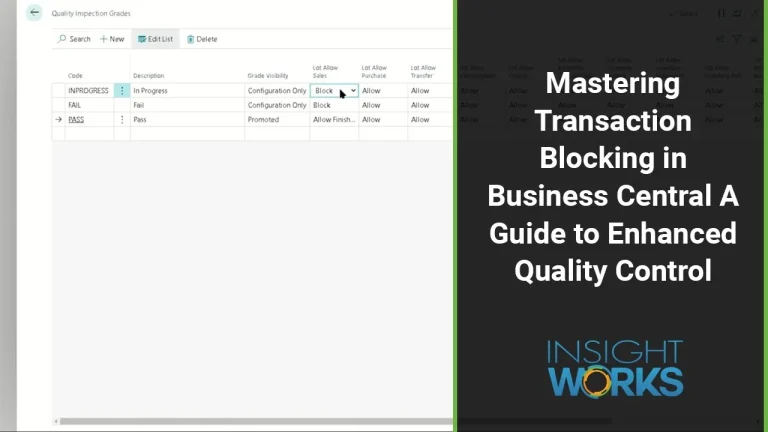
Quality Inspector grades decide what a lot may do next: each grade allows or blocks sales, purchases, transfers, consumption, picks, put-aways, and movements. Tests can be required before a receipt posts or a production order finishes, and a failed test can move inventory to a quarantine bin through Business Central workflow.
See all Quality Inspector features ↓Sampling
Inspect a sample and grade the whole lot
Inspecting every unit is not practical for many products, and working out sample sizes by hand invites mistakes. Results scattered across sheets are hard to roll up into one decision.
Set an inspection level and acceptable quality limit (AQL), and Quality Inspector sets the sample size and the accept and reject points. Inspectors enter each sample on a worksheet, and statistics such as average and standard deviation roll up to the test result.
See all Quality Inspector features ↓Paper to digital
Keep the paper form and still capture the data
Moving a shop floor off paper is a change people resist, and retyping handwritten sheets doubles the work. Many quality projects stall at this step.
Quality Inspector can read an existing paper form to propose template fields, then read handwritten values from a photo or scan into the test, with the image attached. Form reading uses Azure Document Intelligence and Azure Blob Storage in your own Azure subscription.
See all Quality Inspector features ↓Quality Inspector screenshots
Real screens from Quality Inspector in Business Central, shown with demo data.


Quality Inspector features
31 features in 5 groups. Each one has its own page with screens, steps, and answers to common questions.
Templates and tests
- Quality inspection templatesDefine entry forms, fields, and pass or fail criteria for each work center or product.
- Multiple test plansCreate different templates with their own triggering criteria for specific products or processes.
- Test result typesRecord numbers, choices, table lookups, free text, dates, and images.
- Dynamic tolerancesSet limits from the item card, item attributes, other fields, or a table lookup, so one template covers many specifications.
- Tests on any recordAttach inspections to work centers, fixed assets, employees, or custom tables without code.
- Automatic test creationCreate tests from receipts, warehouse receipts, production orders, output, movements, and sales returns.
- Manual and ad hoc testsCreate a test on demand from a purchase order, production order, lot, or template.
- Inbound receiving testsInspect purchased items as they are received from suppliers.
- RetestLet supervisors start a retest that keeps the original failure for the audit trail.
Sampling
Control
- Grades and lot blockingUse passing and failing grades to block sales, purchases, consumption, and other lot transactions.
- Required testsRequire a test before posting a receipt or finishing a production order.
- Inventory dispositionMove inventory to a quarantine location or bin from the test.
- Workflow and Power AutomateBlock lots, move inventory, or create follow-up tests on test events, without custom code.
- Nonconformance reportsCreate a nonconformance report (NCR) from a failed test.
- Tooling and calibrationTrack inspection tools and block the use of tools whose calibration has expired.
Capture
- Phone and tablet interfaceRecord tests through a role center designed for the Business Central phone and tablet apps.
- Pictures with OneDrive uploadCapture images during an inspection and upload them to OneDrive automatically.
- Form readingRead a paper form or a handwritten sheet from a photo or scan into the test.
- Hands-free value entryEnter values by natural language through your device's dictation keyboard, on Business Central online.
- Documents and linksAttach procedures, documents, and links to templates and individual tests.
- Signature fieldCapture signatures on a test for sign-off.
Reporting
- Central inspection dataKeep every question, value, and result on the Quality Inspection Test page for review and audit.
- Historical chartsChart numeric test values over time to spot trends.
- Export to Excel and Power BIList test values for analysis views and export to Excel, Power BI, and other tools.
- Failure analysisFind correlations between failures without reviewing tests one by one.
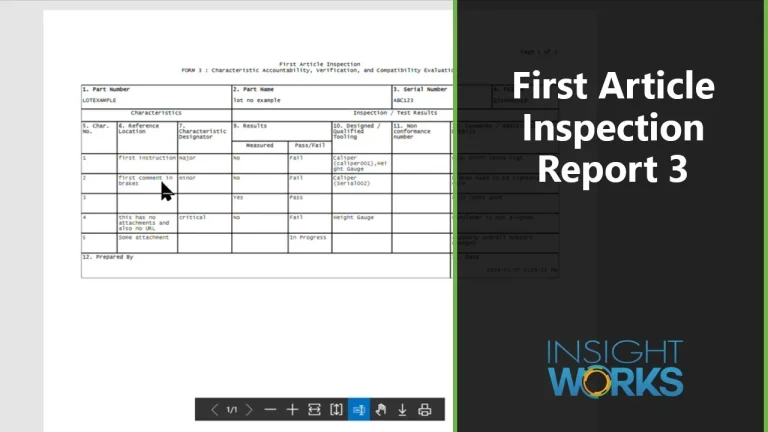
- First article inspection reportProduce a first article inspection report (FAIR) Form 3 for AS9102 and similar standards.
- Certificate of analysisPrint an example certificate of analysis based on test results.
- Microsoft Teams integrationShare test results in Teams as adaptive cards that colleagues can read without a Business Central license.
Quality Inspector videos
15 videos on setting up and using Quality Inspector, in the order most people need them.

10 min
Create ad hoc quality tests in Quality Inspector
For quality teams that run most inspections automatically but still need to start a one-off test by hand.

7 min
Assign and review quality tests in Quality Inspector
For quality managers and inspectors who want to see who is working on which test, and hand out or pick up tests quickly.

2 min
Record notes on quality test values in Quality Inspector
For inspectors who want to record observations, such as an odor or packaging damage, next to the test values they apply to.

15 min
Collect multiple samples with the sampling worksheet in Quality Inspector
For quality teams that measure several samples per field and want sample sizes and rejection points to come from their sampling plans.

9 min
Track tool usage on quality inspection tests in Quality Inspector
For quality teams that need to record which gauges and instruments were used for each measurement, including their serial numbers.

7 min
Add work instructions to quality test fields in Quality Inspector
For quality managers who want inspectors to see the right procedure, link, or document for each test field while they record results.
Show all 15 videos
10 min
Create a first article inspection report in Quality Inspector
For manufacturers that need a first article inspection report (Form 3) built from ballooned drawings and recorded test results.

9 min
Block and unblock lots automatically with Quality Inspector
For quality and warehouse teams that want received lots held until they pass inspection, without blocking and unblocking them by hand.
9 min
Block the sale of a lot until it passes inspection in Quality Inspector
For quality and warehouse teams that want a lot under inspection kept out of sales while it can still be picked, moved, or used internally.

13 min
Move inventory automatically when a test passes in Quality Inspector
For warehouse and quality teams that hold received goods in a quarantine bin and want them moved out as soon as they pass inspection.

11 min
Create a corrective action report from a failed test in Quality Inspector
For quality teams that need a corrective action or non-conformance report started every time a receiving inspection fails.

13 min
Connect Quality Inspector tests to a new table with Power Automate
For quality managers and Business Central administrators who want tests on records that are not set up out of the box, such as lot number information.

11 min
Share quality tests and send test alerts in Microsoft Teams with Quality Inspector
For quality teams that work in Microsoft Teams and want to share tests and hear about changes there.

6 min
Collect quality test values in Microsoft Teams with adaptive cards in Quality Inspector
For quality teams that want inspectors to enter test values from a Microsoft Teams channel and have the results go back to Business Central.

15 min
Set up Azure Blob Storage and Document Intelligence for Quality Inspector
For administrators who want to scan paper inspection forms and pictures into quality tests.
Requirements and licensing
Licensed per company
One Quality Inspector license covers the company, with no limit on the number of users.
Business Central license
Users need a Business Central full user or Team Member license, on the Essentials or Premium tier.
Cloud or on-premises
Quality Inspector runs on Business Central online and on-premises. Hands-free value entry works on Business Central online only.
Azure services for AI features
Form reading needs Azure Document Intelligence and Azure Blob Storage, and hands-free value entry needs an Azure OpenAI deployment, all in your own Azure subscription.
Business Central versions
Quality Inspector supports Business Central version 13 and later, with some features needing a later version. Business Central's built-in Quality Management module requires version 28 or later.
Moving from Quality Management
Quality Inspector and Business Central's Quality Management module can run in the same environment. The separate Quality Management Upgrade PowerTool app moves your setup from Quality Management to Quality Inspector.
Devices
Inspectors record tests in the Business Central web client and in the Business Central phone and tablet apps.
GET A QUOTE
Your Microsoft Partner prepares a quote for your setup.
App details and prerequisites
- Business Central
- Cloud and on-premises
- Insight Works license
- Per company, subscription, no user limit
- Business Central license
- Full user or Team Member license (Essentials or Premium tier)
- Devices
- Desktop, tablet, and phone through Business Central clients
- Languages
- English
- Availability
- All countries where Business Central is available
What customers say about Quality Inspector
“Quality Inspector is my go-to tool; it spots the bumps in our manufacturing process and helps us make our products better.”
Shirley C.Microsoft Marketplace review “With its intuitive interface and automated test features, the Quality Inspector app has become an indispensable tool for our field service and warehouse operations.”
Microsoft Marketplace review
Questions about Quality Inspector?
Ready to plan a rollout? Contact your Microsoft Partner. For product questions, send us a note and the Quality Inspector team will reply by email. Scoping Quality Inspector for a project? Book a Q&A session with the product manager.
Ask a product question
Works alongside Quality Inspector
 PrintNode Connector PowerToolPrint reports and labels from Business Central online directly to local or network printers
 License PlatingTrack mixed items on pallets, boxes, and containers with one license plate scan in Warehouse Insight
 DocXtenderAttach documents to records by drag and drop, stored in Business Central or SharePoint Online
 Shop Floor InsightCapture labor and machine time, consumption, output, and scrap on barcode and touchscreen terminals