
This article is dated as Microsoft changes support for OAuth with the device license model. When this article was written (May 2021), the only service to service OAuth authentication method supported is OAuth impersonation. OAuth is only available for BC SaaS. New settings are available in the IW.TimeCollectionModule.Service.exe.config binary patch for Shop Floor Insight.
To configure OAuth S2S (service to service) refer to this article instead: https://kb.dmsiworks.com/knowledge-base/configure-multiple-oauth-service-to-service-connections-in-shop-floor-insight/
Configure OAuth for Shop Floor Insight 7.8
- Set clientCredentialType to None using OAuth impersonation mode.
- Set DynamicsNavWebServiceAuthenticationMode to OAuthImpersonate.
- Set AlwaysSendCredentials to true.
- Add a new setting for OAuthTenant with the BC SaaS tenant GUID as the value.
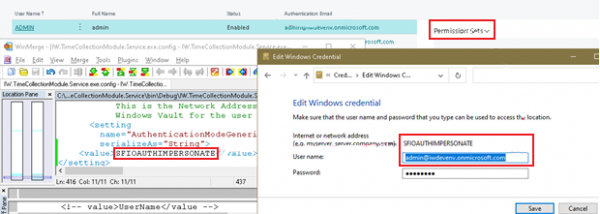
- Configure the Windows Credential manager the same as the windows service user (configuration differences in the following steps).
- Use the full username for the BC SaaS account (in the Users table in the Authentication Email column in Business Central).
- Use the full password for the BC SaaS account.
Example:
Still need help?
Ask other Business Central users in the Insight Works community, or send the details to the support team. Include the steps you took and any error message you saw.