
Shop Floor Insight provides users with the ability to print barcodes associated with specific job tasks. This article will explain the steps required to print these barcodes.
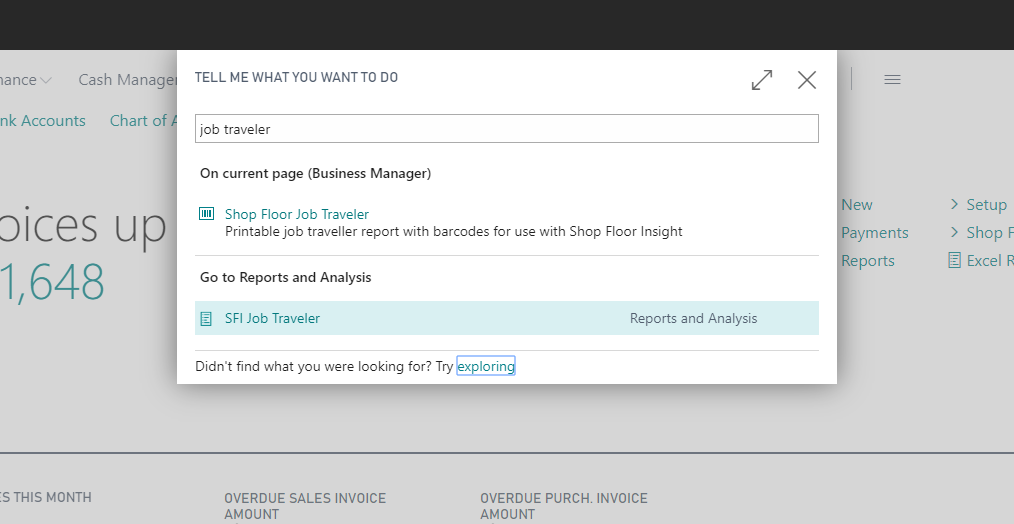
1. The barcodes for the job tasks can be printed by searching for the “Job Traveler” report.
2. In the search box, type in “Job Traveler” and select the entry for “SFI Job Traveler”.
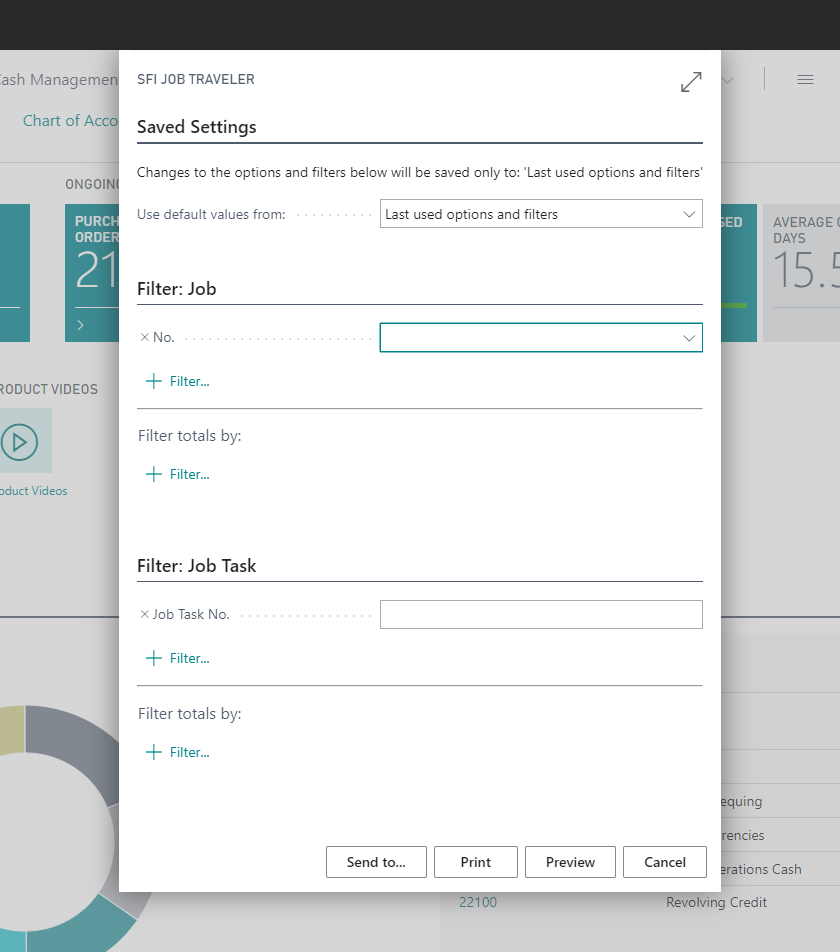
3. Once you click the link, a report popup will open that allows users to filter the jobs they want to print. Users could decide to select certain jobs based on values in the job header fields or in the job task fields.
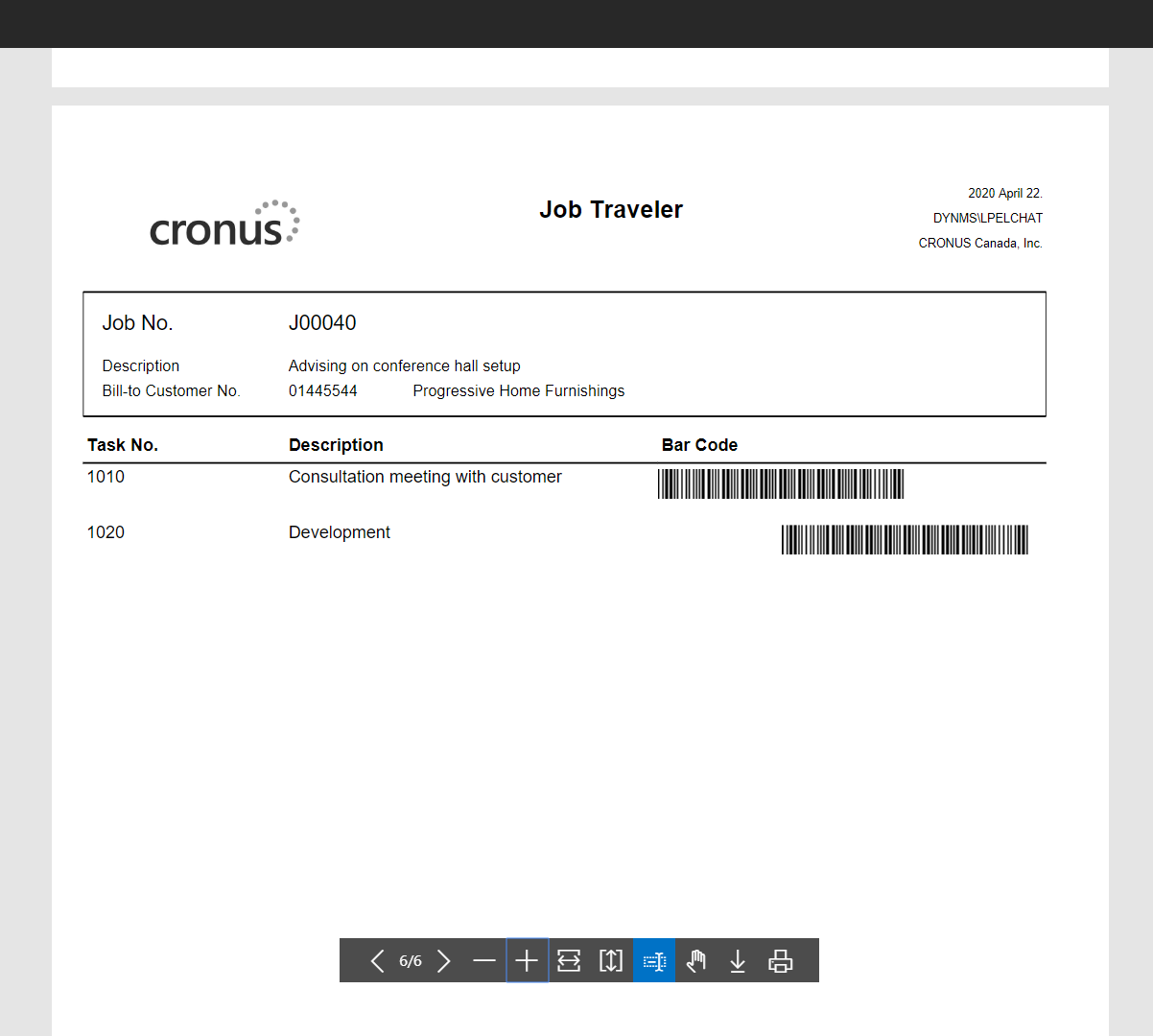
The report will print out the job along with the tasks of the job and the accompanying barcodes. Each barcode listed here will have the job and task information within the barcode.
Reminder that there shouldn’t be any special characters in the job number, otherwise the barcode will not scan properly in Shop Floor Insight.
Still need help?
Ask other Business Central users in the Insight Works community, or send the details to the support team. Include the steps you took and any error message you saw.