
Create quality inspections for receipts: short version
- Navigate to Quality Inspection Test Generation Rules in Business Central.
- Create a line referring to your test template.
- Add in a filter that specifies a specific item pattern in the Assignment Filter
If you test template was called RECEIPTEXAMPLE and you wanted to apply the template to any purchase line receipt for the item 1000, your filter would look like this:
| Sort Order | Template Code | Description | Table | Filter |
| 60 | RECEIPTEXAMPLE | Simple Receipt Example | Purchase Line | WHERE(Type=FILTER(Item),No.=FILTER(1000)) |
Create quality inspections for receipts: long version
This page guides you through the required configuration for you to create a test for any given item. Much of this configuration already exists, and you can create the core configuration by using the Quality Inspector Setup Wizard.
Prerequisites
Grade Prerequisite
Ensure you have at least one grade. Navigate to Quality Inspection Grades in Business Central. If you don’t see any grades, rerun the Quality Inspector Setup Wizard.
Possible default grades are:
| Code | Description | Grade Visibility |
| INPROGRESS | In Progress | Configuration Only |
| FAIL | Fail | Configuration Only |
| PASS | Pass | Promoted |
Source Configuration Prerequisite
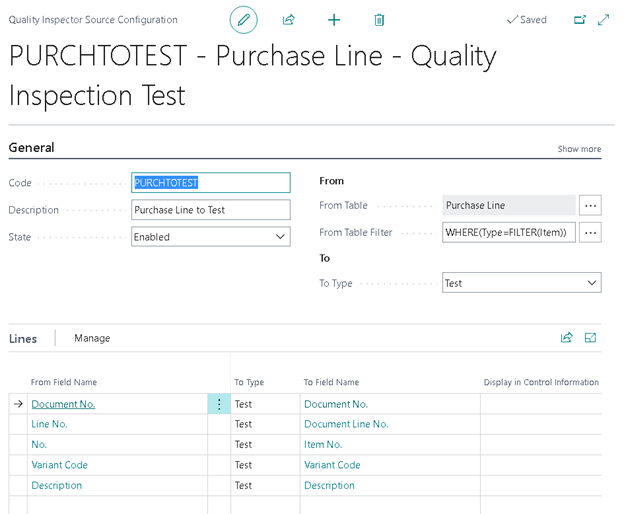
Ensure that you can tell Business Central what information to pull from a purchase line. You can also make tests for Warehouse Receipts; however, this example uses a purchase order line.
- Use a source configuration for a purchase line (From Table No. 39) to test.
- Use the Quality Inspector Setup wizard to create a default setup.
- Map the:
- Document No.
- Document Line No.
- Item No.
- Variant Code
- Description.
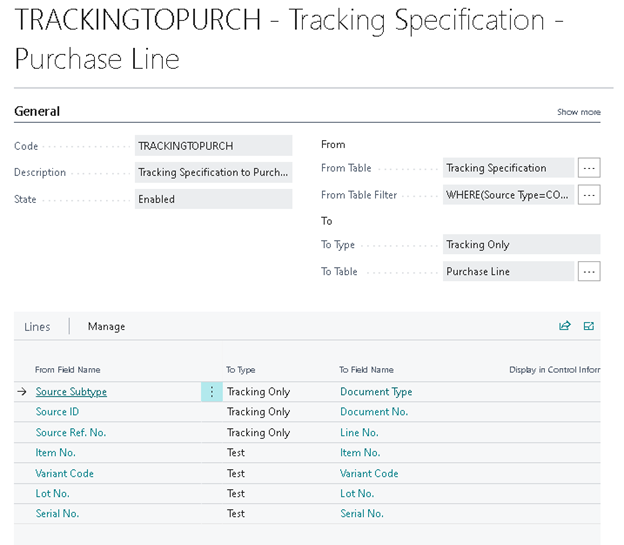
- Obtain a source configuration (available when you use the Quality Inspector Setup Wizard) for a tracking specification to collect the lot or serial tracking information.
| Code | Description | State | From Table No. | From Table | From Table Filter | To Type | To Table No. | To Table |
| PURCHTOTEST | Purchase Line to Test | Enabled | 39 | Purchase Line | WHERE(Type=FILTER(Item)) | Test | 23067640 | Quality Inspection Test |
| TRACKINGTOPURCH | Tracking Specification to Purchase Line | Enabled | 336 | Tracking Specification | WHERE(Source Type=CONST(39)) | Tracking Only | 39 | Purchase Line |
| WJNLTOPURCH | Whse. Journal to Purchase Line | Enabled | 7311 | Warehouse Journal Line | WHERE(Source Type=CONST(39)) | Chained Table | 39 | Purchase Line |
| WRTOPURCH | Whse. Receipt to Purchase Line | Enabled | 7317 | Warehouse Receipt Line | Chained Table | 39 | Purchase Line |
Quality Inspector Setup Prerequisite
- Navigate to Quality Inspector Setup in Business Central.
- Set Create Test Behavior to Always Create a New Test (a test is created even if a matching test for the same purchase line already exists).
- Set Create New Test to When a Purchase Order Is Posted in the Receiving section.
Configure questions to collect for the Receipt Test
- Navigate to Quality Inspector Fields in Business Central.
- Configure the following fields to ask the questions you want:
| Code | Description | Field Type | Allowable Values | Pass |
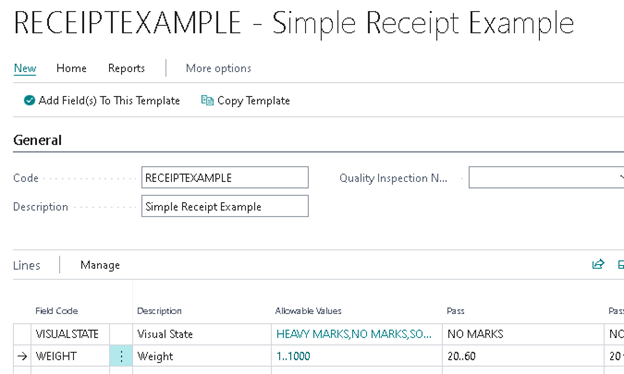
| WEIGHT | Weight | Decimal | 1..1000 | 20..60 |
| VISUAL STATE | Visual State | Table Look… | NO MARKS,SOME MARKS,HEAVY MARKS | NO MARKS |
- Set the following in the Configure a Number Field for Weight:
- Is this a range of numbers?: A range of numbers
- Minimum: 1.00
- Maximum: 1000.00
- Pass Min.: 20.00
- Pass Max.: 60.00
- Pass Desc.: 20 to 60
- Set the following in the Manage section for Visual State:
- A simple list of values: Enable
| Pass | Code | Description |
| – | HEAVY MARKS | Heavy Marks |
| Check | NO MARKS | No Marks |
| – | SOME MARKS | Some Marks |
Configure a Quality Inspection Template
- Create a template to use the questions you created in Configure questions to collect for the Receipt Test.
Configure a Test Generation Rule
Now that you have a Quality Inspection Test template, we can create a rule that uses this template.
- Navigate to Quality Inspection Test Generation Rules in Business Central.
- Create a line referring to that template.
- Input the Assignment Filter that specifies a specific item pattern in the Filter section.
| Sort Order | Template Code | Description | Table | Assignment Filter |
| 60 | RECEIPTEXAMPLE | Simple Receipt Example | Purchase Line | WHERE(Type=FILTER(Item),No.=FILTER(1000)) |
Configuration Summary
You have completed the following:
- Promoted a Pass grade
- Configured a source table
- Created two fields
- Created a test template using the two fields
- Defined configuration to automatically create a test when posting an order
- Created a test generation rule telling the system when to use the test template
Validate the configuration
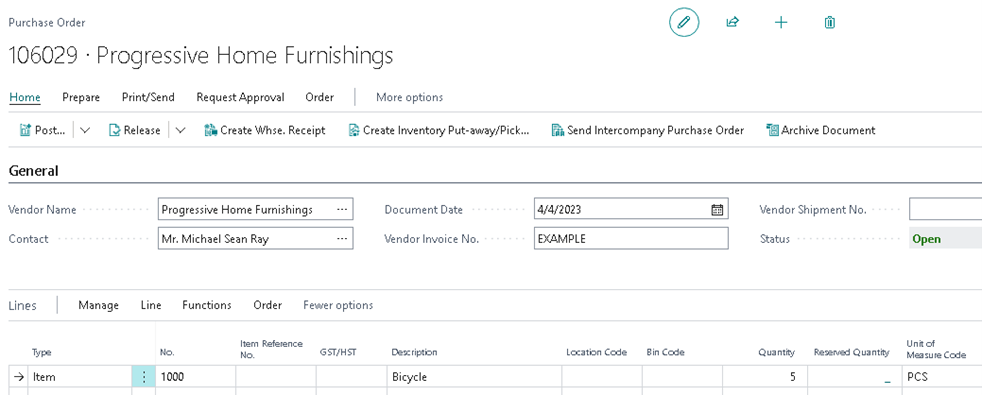
- Create a simple purchase order for the item identified in the previous step.
- Set the Quantity To receive to be a positive value, release the order, and post-receive the order.
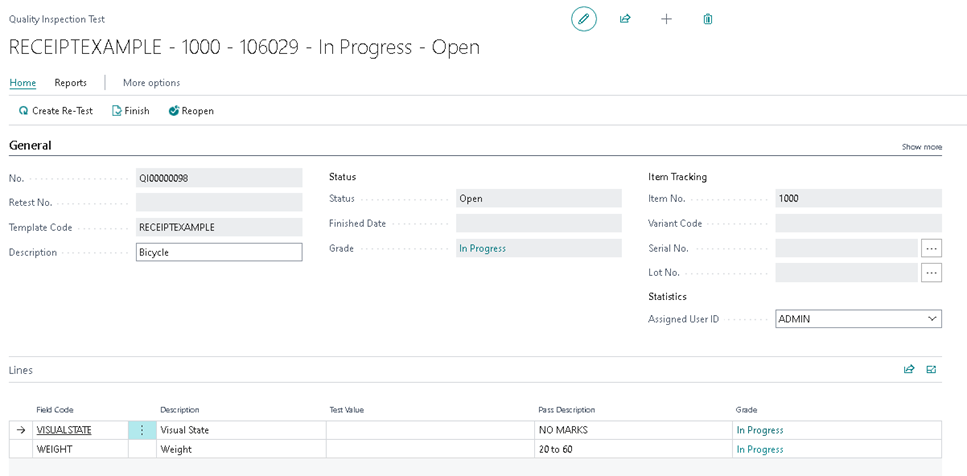
Once complete, you have a quality inspection test for that receipt.
Still need help?
Ask other Business Central users in the Insight Works community, or send the details to the support team. Include the steps you took and any error message you saw.