
Step 18 of 19. Follow these articles in order.
The Scratchpad application is an Offline Application and can be used to gather various information.
Core features of this application include:
- Ability to capture entries for various documents, including counts
- Offline data capture
- Processing of entries in Business Central
You can access the Scratchpad application from the Home screen by clicking the Scratchpad link. When launched, the Scratchpad page is displayed.
For more information, contact Support.
Scratchpad Document
When the Scratchpad link is pressed, the Scratchpad application page looks like this:
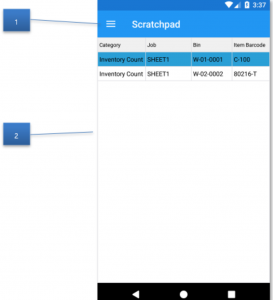
| Callout ID | Description |
|---|---|
| 1 |
The available menu options:
|
| 2 | The unsent entries. |
Menus
The following menus are available for all Offline Applications.
Close (Menu)
Closes the Offline Application and redirects to the Main page. Entries as per all Offline Applications will be save/persisted on the device until sent.
Add (Menu)
Prompts the user to enter data. See Creating Entries for more information.
Modify (Menu)
Allows the user to edit the entry details.
Delete (Menu)
Allows the user to delete the selected entry.
Send (Menu)
Sends the current entries to Business Central to be stored in the Scratchpad Entries table. Once completed, the entries are cleared.
Creating Entries
The Scratchpad application follows the standard Offline Applications in that the fields requested/prompted for are configured in the Offline Application definition.
When the user presses the Add menu, the following dialogs are presented in sequence:
- Category: Allows users to specify the high-level category this entry belongs to.
-
- Receiving
- Shipping
- Consumption
- Pick
- Put
- Move
- Other
- Inventory Count
- Document No.: Allows users to enter the relevant document number these entries belong to.
- Bin Code: Allows users to enter the bin for the entry.
- Item: Allows users to enter the item for the entry.
- Quantity: Allows users to enter the quantity for the entry.
- Comment: Allows users to enter a comment for the entry.
Processing Scratchpad Entries
After the Scratchpad Entries have been sent from the handheld, they can be further processed.
The entries contain all the information present at the time of the scanning. If the Item No., Lot No., or Serial No. fields are blank but there is a barcode, you can use the Decode Items option to try and determine the missing information from the barcode using the existing barcode rules.
There are typically two ways to process the scratchpad entries:
The First Method
The first method is to process the entries manually. In this scenario, the Business Central user reviews each entry and take the appropriate actions. This could mean updating documents to reflect the scans taken, creating new documents as needed, or any number of other activities.
The Second Method
The second method is to utilize the Process option. The Process action attempts to process each entry in the scratchpad. For most entries, this entails finding a corresponding document (based on Category and Job ID) and then locating a line with a matching Item No.
If a line can be found, the quantity to ship/receive/handle is updated by the amount indicated on the entry and any tracking information set. The exception to this is Inventory Counts where if a matching line cannot be found, it creates the entry.
If the scratchpad entry was successfully processed, the State is set to Processed. If the entry cannot be processed, a dialog asks if processing should continue or stop.
If the Ignore this Entry option is selected, the entry State is set to Ignore and processing will continue.
If the Stop All Processing option is selected the entry State is left blank and no further entries are processed.
If the default processing rules are insufficient, there is an option to implement custom processing logic. The custom processing logic is defined in a codeunit and specified in the Warehouse Insight Setup Scratchpad Processing Codeunit.
For more information, contact Support.

Still need help?
Ask other Business Central users in the Insight Works community, or send the details to the support team. Include the steps you took and any error message you saw.