The designer context blocks are primarily responsible for putting data into the global context so that they can be referenced by the application blocks or Business Central.
The following sections outline each available context and provide a brief example of how the block can be used.
Using the Selected Line
Using the Selected Line is intended for applications that are displaying a data grid (or card panel). This block takes the currently selected line (or panel) and adds each column from the underlying dataset to the context. Variable names match the column name.
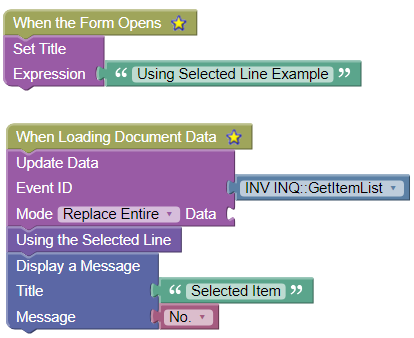
Using the Selected Line Example
The Application Designer example below uses Using the Selected Line. The application loads an item list of data and once loaded displays a message indicating the selected item number.
Using the Document Header
Using the Document Header is intended for applications that are displaying a data grid (or card panel). This block takes the current document data header information and add each column from the dataset to the global context. Variable names match the column name.
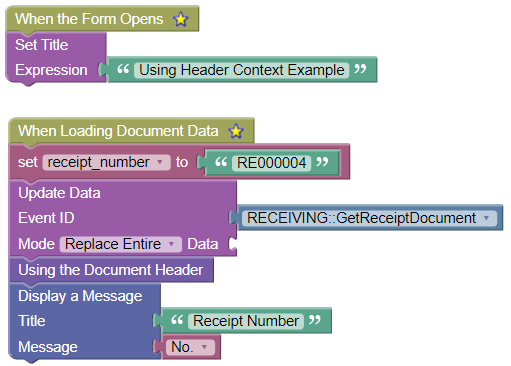
Using the Document Header Example
The Application Designer example below uses Using the Document Header. The application loads a warehouse receipt document and once loaded displays a message indicating the receipt document number.
Using the Device Configuration
Using the Device Configuration pushes the Business Central Device Configuration options into the global context so they can be referenced as needed. In addition, information concerning the current location is also made available (e.g., bins mandatory, require picks, etc.).
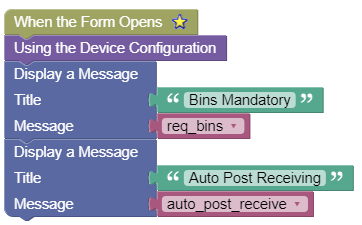
Using the Device Configuration Example
The Application Designer example below uses Using the Device Configuration:
Using the Last Scanned Barcode
Using the Last Scanned Barcode pushes the last barcode data into the global context. The context that is created depends on the type of barcode and are listed below. Typically, this block is used when responding to a barcode scan event (See Designer Events for more information).
Barcode Context:
Barcode Type
Context Created
License Plate
barcode.LicenseNumber: The license plate number.
LPBinCode: The bin code on the license plate.
LPLineCount: The number of lines on the license plate.
SourceNumber: The Source No. the license plate is assigned to.
Status: The license plate status.
OriginalBarcode: The license plate number.
barcode.Type: LPBarcode.
Document
Purchase Order
DocumentNumber: The purchase order number.
Type: PurchaseBarcode.
Sales Order
DocumentNumber: The sales order number.
Type: SalesBarcode.
Warehouse Shipment
DocumentNumber: The warehouse shipment number.
Type: ShipmentBarcode.
Warehouse Receipt
DocumentNumber: The warehouse receipt number.
Type: ReceiptBarcode.
Transfer Order
DocumentNumber: The transfer order number.
Type: TransferBarcode.
Count Sheet
DocumentNumber: The sheet name.
SheetNumber: The sheet name.
Type: CountBarcode.
Production Order
DocumentNumber: The production order number.
ProdOrderNumber: The production order number.
ProdOrderLineNumber: The production order line number.
Operation: The operation number (if specified in barcode).
SerialNumber: The serial number (if specified in barcode).
LotNumber: The lot number (if specified in barcode).
SerialTracked: True if serial number specified in barcode.
LotTracked: True if lot number specified in barcode.
Type: ProductionBarcode.
Warehouse Activity
DocumentNumber: The warehouse activity number.
ActivityNumber: The warehouse activity number.
WhseActivityType: The type of activity.
barcode.Type: ActivityBarcode.
Bin
barcode.BinNumber: The Bin code.
barcode.OriginalBarcode: The Bin code.
barcode.Type: Will be BinBarcode.
Text
barcode.OriginalBarcode: The barcode that was scanned.
barcode.Type: TextOnlyBarcode.
Tag
barcode.TagBinCode: The Bin code in the tag barcode.
barcode.ShelfNumber: The Shelf number in the tag barcode.
barcode.OriginalBarcode: The tag barcode scanned.
barcode.Type: TagBarcode.
LP Template
barcode.TemplateName: The template name.
barcode.OriginalBarcode: The template barcode.
barcode.Type: LPTemplateBarcode.
Location
barcode.LocationCode: The location code.
barcode.LocationName: The location name.
barcode.BinsMandatoryInLocation: True if the location requires bins.
barcode.RequireReceive: True if the location requires receipts.
barcode.RequireShipment: True if the location requires shipments.
barcode.RequirePutAways: True if the location requires put-aways.
barcode.RequirePicks: True if the location requires picks.
barcode.DirectedPicksAndPutAways: True if the location is directed.
barcode.OriginalBarcode: The location code.
barcode.Type: LocationBarcode.
Item
barcode.BarcodeQuantity: The quantity returned from the Item decoding.
barcode.BaseUnitOfMeasure: The Item’s base unit of measure code.
barcode.BinCode: The bin returned from the Item decoding.
barcode.BinQuantity: The bin quantity returned from the Item decoding.
barcode.Custom1: The Custom 1 value returned from the Item decoding.
barcode.Custom2: The Custom 2 value returned from the Item decoding.
barcode.Custom3: The Custom 3 value returned from the Item decoding.
barcode.Description: The Item’s Description.
barcode.Description2: The Item’s Description 2.
barcode.ExpirationDate: The expiration date returned from the Item decoding.
barcode.ItemCategoryCode: The Item’s Item Category Code.
barcode.ItemNumber: The Item number.
barcode.ItemTrackingCode: The Item’s Item Tracking Code.
barcode.LotNumber: The lot number returned from the Item decoding.
barcode.ProductGroupCode: The Item’s Product Group Code.
barcode.PurchaseUnitOfMeasure: The Item’s Purchase Unit of Measure Code.
barcode.PutAwayUnitOfMeasure: The Item’s Put-away Unit of Measure Code.
barcode.SalesUnitOfMeasure: The Item’s Sales Unit of Measure Code.
barcode.SerialNumber: The serial number returned from the Item decoding.
barcode.Type: ItemBarcode.
barcode.OriginalBarcode: The barcode the user scanned.
barcode.UnitOfMeasure: The unit of measure returned from the Item decoding.
barcode.VariantCode: The variant code returned from the Item decoding.
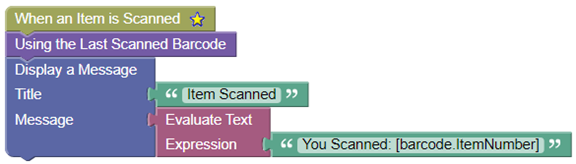
Using the Last Barcode Scanned Example
The Application Designer example below uses Using the Last Barcode Scanned to display some information about the item scanned:
Ask other Business Central users in the Insight Works community, or send the details to the support team. Include the steps you took and any error message you saw.