
This article will describe the process of extending the Quantity dialog in Warehouse Insight to capture additional information.
In this solution below we will be creating an Quantity Extension to capture three additional pieces of information during the Receiving process:
- Date of Manufacture
- Vendor Lot Number
- QA Inspection Result
Create the Quantity Extension Header and Fields
- Navigate to the Warehouse Insight Quantity Extensions page in Business Central.
- Create a new Quantity Extension and modify the following fields:
- Code: QA_INSPECTION
- Description: Input the description (e.g., Additional fields for receiving).
- New Page: No (adds the additional fields to the quantity dialog. Setting to Yes prompts the user for values in a separate dialog.)
- Page Title: (blank; only required if using a new page for the additional fields.)
- Create fields/questions for each of the data pieces you are collecting:
| Field Name | Field Caption | Data Type | Default Event ID | Validation Event ID |
| DateOfMfg | Date of Manufacture | Date | – | 2000000 |
| VendorLotNo | Vendor Lot No. | String | – | – |
| InspectionResult | Inspection Result | Option | 2000001 | – |
Associate the Extension with an Application
- Open the Scan Behaviors page in Business Central.
- Locate the WHSE_RECEIPT_DOC line and input “QA_INSPECTION” in the Quantity Extension Code field.
- Close the Scan Behaviors page.
Create a Codeunit to Process the Default and Validation Events
Default Value event handlers must return a standard value result. Option values are a comma-separated list, where the first item in the list is the selected value.
Validation events handlers send the fields value in the field name key of the Event Params record.An example of the required functions are: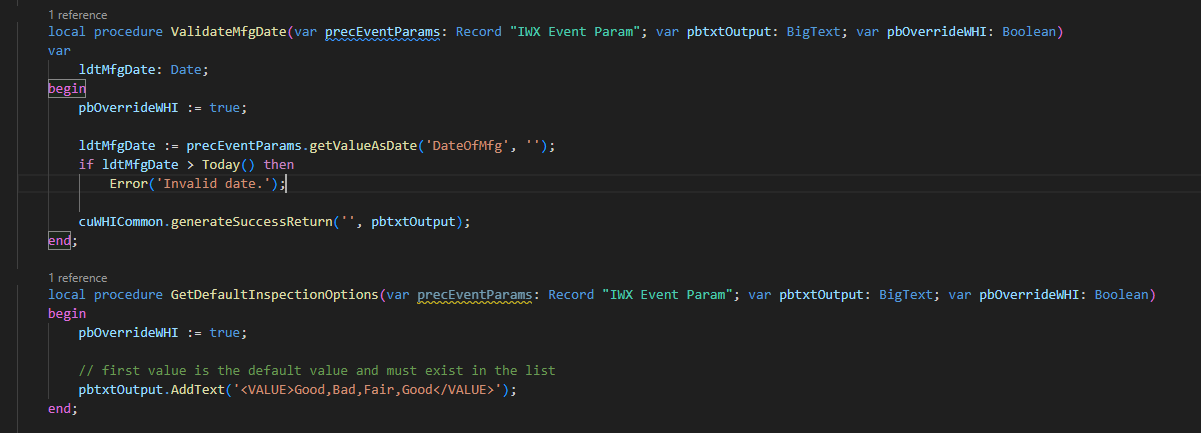 You can also download the extension codeunit here.
Test the Quantity Extension
When the quantity dialog is displayed on the device you should see the additional three controls, like so:
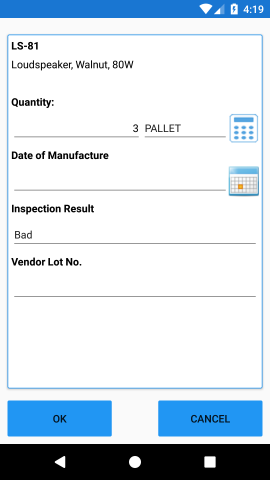
Validations fire when you change the value and select the OK to close the dialog.All additional fields are sent to the processing event, as per normal, for further handling.
Still need help?
Ask other Business Central users in the Insight Works community, or send the details to the support team. Include the steps you took and any error message you saw.