
Step 17 of 19. Follow these articles in order.
The License Plates application is responsible for managing license plates independently of any specific document.
Core features of this application include:
- Lookup Lists for license plates
- Creating new license plates
- Moving license plates
- Managing/Adjusting license plates
You can access the License Plates application from the Home screen by clicking the License Plate link. When launched, the License Plate Lookup List page is displayed.
License Plate Lookup List
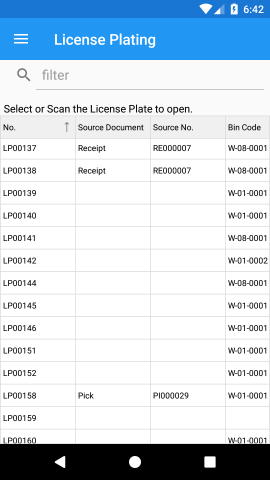
The Lookup List page allows you to either scan or select the license plate you need to view. Use the filter bar to filter the lookup list to specific license plates, if required.
License Plate Lookup List Columns
The License Plate Lookup List can show the following columns.
| Column | Description |
|---|---|
| No. | This is the license plate number. |
| Source Document | The type of document the license plate is currently assigned to. |
| Source No. | The document number the license plate is currently assigned to. |
| Bin Code | The bin the license plate is currently in. |
| Barcode | The generated barcode that is used if a line is selected. This column does not need to be shown. |
License Plate Document
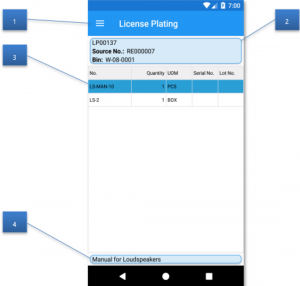
When a License Plate is opened the application page looks like so:
| Callout ID | Description |
|---|---|
| 1 | The available menu options:
|
| 2 | Document number and related header information. |
| 3 | The license plate lines. |
| 4 | Description and other line details. |
Adding Items
To add items to the license plate, complete the following:
- Scan the item to add.
- Enter the quantity and Item Tracking Information, if required.
The Scan Behaviors page can be configured to control aspects of this process. For example, you can configure it so that a quantity dialog does not appear but instead increments the count by one, or to change the default quantity or unit of measure.
Menus
The following menus are available by default for License Plating. Menus may be added or removed as required from the Device Menus page under the Application Form with a selection of LP_DOC for the Application.
Close (Menu)
Closes the License Plate document and redirects to the Lookup List page.
Change Quantity (Menu)
Launches the Quantity dialog for the selected line.
Delete Line (Menu)
Deletes the selected line. Users are prompted to confirm the deletion.
Print (Menu)
Sends a request to print any configured report(s). You can configure which reports are printed in the Insight Works Report Selections with the LP Label usage.
By default, the reports must be built with a top level DataItem of the document type being printed (e.g., Report WMDM License Plate Label, ID: 23044512).
New License Plate (Menu)
Creates and opens a new license plate. If a label is required, it can be printed via the Print option.
Change Properties (Menu)
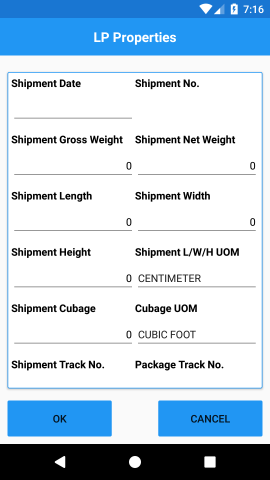
Allows users to modify some license plate properties. When selected, the following screen will be shown:
Item Inquiry (Menu)
Launches the Item Inquiry management screen pre-filtered to the selected line.
Bin Inquiry (Menu)
Launches the Bin Inquiry management screen pre-filtered to the active bin.
Still need help?
Ask other Business Central users in the Insight Works community, or send the details to the support team. Include the steps you took and any error message you saw.