
The designer variable blocks serve as defined variables in the application to make it easier to work with data and control process logic. The following sections outline each available variable block type and provide a brief example of how the block can be used.
Variable
Variable is used to define an explicit variable. You can either define a new variable or reference one of the available variables in the context. Variables can be of any type (e.g., decimal, string, and Boolean) but are treated as strings.

This block is always used as an input to another block and cannot be placed by itself.
Block Configuration:
| Option | Description |
|---|---|
| item | The variable name. Use the dropdown to select a previously-created variable or to create a new one. |
Variable Example
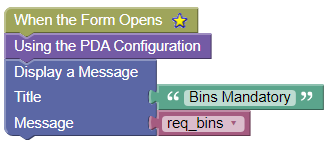
The Application Designer example below uses Variable to reference a PDA Configuration context variable:
Set Variable
Set Variable is used to set the value of a variable. If the variable does not already exist, it is created.
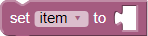
Block Configuration:
| Option | Description |
|---|---|
| item | The variable name to set. Use the drop down to select an existing variable or to create a new one. |
| < blank > | Place a variable block to get the value from. |
Set Variable Example
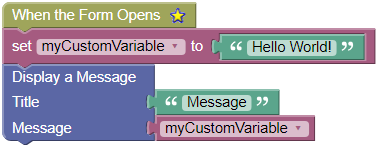
The Application Designer example below uses Set Variable to create a new custom variable:
Integer Variable
Integer Variable can be used as an input into another block when you need to specify an integer value and do not need to reference it anywhere else.

Integer Variable Example
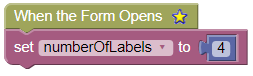
The Application Designer example below uses Integer Variable:
Text Variable
Text Variable can be used as an input into another block when you need to specify a string value and do not need to reference it anywhere else.

When used with an Expression block or input, Text Variable replaces any variables enclosed in brackets with the current value.
Text Variable Example
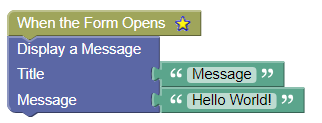
The Application Designer example below uses Text Variable:
Boolean Variable
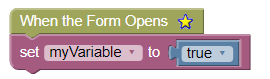
Use Boolean to indicate a True or False variable.

Boolean Example
The Application Designer example below uses Boolean:
Known Event Variable
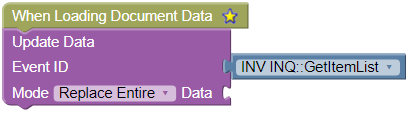
Use Known Event to choose a pre-existing Event ID by name. The Known Event options are automatically populated based on Events page in Business Central.
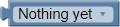
The known event options are automatically populated based on the Events page in Business Central.
Known Event Example
The Application Designer example below uses Known Event:
Dialog Result Variable
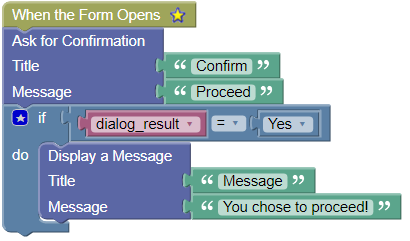
Use Dialog Result to check for a dialog result by name rather than integer.

Available options are:
- OK (integer value of 1)
- Cancel (integer value of 2)
- Yes (integer value of 6)
- No (integer value of 7)
Dialog Result Example
The Application Designer example below uses Dialog Result:
Evaluate Number
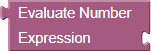
Evaluate Number is used to complete simple math expressions and then feed the result into other inputs.
Block Configuration:
| Option | Description |
|---|---|
| Expression | The expression to evaluate. Should be a string variable with references to variable names inside brackets [].
Use: + for addition, – for subtraction, * for multiplication, / for division. |
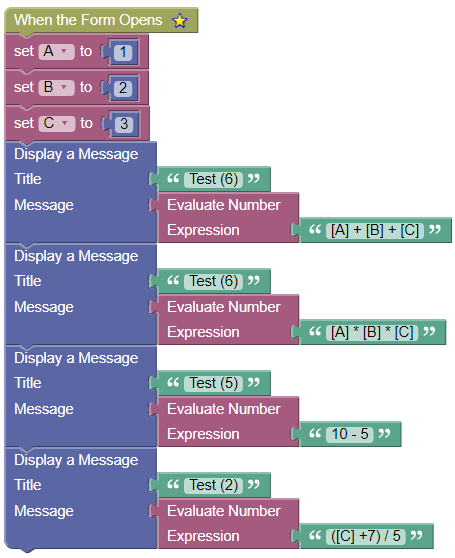
Evaluate Number Example
The Application Designer example below uses Evaluate Number:
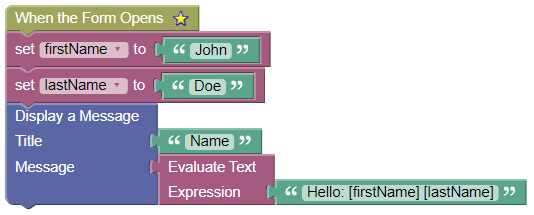
Evaluate Text
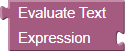
Evaluate Text is used to string replace variables into text expressions and then feed the result into other inputs.
Block Configuration:
| Option | Description |
|---|---|
| Expression | The expression to evaluate. Should be a string variable with references to variable names inside brackets []. |
Evaluate Text Example
The Application Designer example below uses Evaluate Text:
Is any lot tracked
Note: Specific item tracking settings (e.g., purchase inbound, sales outbound) can also be referenced from the context.

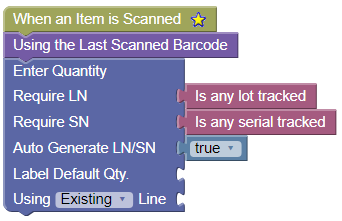
Is any lot tracked Example
The Application Designer example below uses Is any lot tracked:
Is any serial tracked
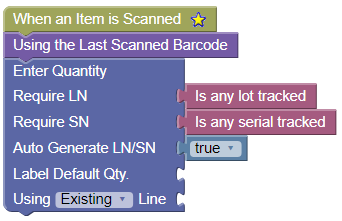
Is any serial tracked is specially designed to return True/False if the current context has any Item Tracking Configuration that requires a serial number.

Is any serial tracked Example
The Application Designer example below uses Is any serial tracked:
Still need help?
Ask other Business Central users in the Insight Works community, or send the details to the support team. Include the steps you took and any error message you saw.