
Step 14 of 19. Follow these articles in order.
The Consumption application allows users to record Consumption against Production Orders.
Core features of this application include:
- Lookup Lists for Production Orders (broken down by Item Tracking, if required)
- Recording consumption against specific produced Lot/Serial numbers
- Options around BOM enforcement
- Posting
You can access the Consumption application from the Home screen by clicking the Consumption link. When launched the Consumption Lookup List page is displayed.
Consumption Lookup List
The Lookup List page allows you to either scan or select the Production Order you wish to view. You can use the filter bar to filter the lookup list to specific Production Orders, if required.
The Consumption Lookup List can be filtered by typing into the Search Filter. The following data is supported for searching:
- Document Number: Production Orders that have a No. matching the filter will be displayed
If Logins are enabled, only documents that are un-assigned or explicitly assigned to the logged in user will be shown. If you need to see all documents regardless of assignment, check the Show All Documents option on the Device Configuration page.
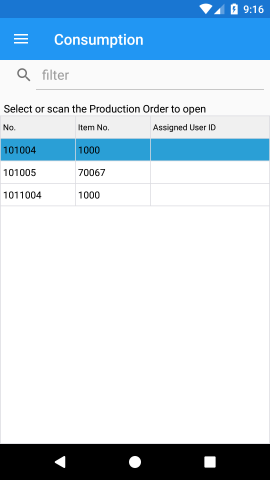
Consumption Lookup List Columns
The Consumption Lookup List can show the following columns:
| Column | Description |
|---|---|
| No. | The Production Order number. |
| Line No. | The Production Order Line number. |
| Item No. | The Production Order Line number. |
| Lot No. | The Production Order Lot number (if List Per Tracking Line is enabled). |
| Serial No. | The Production Order Serial number (if List Per Tracking Line is enabled). |
| Assigned User ID | The User ID the document is assigned to. |
| Barcode | The generated barcode that is used if a line is selected. This column does not need to be shown. |
Consumption BOM Document
When a Production Order has been chosen the application page will look like so:
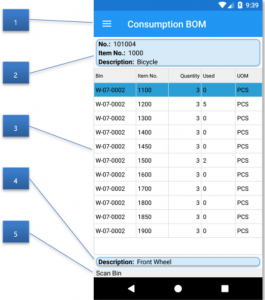
| Callout ID | Description |
|---|---|
| 1 |
The available menu options:
|
| 2 | Production Order number and related header information. |
| 3 | The Production Order Component Lines (BOM). |
| 4 | Component Line additional details. |
| 5 | Status bar indicating status messages or instructions. |
Consuming Items
The standard process flow should be used when consuming items:
- Scan the bin to ship from.
- Scan the item to ship.
- Enter the quantity consumed and Item Tracking Information, if required.
See the General Document Handling section on the Overview page for more information.
The Scan Behaviors page can be configured to control aspects of this process. For example, you can configure it so that a quantity dialog does not appear but instead increments the count by one, or to change the default quantity or unit of measure to consume.
Menus
The following menus are available by default for Consumption. Menus may be added or removed as required from the Device Menus page under the Application Form with a selection of PROD_CONS_BOM for the Application.
Close (Menu)
Closes the Production Order and redirects to the Lookup List page.
Post (Menu)
Posts the recorded consumption. Users are prompted to confirm that the post should occur. After posting the consumption, the page closes and redirects to the Lookup List page.
Change Quantity (Menu)
Launches the Quantity dialog for the selected line.
Enter Bin (Menu)
This option is hidden by default but can be made visible via the Device Menus page. Users are prompted to type in the bin that they wish to simulate scanning. this option is useful if bin labels have become damaged or are inaccessible.
Enter Item (Menu)
This option is hidden by default but can be made visible via the Device Menus page. Users are prompted to type in the item that they wish to simulate scanning. This option is useful if Item labels have become damaged or are no longer readable.
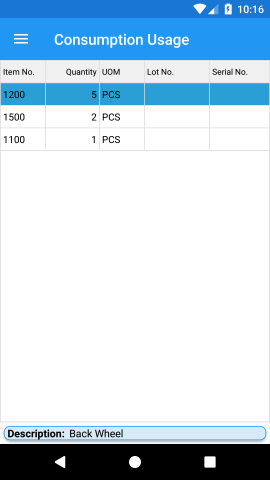
Show Usage (Menu)
Opens the Consumption Usage page. Users are able to modify/delete recorded consumption entries.
Item Inquiry (Menu)
Launches the Item Inquiry management screen pre-filtered to the selected line.
Bin Inquiry (Menu)
Launches the Bin Inquiry management screen pre-filtered to the active bin.
Transferring Consumption Entries
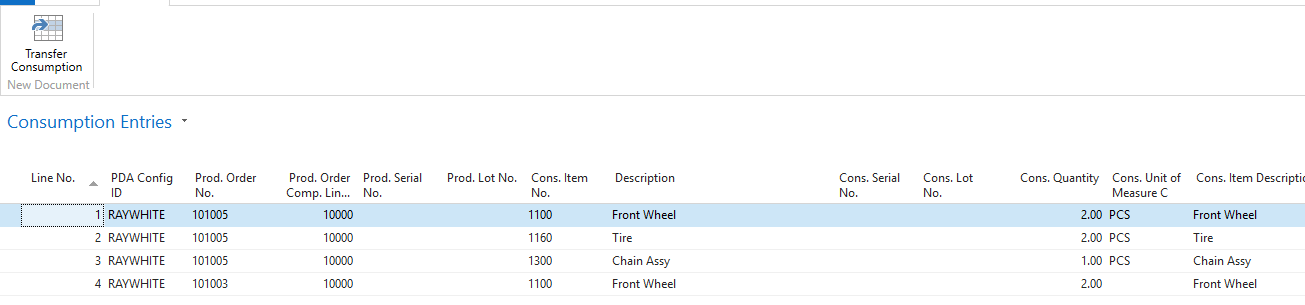
After the devices have recorded consumption against a production order, the entries appear on the Consumption Entries page. From this page, the consumption entries can then be transferred to the Consumption Journal for processing/posting after reviewing or when appropriate.
The entries contain all the information captured at time of scanning but can be modified as needed prior to sending to the appropriate consumption journal. When transferred, the consumption entries are added to the Batch Name specified on the entry line.
To transfer/post the consumption entries complete the following:
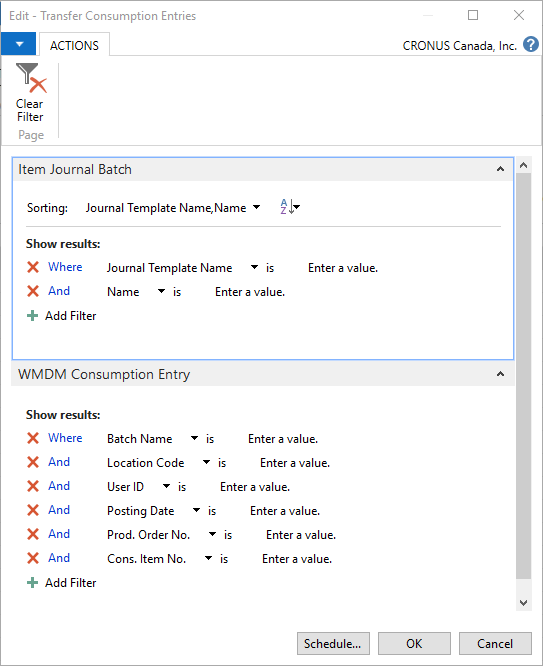
- Press the Transfer Consumption menu button.
- Specify any filters for lines, in the report dialog, you want to transfer (e.g., production orders, user entries, etc.).
- Open the appropriate Consumption Journal Batch and Post the entries.
Common Configurations and Requests
This section describes the common scenarios, requests, and features concerning Consumption. While some topics may require development or customizations, they are included here to provide a greater understanding of what the software is capable of.
For more information, contact Support.
BOM Enforcement
The allowed consumption can be validated against the BOM in a variety of ways by setting the Enforce BOM option on the Device Configuration page. The available options are:
- No Enforcement: Users can record consumption for any item and any amount of quantity regardless of the BOM. This is the default option.
- Enforce Item: Users can over consume any item on the BOM. Items not on the BOM cannot be consumed.
- Enforce Quantity: Users cannot over consume items. Items not on the BOM cannot be consumed.
Consuming License Plates
It is not possible to consume a license plate. You can create a custom menu using appropriate logic implemented to achieve this, depending on requirements.
Contact Customer Support for more information.
Still need help?
Ask other Business Central users in the Insight Works community, or send the details to the support team. Include the steps you took and any error message you saw.