
The designer logic blocks are used to control process flow through the application. The following sections outline each action and provide an example of how the action can be used.
Count With Block
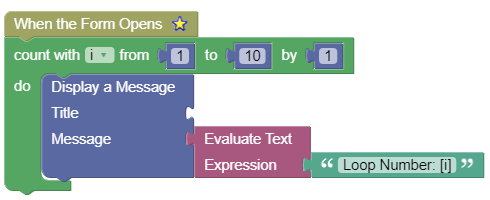
Use Count With to loop a predefined number of times.

Block Configuration:
| Option | Description |
| Index Variable | The variable loop index to increment each loop. |
| From | The starting index value. |
| To | The ending index value. |
| By | The amount to increment the Index Variable by each loop. |
The loop exits when the Index Variable is equal to or greater than the ending index value.
Count With Example
The Application Designer example below uses Count With:
IF Block
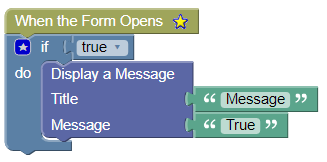
IF is used when you want to check a condition and if true, execute additional logic.

Block Configuration:
| Option | Description |
|---|---|
| if | The condition to check. |
| do | Place additional blocks you want executed when if condition is true. |
IF Block Example
The Application Designer example below uses IF:
IF – ELSE Block
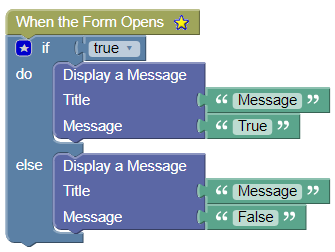
IF – ELSE is used when you want to check a condition. If true, execute additional blocks; if false, execute other blocks.

Block Configuration:
| Option | Description |
|---|---|
| if | The condition to check. |
| do | Place additional blocks to execute when if condition is true. |
| else | Place additional blocks to execute when if condition is false. |
IF-ELSE Block Example
The Application Designer example below uses IF-ELSE.:
IF – ELSE IF – ELSE
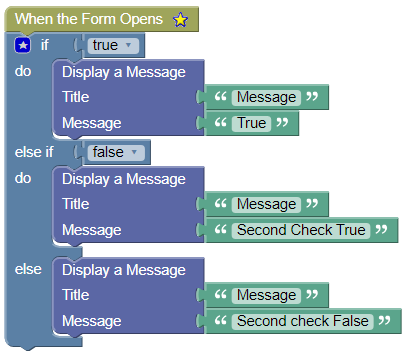
IF – ELSE – IF is used when you want to check a condition and if true then execute some additional blocks and if it’s false then perform another check and if that is true execute some other blocks otherwise execute some other blocks.

Block Configuration:
| Option | Description |
|---|---|
| if | The condition to check. |
| do | Place additional blocks to execute when if condition is true. |
| else if | The second condition to check if the first check is false. |
| do | Place any additional blocks to execute if else if condition is true. |
| else | Place any additional blocks to execute when else if condition is false. |
IF – ELSE IF – ELSE Block Example
The Application Designer example below uses IF-ELSE IF – ELSE.:
Comparison Block
Comparison is used to compare two variables and returns true or false depending on the comparison results.

Block Configuration:
| Option | Description |
|---|---|
| The first variable to compare. | |
| The second variable to compare. | |
| Operator | = return true if the variables are equal; otherwise, false. ≠ return true if the variables are not equal; otherwise, false. < return true if the left side variable is less than the right side; otherwise, false. ≤ return true if the left side variable is less than or equal to the right side; otherwise, false. > return true if the left side variable is greater than the right side; otherwise, false. ≥ return true if the left side variable is greater than or equal to the right side; otherwise, false. |
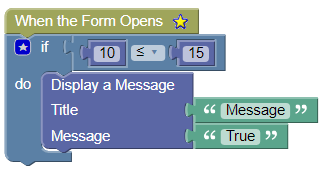
Comparison Block Example
The Application Designer example below uses Comparison:
Logical Comparison Block
Logical Comparison is used to compare two variables and returns true or false depending on the logical comparison results.

Block Configuration:
| Option | Description |
|---|---|
| The first variable to compare. | |
| The second variable to compare. | |
| Operator | and return true if both variables are true; otherwise, false.
or return true if either variable is true; otherwise, false. |
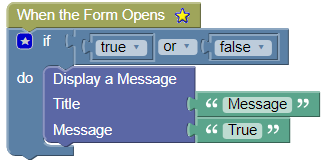
Logical Comparison Block Example
The Application Designer example below uses Logical Comparison:
Not Block
Use Not to reverse/negate a Boolean variable. This block must be used in conjunction with another variable.

Block Configuration:
| Option | Description |
|---|---|
| < input > | The variable to negate. |
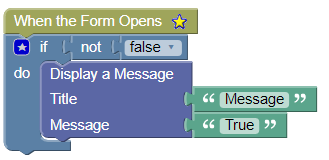
Not Block Example
The Application Designer example below uses Not:
Still need help?
Ask other Business Central users in the Insight Works community, or send the details to the support team. Include the steps you took and any error message you saw.