
Objective
In some cases, users of Warehouse Insight will want to be able to add comments to documents from their mobile devices. This article will walk through the steps and code required to add a Purchase Order comments from the device.
Requirements
This article requires the following:
- Business Central version 15 or higher
- Warehouse Insight Advanced WMS version 2.0 or higher
Steps
The following steps/code can be modified or extended as required and assume a base level familiarity with Business Central and Warehouse Insight.
- Add a Menu
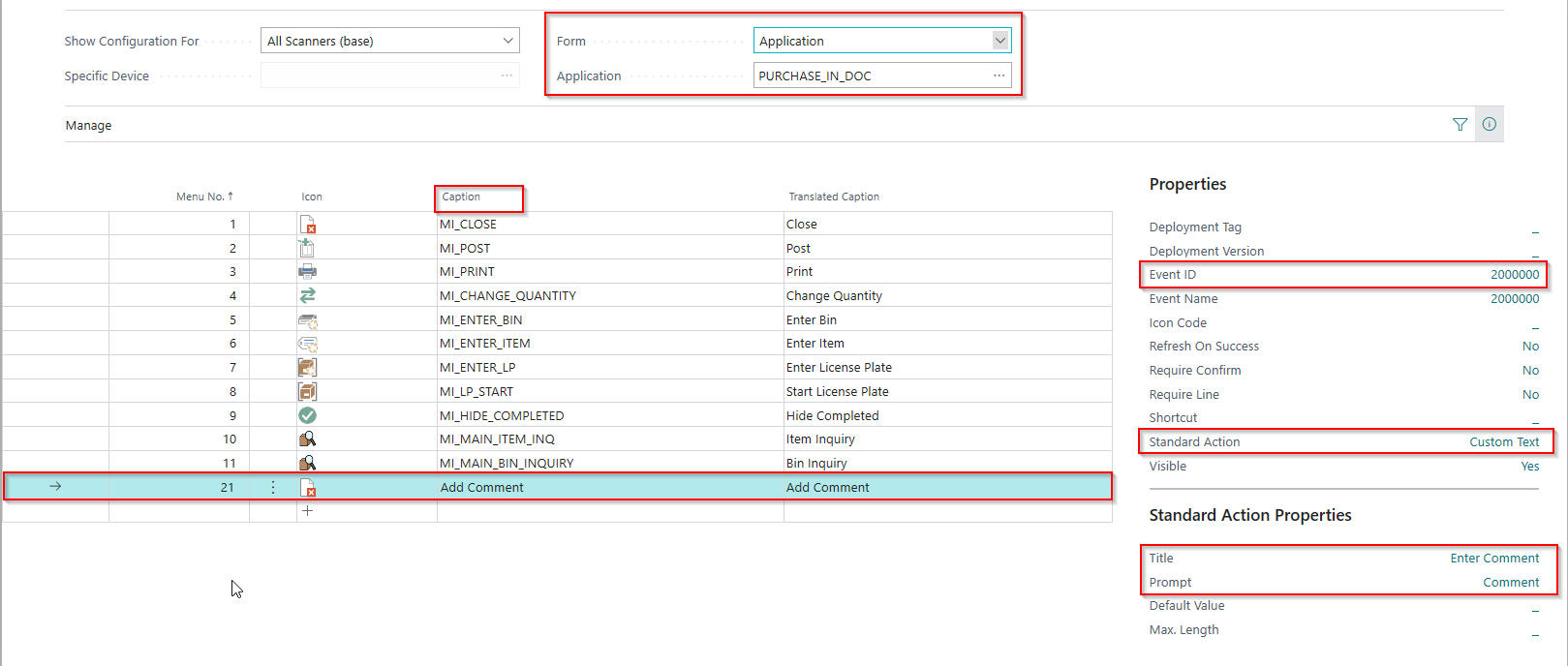
In Business Central navigate to the “Warehouse Insight Device Menus” page.
Choose the “Form” drop down option “Application”.
Choose the Application “PURCHASE_IN_DOC” from the lookup list.
Create a new Menu at the end with the following properties:
- Caption: Add Comment
- Event ID: 2000000
- Standard Action: Custom Text
- Title: Enter Comment
- Prompt: Comment
- Create the Extension
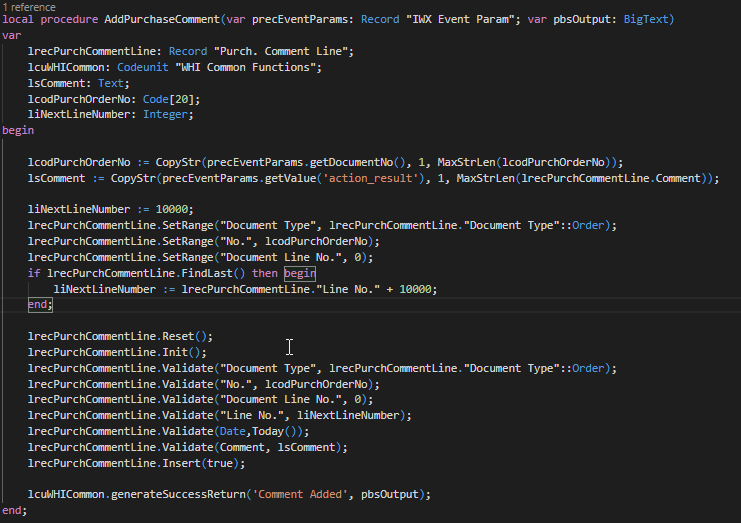
Create an extension codeunit to process the request and save the comment.
Custom events must be handled before the base product execution occurs. Therefore, we will be subscribing to the “OnBeforeProcessEvent” and listening for the event defined on the Menu (ID 2000000).

The code for saving the comment is given below. When done, the custom event must indicate the event was handled to avoid errors being generated by base Warehouse Insight.
Result
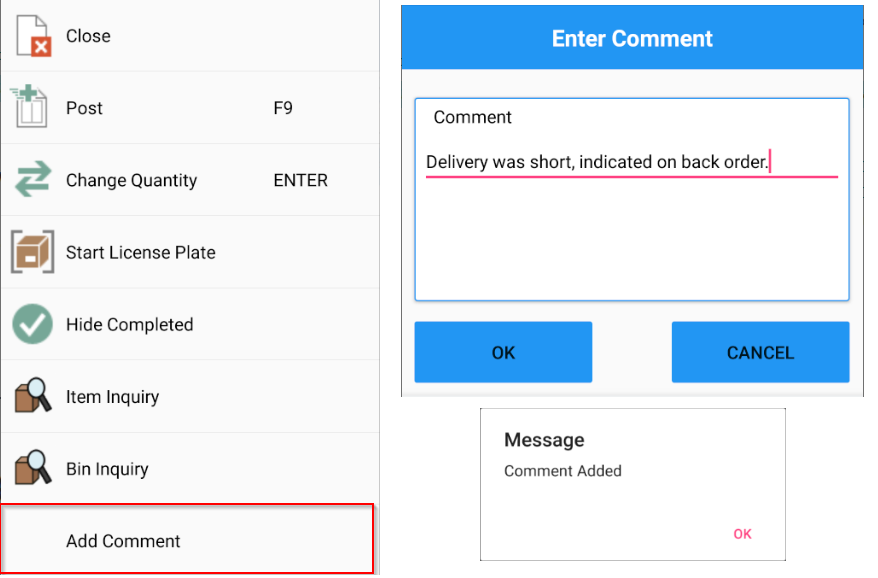
Once the extension codeunit has been published comments can now be added via the “Add Comment” menu option on the document.
Still need help?
Ask other Business Central users in the Insight Works community, or send the details to the support team. Include the steps you took and any error message you saw.