
Step 5 of 19. Follow these articles in order.
The Bin Inquiry application provides information about bins the system. Core features of this application include:
- General Bin information
- Items in the bin:
- Quantity
- Lot/Serial Numbers
- Descriptions
- License plates in the bin
- Recent bin transactions
- Printing labels
You can access the Bin Inquiry application from the Home screen by clicking the Bin Inquiry link. When launched, the Bin Lookup List page will be displayed.
Bin Inquiry Lookup List
The Lookup List page allows you to either scan or select the bin you wish to view. Use the filter bar to filter the lookup list to specific bins, if required.
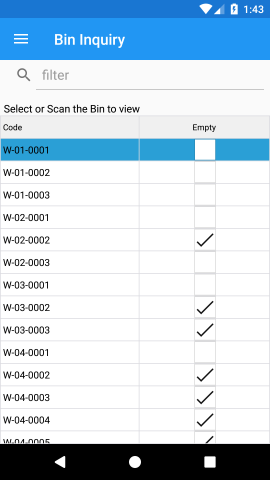
Bin Inquiry Lookup List Columns
The Bin Inquiry Lookup List can show the following columns.
| Column | Description |
|---|---|
| Code | The bin code. |
| Empty | The bin’s empty flag. |
| Description | The bin’s description. |
| Zone Code | The bin’s zone code. |
| Dedicated | The bin’s dedicated flag. |
Bin Management
When you scan or enter a bin in the Lookup List, you are shown the bin’s details.
You can switch bins by scanning a different bin barcode from this screen without needing to exit back to the Lookup List page.
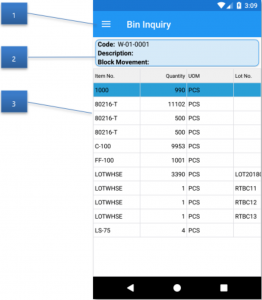
| Callout ID | Description |
|---|---|
| 1 | The available menu options:
|
| 2 | Bin details. |
| 3 | Bin contents for the bin. |
Bin Contents
The Bin Contents displays all the items that are in the bin. This information is driven from the Bin Contents, but any lines with a quantity of zero have been filtered out.
Bin Inquiry Bin Contents Columns
The Bin Contents can show the following columns:
| Column | Description |
|---|---|
| Item No. | The item number entry. |
| Variant | The variant code for the entry. |
| Quantity | The quantity of that item in the bin. |
| UOM | The Unit of Measure for the Bin Content entry. |
| Description | The item description. |
| Description 2 | The item description 2. |
| Lot No. | The Lot No. of the Bin Content entry (if grouping by lot). |
| Serial No. | The Serial No. of the Bin Content entry (if grouping by lot). |
Bin Inquiry Menus
The following menus are available when viewing a bin. Menus may be added or removed as required from the Device Menus page under the BIN_INQ_DOC Application.
Close (Menu)
This will close the screen and bring the user back to the Lookup List screen.
Whse. Entries (Menu)
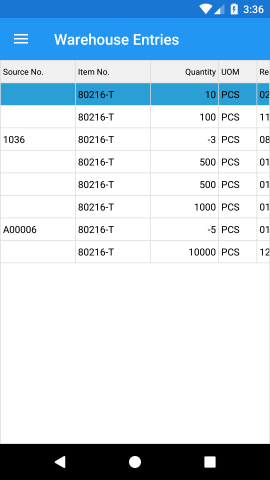
The Warehouse Entries page provides a summary of the most recent activity for the bin. The entries are filtered based on the selected Bin Content record.
You may control the number of transactions shown by setting Item Inquiry Max. Transactions in the Warehouse Insight Setup page.
Print (Menu)
When you press the menu Print, a request will be sent to Business Central to print a bin label. You can configure which label report is run in the Insight Works Report Selections with the Bin Label usage.
The software provides a sample report that can be used as a reference for printing Bin Labels (e.g., report WMDM Bin Label, ID: 23044513).
License Plates (Menu)
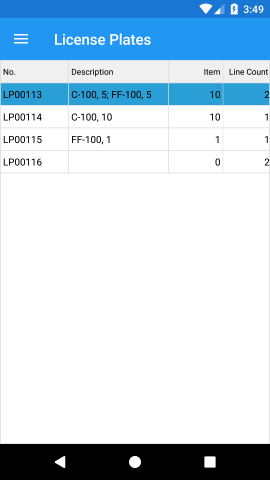
The License Plates page lists the license plates that are currently in the bin. Select a license plate and press Show License Plate to view details.
Still need help?
Ask other Business Central users in the Insight Works community, or send the details to the support team. Include the steps you took and any error message you saw.