
Available in Dynamic Ship 2.7 and newer, you can use a new feature that allows you to override the source of a sales document’s contact information for the shipment. The contact information includes the contact’s name, email, and phone number.
You can configure this feature globally on the Dynamic Ship Setup page or customer specific on the Dynamic Ship Customer Options page in Business Central. There are three override configurations in the setup page, the source to pull the information from, the fields to override, and how to respect a sales order’s ship-to code.
Default Behavior
The default source for the contact information is determined by the following:
- If the source document has the Ship-To Code defined: All the contact information is pulled from the related Ship-To Address
- If the source document has the Ship-To Code set to “Default” or “Custom”: The phone number is pulled from the sell-to Customer, and the contact’s name and phone number are pulled from the source document’s Ship-to Contact and Ship-to Phone No. field.
Customer Contact Override Fields
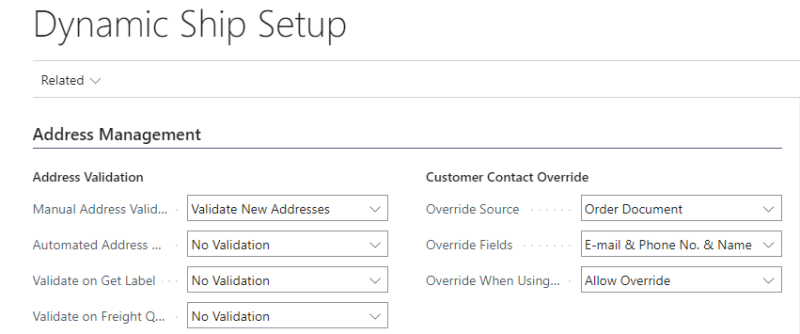
Override Source
The Override Source field is located on the Dynamic Ship Setup and the Dynamic Ship Customer Options pages in Business Central. The Override Source field determines where the override contact information is pulled from. Each option represents a table.
For example: Sell-To Contact pulls information from the Sell-To Contact Card. This configuration works alongside the Override Fields configuration.
Override Fields
The Override Fields is located on the Dynamic Ship Setup page in Business Central. The Override Fields configuration determines which part of the contact information is overridden with the Override Source field. This configuration affects both the Dynamic Ship Setup and the Dynamic Ship Customer Options pages.
The Override Fields options are:
- E-Mail & Phone
- E-Mail & Phone & Name
Override When Using Ship-To Code
The Override When Using Ship-To Code field is located on the Dynamic Ship Setup page in Business Central. The Override When Using Ship-To Code field determines the importance level of the override configurations. If you review the Default Behavior section, the source document’s Ship-To Code is the primary source.
When Override When Using Ship-To Code is set to “Do Not Override”, it overrides the contact information when there is no Ship-To Code on the source document.
When Override When Using Ship-To Code is set to “Allow Override”, it allows the related Override Source and Override Fields to be the primary source (e.g., if the source document has a Ship-To Code, its contact information is overridden). This configuration affects both the Dynamic Ship Setup and the Dynamic Ship Customer Options pages.
Examples
Sales Order
Here is a sales order, the source document, being shipped. Each of the columns below are tables associated to the sales order, and the row is the record that relates to the order.
| Sales Order | Ship-To Address | Customer | Sell-To Contact | Bill-To Customer | Bill-To
Contact |
| Sell-To Contact: Jim
Sell-To Email: Ji*@*.com Sell-To Phone: JIM-1111 Ship-To Code: ‘’ |
Contact: Bob
E-Mail: Bo*@*.com Phone No.: Bob-3333 |
Contact: Sue
E-Mail: Su*@*.com Phone No.: Sue-4444 |
Contact: Jon
E-Mail: Jo*@*.com Phone No.: Jon-5555 |
Contact: Cat
E-Mail: Ca*@*.com Phone No.: Cat-6666 |
The following is what Dynamic Ship uses with the following configurations:
Configuration 1
| Field | Setting |
| Override Source | Source Document |
| Override Fields | E-Mail, Phone, and Name |
| Override When Using Ship-To Code | Do Not Override |
| Result |
| Contact = Jim, Email = Ji*@*.com, Phone No = Jim-1111 |
The contact information is pulled from the source document (the Sales Order) because this order has no ship-to code. The Override Source is set to Source Document, and all three contact fields were set via the Override Fields configuration.
Configuration 2
| Field | Setting |
| Override Source | Default |
| Override Fields | E-Mail & Phone & Name |
| Override When Using Ship-To Code | Do Not Override |
| Result |
| Contact = Jim, Email = Bo*@*.com, Phone No = Bob-3333 |
The information is using the base Dynamic Ship behavior as the Override Source is set to Default. This is the only scenario where the configuration Override Fields and Override When Using Ship-To Code are irrelevant.
Sales Order with Ship-To Code
Here is a sales order, the source document, being shipped using a ship-to code. Each of the columns below are tables associated to sales order, and the row is the record that relates to the order.
| Sales Order | Ship-To Address | Customer | Sell-To Contact | Bill-To Customer | Bill-To
Contact |
| Sell-To Contact: Jim
Sell-To Email: Ji*@*.com Sell-To Phone: JIM-1111 Ship-To Code = LA |
Name: Mary
E-mail: Ma**@*.com Phone No.: Mary-2222 Code = LA |
Contact: Bob
E-Mail: Bo*@*.com Phone No.: Bob-3333 |
Contact: Sue
E-Mail: Su*@*.com Phone No.: Sue-4444 |
Contact: Bill
E-Mail: Bi**@*.com Phone No.: Bill-5555 |
Contact: Cat
E-Mail: Ca*@*.com Phone No.: Cat-6666 |
Here is what Dynamic Ship uses with the following configurations:
Configuration 1
| Field | Setting |
| Override Source | Sell-To Contact |
| Override Fields | E-Mail & Phone & Name |
| Override When Using Ship-To Code | Do Not Override |
| Result |
| Contact = Mary, Email = Ma**@*.com, Phone No = Mary-2222 |
None of the contact information was pulled from the Sell-To Contact record (Sue) is because this order had a Ship-To Code with the configuration set to not override in this situation.
Configuration 2
| Field | Setting |
| Override Source | Bill-To Customer |
| Override Fields | E-Mail & Phone |
| Override When Using Ship-To Code | Allow Override |
| Result |
| Contact = Mary, Email = Bi**@*.com, Phone No = Bill-2222 |
The contact information has been overridden with the Bill-To Customer. Mary is still the contact because only E-mail & Phone are overridden; the name continues to use the default Dynamic Ship behavior.
Still need help?
Ask other Business Central users in the Insight Works community, or send the details to the support team. Include the steps you took and any error message you saw.