
The Related Items in Insight Works Counter Sales alerts users for related and paired items during the order entry process. The order processor can inform the customer of the related items and quickly add them to the current order if needed.
To configure Related Items navigate to the Counter Sales Related Items page. On the page, choose the new or edit action from the ribbon to add or modify item relationships. The Item fields specify the original item, that is the item the customer is planning to buy, whereas Related Item fields specify the related or paired item, that is the item the order processor can suggest to the customer as an additional purchase.
To access Related Items from the Counter Sales Order page, click on the Related Items action from the Lines menu.

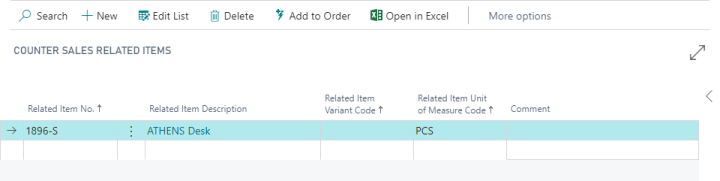
From the page you can quickly add to the existing order by selecting the related item to add and choose the Add to Order action from the ribbon. You will be prompted with a dialog to enter the quantity to add and by choosing OK the related item will be added to the order.
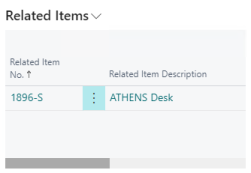
To access Related Items from the Counter Sales Quick Scan page, after scanning the barcode the Related Items FactBox will update. The FactBox alerts the order processor of any related or paired item for the scanned item and they can quickly add a related item to the order by choosing the Add to Order action.
Still need help?
Ask other Business Central users in the Insight Works community, or send the details to the support team. Include the steps you took and any error message you saw.