
You can add a custom image to the home screen of the Warehouse Insight application on your device. This can be useful if you want to display corporate branding information, or if you have multiple device configurations and you want to see which configuration your device is using at a glance, without having to go into the configuration menu on the device. Each device configuration can display one image.
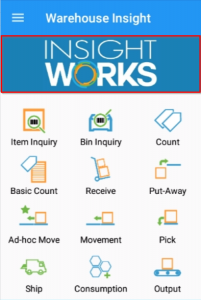
Your image will display at the top of the screen as shown with the Insight Works logo here:
To add an image
- In Business Central, go to the Warehouse Insight Device Configurations (or WMS Express Device Configurations) page and select the device configuration you want to modify.
- On the Miscellaneous FastTab, set Use Device Logo to “Yes.”
- Upload your image and manually specify the height in pixels.
- Close the page and reload the configuration on your device.
- The image will now display on your device.
Still need help?
Ask other Business Central users in the Insight Works community, or send the details to the support team. Include the steps you took and any error message you saw.