
Some versions of Business Central extensions, including those from Insight Works and other providers, inserted data in a “Service Connection” table. Starting with Business Central 24, Microsoft has flagged this table as a temporary table, preventing data from being stored in it and generating errors if it already contains data. If this table has data in it from previous versions, Microsoft will prevent you from upgrading to Business Central 24 without performing manual steps.
To address the issue, you can either manually delete the records from the table or manually update the extensions from the Business Central Admin Center.
Option 1: Delete the data manually
- Install Insight Works’ free Import Export Powertool from AppSource.
- Navigate to the Import Export Powertool Setup page in Business Central and complete the setup.
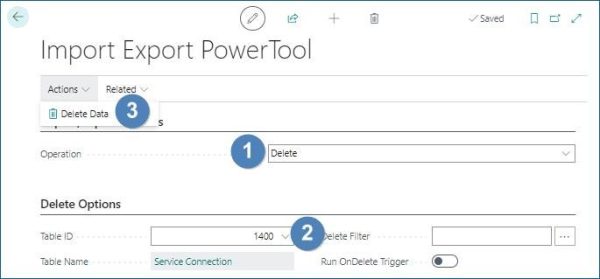
- Set the Operation field to Delete.
- Set the Table ID field to 1400.
- Select Actions / Delete Data to delete all records from the table.
Option 2: Update the extensions manually
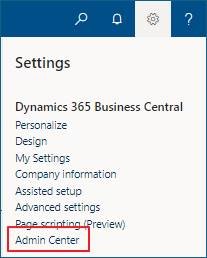
- Select the
 icon / Admin Center in Business Central.
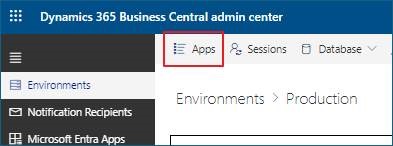
- Select the environment to update and select Apps.
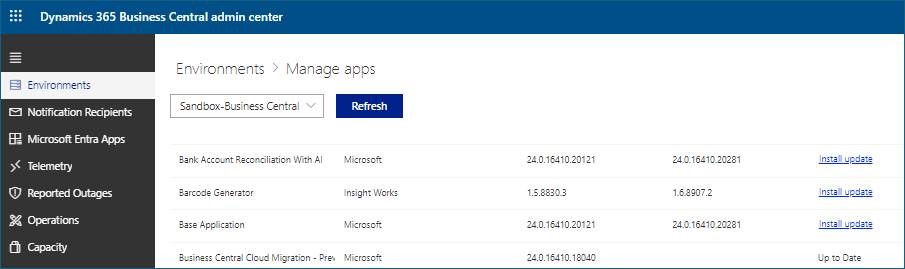
- Select Install update for all extensions with that option.
Once the extensions have been updated, you will be able to upgrade to Business Central 24 using the standard process.
Still need help?
Ask other Business Central users in the Insight Works community, or send the details to the support team. Include the steps you took and any error message you saw.