
If customers (or partners) have issues and submit a ticket to Insight Works’ support portal, the time required to solve the issue will greatly depend on the information submitted to Insight Works.
Here is a list of things that should be included in a ticket to Insight Works.
| WHAT INFORMATION TO INCLUDE | DETAILS |
|---|---|
| First and Last Name | The first and last name of the person leading the support request. This should be someone who is familiar with the issue and can respond to follow-up questions. |
| This is the main method we’ll use to follow up. Please enter the email of the person who is actively managing the issue, not a generic support inbox unless monitored. | |
| Phone | Optional, but very helpful if the issue is time-sensitive or we need to clarify something quickly. |
| End User Company Name | This is not the partner or reseller name (if applicable). Please specify the company where the issue is occurring, i.e., the company that is using the product. This is especially important when we work through partners so we can properly associate the issue with the right end user. |
| Related Insight Works App | Select the specific Insight Works app the issue is related to. If you’re encountering issues across multiple apps, please submit separate support tickets for each app. This allows us to route the issue to the right team and resolve it more efficiently. |
| What Option Best Describes You? | End user: You work directly at the company where the Insight Works app is being used. You are the person or team experiencing the issue firsthand. Integrator / Consultant / VAR: You are a Microsoft Partner, consultant, or independent contractor helping a client implement or support Business Central and/or Insight Works apps. Authorized Insight Works reseller: You’re part of Insight Works’ authorized reseller network and may be submitting this on behalf of a client. |
| Version of Business Central or NAV | Include the full version number (e.g., Business Central 21.5, NAV 2018 CU12). Some issues are version-specific, and knowing this helps us determine compatibility or known issues. The version number can be found in the “Help” section of your Business Central instance. |
| Business Central / NAV Installation Type | Let us know whether your environment is hosted in the cloud (SaaS/Cloud) or deployed locally (On-Premise). This impacts how we approach troubleshooting, licensing, and compatibility. If you’re unsure, select Unknown, but note that this may slow down resolution. |
| Short Explanation of Issue | This is your one-sentence summary of what’s going wrong. Think of it like the subject line of an email — it should be short but meaningful. |
| Additional Details | This is your space to paint the full picture of the issue. The more clear and complete the details, the faster we can help. Try to include as much of the following as possible: Steps to Reproduce (if applicable) Describe the exact steps someone would take to encounter the issue. This helps us reproduce it in our own environment. If it’s happening in a production environment it may be necessary to copy it to a Sandbox.
Example:
Environment Let us know where the issue occurs:
Example: “This issue only happens in Prod and not in Test. It’s isolated to terminals in Work Center A.” Scope of the Issue Who or what is affected? This helps us determine if the issue is global or isolated. Include details like:
Example: “The issue only affects users assigned to the ‘Night Shift’ role in Work Center B.” When Did the Issue Start? Help us understand whether this is:
Example: “This started after we changed how production orders are printed.” Patterns (if sporadic) If the issue doesn’t happen every time, share any trends you’ve noticed:
Example: “It only happens right after viewing the Production Scheduler page.” Call Stack (if available) If you encountered an error message in Business Central or NAV that includes a call stack, please attach it. A call stack provides a behind-the-scenes view of what the system was doing when the error occurred — it’s incredibly helpful for diagnosing technical issues. How to Retrieve the Call Stack: In Business Central (Web Client):
In NAV or On-Prem Business Central (Windows Client):
|
| Screenshots | Include screen captures of exact error messages if possible. This saves us guesswork. 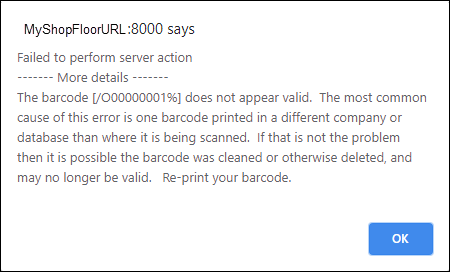 |
Still need help?
Ask other Business Central users in the Insight Works community, or send the details to the support team. Include the steps you took and any error message you saw.